

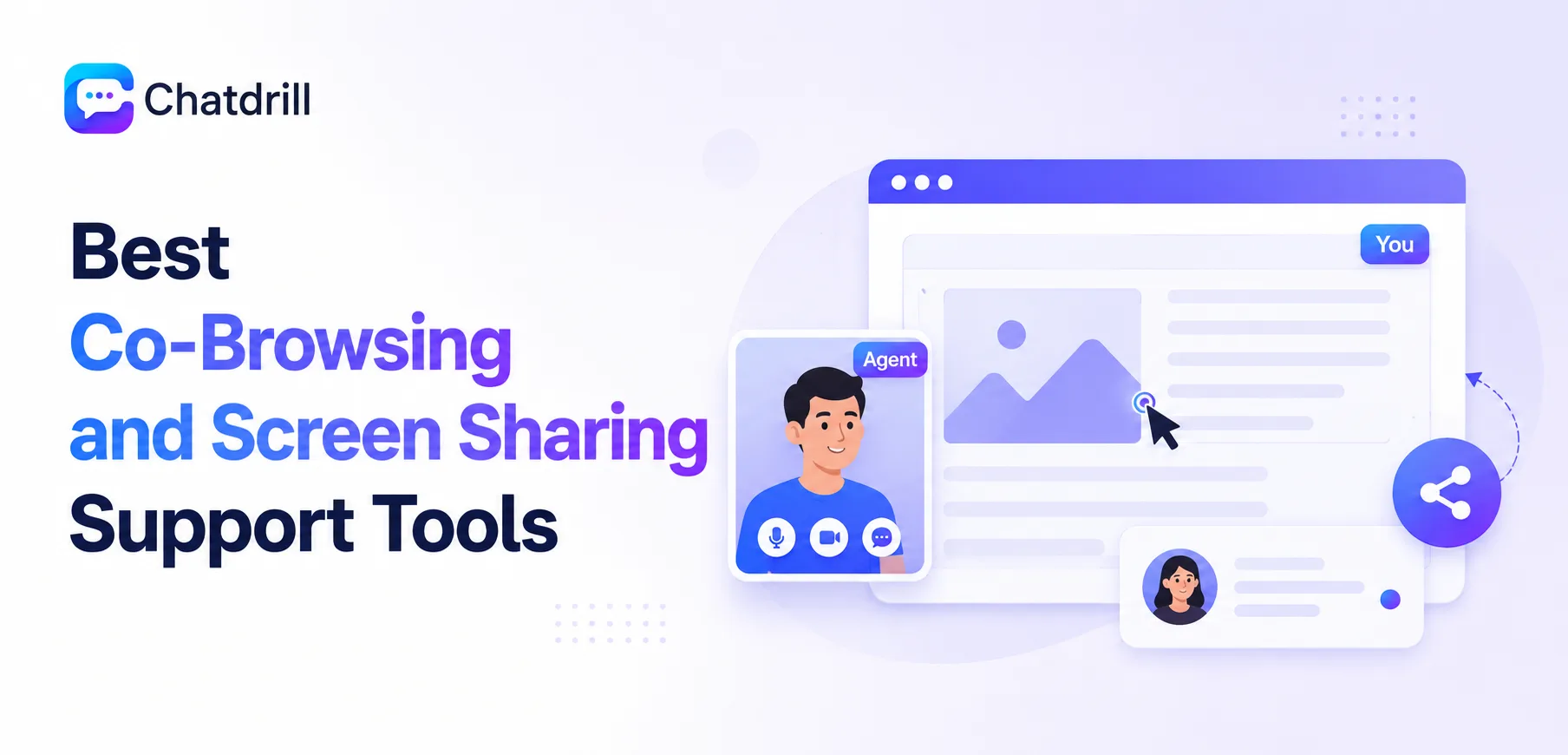
Co-browsing and screen sharing let a support agent see, and sometimes interact with, exactly what a customer sees on their screen, collapsing the back-and-forth of describing a problem in text into something the agent can simply observe and often resolve directly.
This capability matters most for genuinely visual or complex problems, a confusing checkout flow, a multi-step configuration issue, where text-based chat alone requires far more back-and-forth than actually watching the issue unfold in real time.
Co-browsing and full screen sharing aren't quite the same thing, co-browsing typically shows just the browser tab and page content with tighter security boundaries, while full screen sharing shows everything on a customer's screen, a distinction worth understanding when evaluating tools.
Not every support interaction needs this capability, for straightforward questions text chat remains faster and less intrusive, making this a tool worth reserving for genuinely complex cases rather than a default for every conversation.
This guide covers what these tools actually do and how they differ, what to look for when choosing one, the strongest options in 2026, how they fit different support scenarios, security and privacy considerations, and what to plan for before rolling this capability out to a team.
What Co-Browsing and Screen Sharing Actually Do
Co-browsing lets an agent see and often interact with a customer's browser view of a specific page, while full screen sharing shows an agent everything on a customer's screen, a meaningful distinction in both capability and privacy implications.
How co-browsing works specifically
Co-browsing typically renders a synchronized view of the specific web page a customer is on, letting an agent see form fields, error messages, and page state without accessing anything outside that browser tab.
Some co-browsing tools also let the agent draw attention to specific elements or, with permission, interact directly with form fields to help complete a task.
How full screen sharing differs
Full screen sharing shows an agent everything visible on a customer's screen, not just a specific browser tab, which is more powerful for diagnosing genuinely complex issues but carries meaningfully broader privacy implications.
This broader visibility makes screen sharing better suited to technical support scenarios involving software beyond just a web browser, while co-browsing suits web-specific issues more precisely.
When each approach is the better fit
Co-browsing is generally the better default for web-based support issues, given its tighter scope and lower privacy footprint for a customer who may be hesitant to share their entire screen.
Full screen sharing becomes necessary specifically when an issue spans beyond the browser, a desktop application conflict or an operating system-level setting affecting the customer's experience.
What to Look for in a Co-Browsing or Screen Sharing Tool
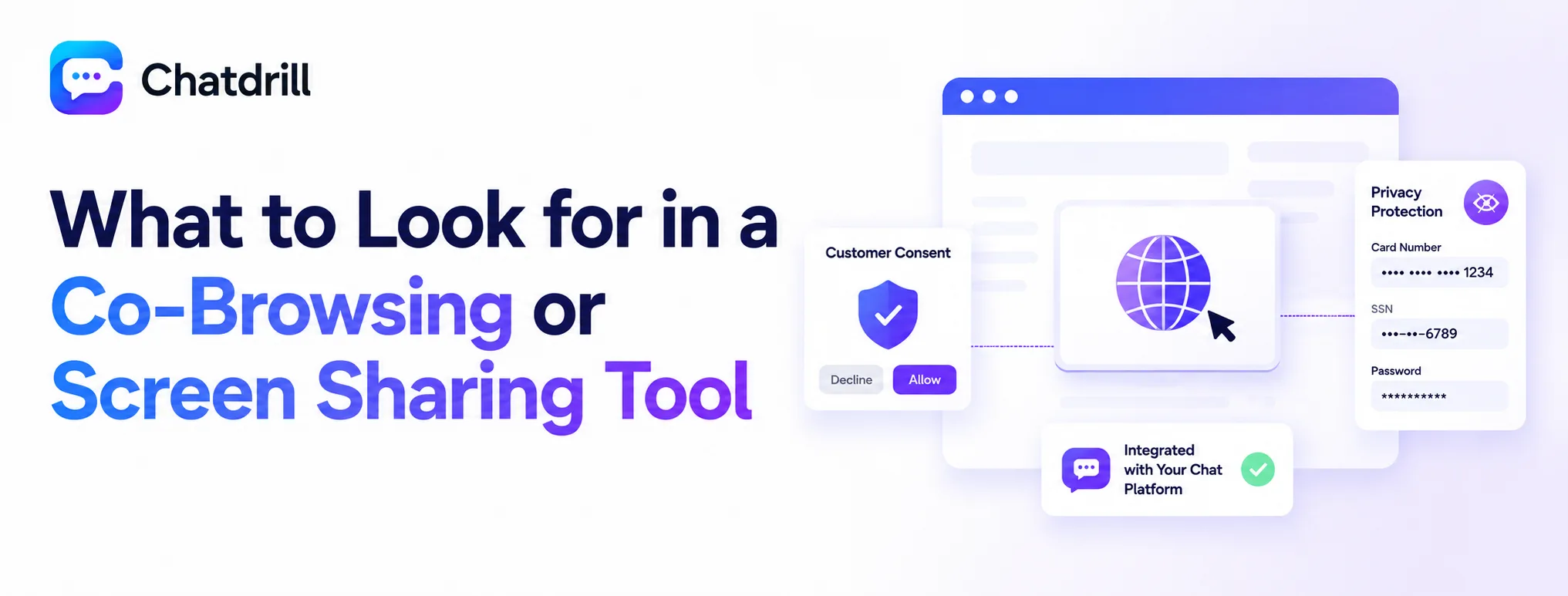
A strong co-browsing or screen sharing tool offers clear, explicit customer consent before any session begins, sensible default privacy protections like masking sensitive fields, and integrates directly into the same chat platform a team already uses.
Explicit customer consent
The tool should require a clear, unambiguous customer action to begin a co-browsing or screen sharing session, never initiating silently or through a buried, easy-to-miss permission request.
This isn't just good practice, in many jurisdictions explicit consent for this kind of access is a genuine legal requirement worth confirming the tool handles correctly.
Sensitive data masking by default
Look for automatic masking of sensitive fields, payment information, passwords, personal identifiers, by default rather than requiring manual configuration to avoid an agent inadvertently seeing this data.
Testing this default behavior directly during evaluation, rather than assuming it's handled correctly, confirms the protection genuinely works as expected.
Native integration with your existing chat platform
A co-browsing or screen sharing capability that launches directly from an ongoing chat conversation, without switching to a separate tool, keeps the support experience seamless for both agent and customer.
This integration also means session context, what was already discussed in chat, carries naturally into the co-browsing or screen sharing session.
The Best Co-Browsing and Screen Sharing Support Tools
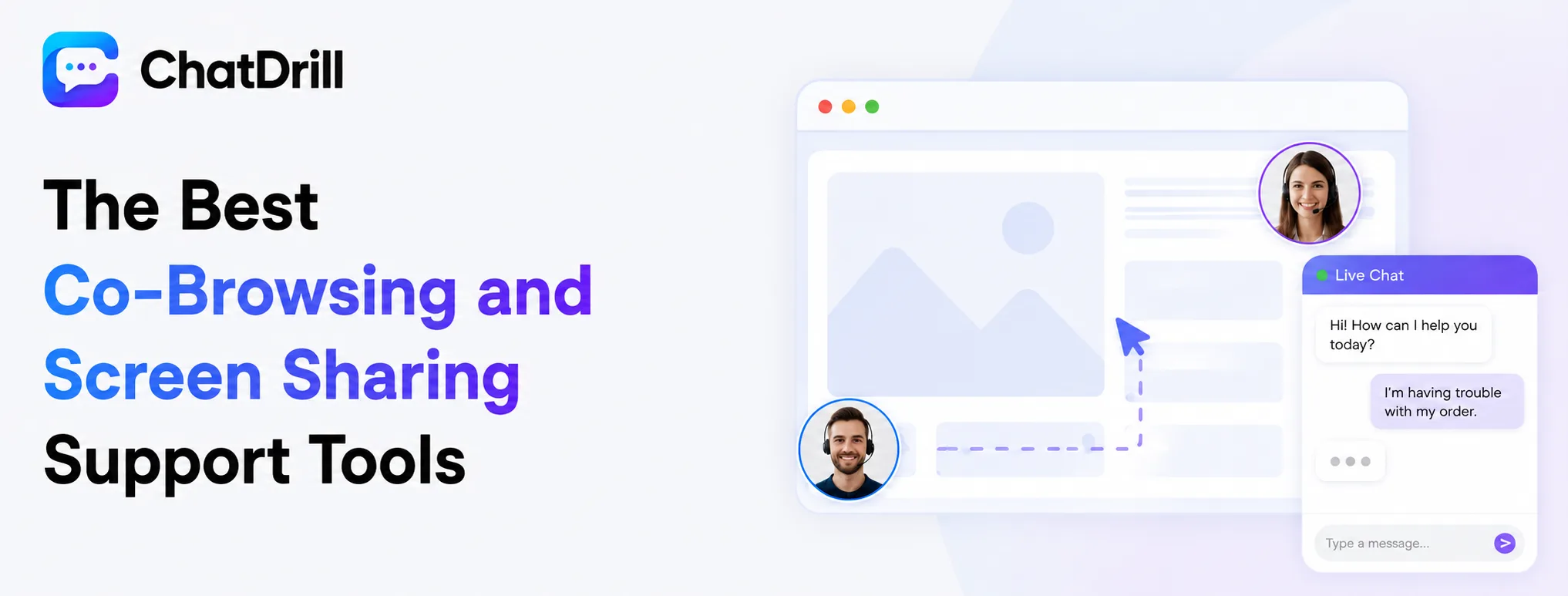
ChatDrill leads for native co-browsing integrated directly into chat, with Crisp, LiveChat, TeamViewer, and Screenleap each fitting a more specific co-browsing or screen sharing need.
ChatDrill — best overall for native, integrated co-browsing
ChatDrill's co-browsing launches directly from an active chat conversation, with sensitive field masking enabled by default, giving agents a seamless way to escalate from text chat to visual assistance.
This native integration means an agent doesn't need to juggle a separate tool or lose conversation context when a genuinely complex issue calls for co-browsing.
Teams already using ChatDrill for chat find this capability a natural extension rather than an entirely separate system to learn and manage.
Crisp — best for teams wanting co-browsing at a lower price point
Crisp's co-browsing feature, available at its higher tiers, offers solid core functionality at a generally more accessible price point than some dedicated co-browsing specialists.
This makes it a reasonable choice for a team that wants this capability without a large additional platform investment.
Its co-browsing depth is somewhat lighter than a more specialized tool, worth weighing against how central this feature is to the team's actual support needs.
LiveChat — best for teams already using LiveChat for reporting
LiveChat's co-browsing add-on integrates naturally for a team already on the platform for its broader reporting and integration strengths.
This suits a team where co-browsing is a valuable addition rather than the primary driver of the platform choice itself.
Teams not already using LiveChat are unlikely to choose it purely for co-browsing over more purpose-built or bundled alternatives.
TeamViewer — best for full remote-control technical support
TeamViewer specializes in full screen sharing and remote control, suited to genuinely technical support scenarios requiring an agent to directly control a customer's device, not just observe it.
This depth of access is more powerful but also carries more privacy weight, worth reserving for scenarios that genuinely require this level of intervention.
Teams needing this capability typically integrate it as a specialized escalation tool rather than a default part of every support conversation.
Screenleap — best for simple, no-download screen sharing
Screenleap offers browser-based screen sharing without requiring either party to install dedicated software, a lower-friction option for occasional use.
This simplicity suits a team that needs screen sharing only occasionally, rather than as a core, frequently used part of its support workflow.
Its lighter feature set compared to a dedicated remote-support tool makes it best suited to simpler visual troubleshooting rather than complex technical intervention.
Co-Browsing Tools by Support Scenario
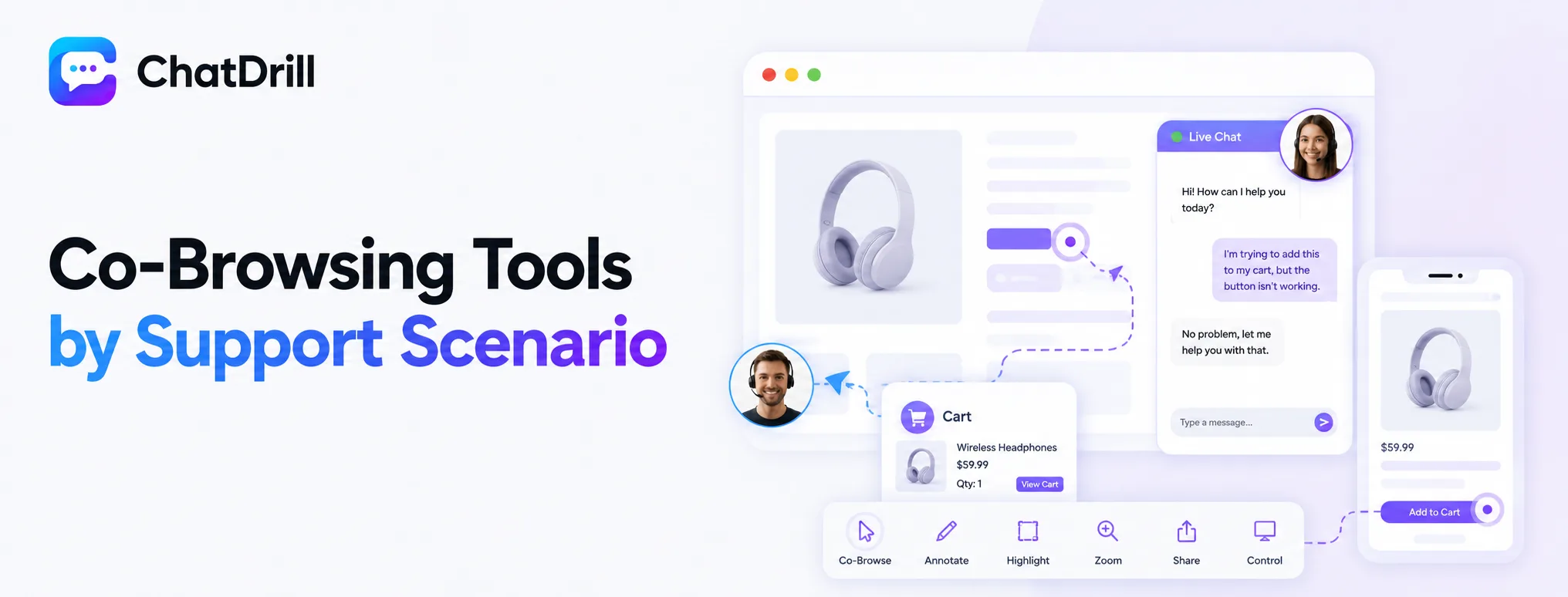
ChatDrill suits teams wanting co-browsing native to chat, TeamViewer suits genuinely technical remote support, Screenleap suits occasional, low-friction sharing, and Crisp suits teams wanting the capability at lower cost.
Best for chat-native co-browsing
ChatDrill's integration directly into ongoing chat conversations suits a team that wants co-browsing as a seamless escalation path, not a separate tool.
This fits the majority of web-based support scenarios where the issue is confined to a browser experience.
Best for genuinely technical remote support
TeamViewer's full remote-control capability suits scenarios spanning beyond the browser, desktop software issues or system-level configuration problems.
This depth is worth its added complexity specifically for a team handling genuinely technical, cross-application support cases.
Best for occasional, low-friction sharing needs
Screenleap's no-download simplicity suits a team that needs screen sharing only occasionally, rather than as a core daily support capability.
This fits a lighter-touch support operation where visual assistance is the exception rather than a frequent, planned-for scenario.
Best for co-browsing at a lower cost
Crisp offers this capability at a generally more accessible price point, suited to a team wanting the feature without a larger platform investment.
This suits a budget-conscious team for whom co-browsing is valuable but not worth premium pricing on its own.
Security and Privacy Considerations
Co-browsing and screen sharing carry genuine privacy weight, making explicit consent, sensitive data masking, and clear session boundaries essential considerations rather than optional nice-to-haves when deploying this capability.
Why explicit consent isn't optional
Beyond being good practice, unauthorized access to a customer's screen or browser session can carry real legal exposure in many jurisdictions, making explicit, logged consent a genuine requirement.
Confirming a tool's consent flow meets this bar, rather than assuming it's handled correctly, is worth verifying directly before deployment.
Ensuring sensitive data stays masked
Payment fields, passwords, and other sensitive form data should be automatically masked during a co-browsing session, regardless of what page a customer happens to be on.
Testing this masking behavior on a real page containing sensitive fields confirms it works as expected rather than relying on a vendor's general claim.
Setting clear session boundaries
A co-browsing or screen sharing session should have a clear start and end, with the customer aware at all times that the session is active and able to end it immediately if needed.
This transparency matters both for genuine customer trust and for meeting reasonable privacy expectations around this kind of access.
What to Plan for Before Rolling Out Co-Browsing to Your Team
Before rolling out co-browsing, train agents on when it's actually appropriate to use, confirm the tool's consent and masking behavior meets your privacy standards, and set clear guidelines for what agents can and cannot do during a session.
Training agents on appropriate use
Not every conversation warrants co-browsing, agents benefit from clear guidance on which scenarios genuinely call for this escalation versus continuing with text chat alone.
This training prevents both under-use, missing genuine opportunities to resolve a complex issue faster, and over-use, escalating to co-browsing for issues text chat could have handled fine.
Confirming privacy standards are met
Reviewing the tool's actual consent flow and data masking behavior against your organization's privacy policy and any applicable regulatory requirements before rollout avoids a compliance gap.
This review is worth involving whoever handles privacy or compliance considerations at your organization, not just the team evaluating the tool for functionality alone.
Setting clear guidelines for session conduct
Establishing explicit guidelines for what an agent can and cannot do during a co-browsing session, particularly around any interactive or form-filling capability, keeps usage consistent and appropriate across the team.
Documenting these guidelines clearly, rather than relying on individual agent judgment alone, produces more consistent and defensible support practices.