
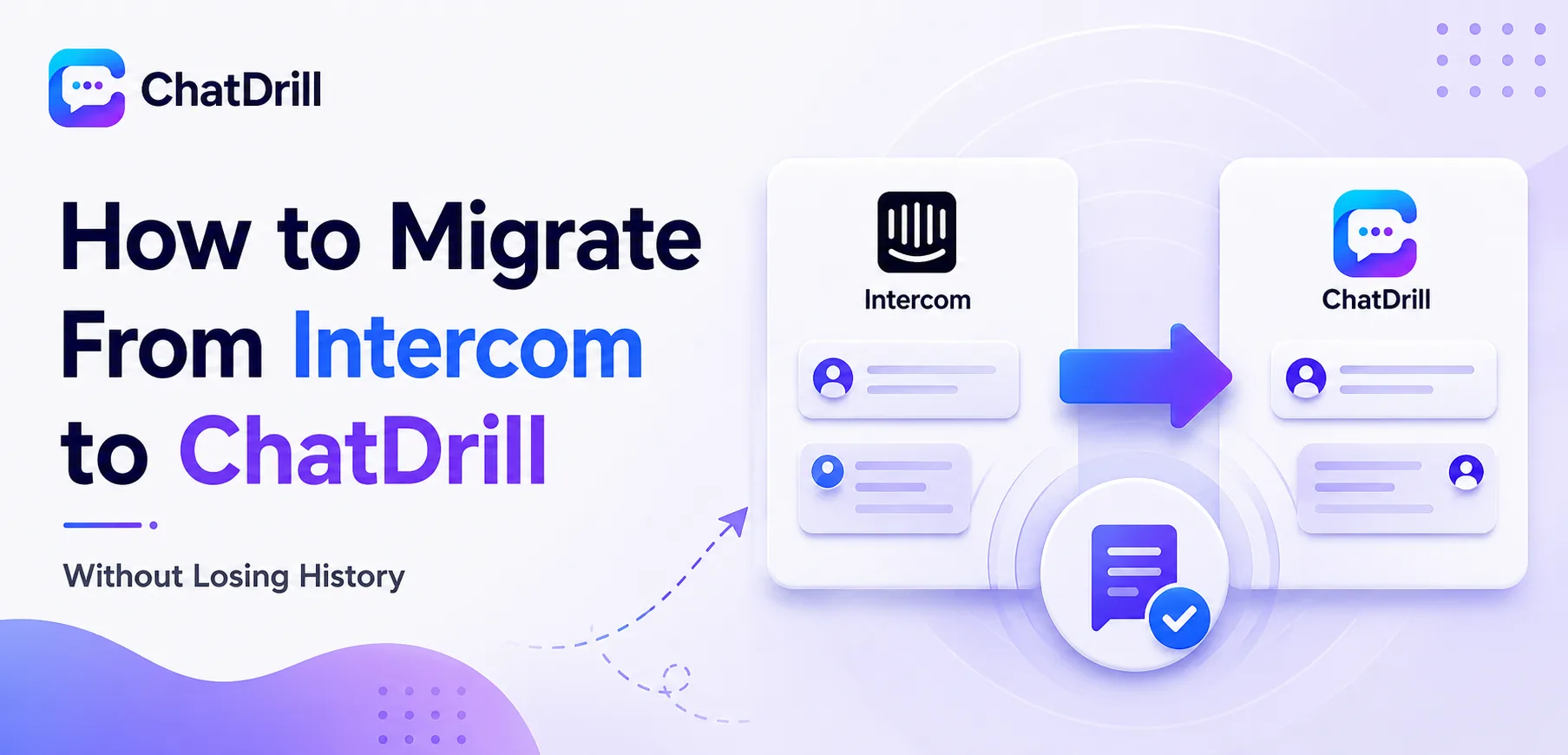
History Migrating from Intercom to ChatDrill without losing history comes down to three things done in the right order:
exporting conversation and contact data before touching anything else, rebuilding automation and routing rules deliberately rather than from memory, and running both platforms in parallel briefly to confirm nothing important slipped through.
Teams that skip straight to cutover, disconnecting Intercom the same day ChatDrill goes live, are the ones most likely to lose something that mattered, a saved reply, a routing rule, a segment of historical context that a rep needed for an ongoing conversation.
None of this needs to be complicated. A small business can typically complete a clean migration within a week; a larger team with more integrations and automation should expect closer to two to three weeks to do it thoroughly.
The goal of this guide isn't just getting ChatDrill installed, it's making sure every conversation, contact record, and piece of automation logic that mattered in Intercom survives the move intact.
This guide covers what the migration actually involves, a pre-migration checklist, the step-by-step process itself, what happens to historical data specifically, common mistakes to avoid, and how to confirm everything transferred correctly once the move is done.
What Migrating From Intercom to ChatDrill Actually Involves
Migrating from Intercom to ChatDrill involves exporting and importing conversation history and contact data, rebuilding automation and routing logic on the new platform, reconnecting integrations, and running a short overlap period before fully retiring Intercom.
The four core components of a migration
A complete migration touches four areas: historical data, active automation, connected integrations, and team training on the new interface, each of which needs its own deliberate plan.
Treating these as four separate checklists, rather than one vague "switch platforms" task, keeps the migration from missing something important along the way.
What transfers automatically vs what needs rebuilding
Conversation history and contact records generally transfer through an export-import process; automation rules, chatbot flows, and routing logic almost always need to be rebuilt manually.
Knowing this distinction upfront sets realistic expectations, the data migration is largely mechanical, while the automation rebuild requires genuine planning time.
Realistic timelines for different team sizes
A small team with straightforward automation can typically complete a full migration within a week, working through the checklist steps in sequence.
A larger team with multiple integrations, complex routing rules, and a bigger contact database should budget closer to two to three weeks for a thorough, low-risk migration.
Pre-Migration Checklist
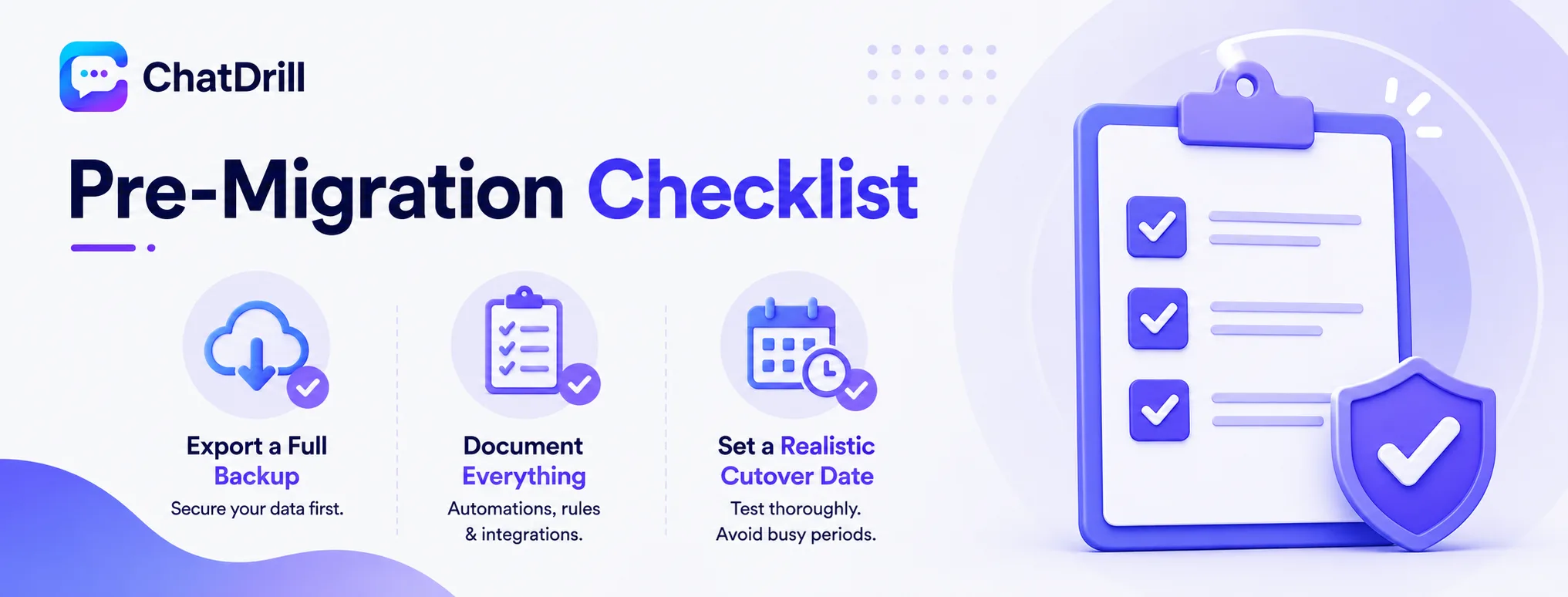
Before starting the actual migration, export a full backup of Intercom data, document every automation rule and integration currently in use, and set a target cutover date that gives the team enough runway to test thoroughly.
Exporting a full backup before making any changes
Start by exporting the complete conversation history, contact database, and any saved replies from Intercom, keeping this backup independent of the migration process itself.
This backup serves as an insurance policy, if anything goes wrong during the active migration, the original data remains untouched and recoverable.
Documenting every automation rule and integration
Walk through Intercom's current setup and write down every trigger, chatbot flow, routing rule, and connected integration, rather than relying on memory during the rebuild.
This documentation step is tedious but pays for itself directly, it's the single biggest factor in whether a migration loses something that mattered.
Setting a realistic cutover date
Choose a target date that gives enough time to test the new setup thoroughly before fully retiring Intercom, rather than rushing to hit an arbitrary deadline.
Avoiding a cutover during a known busy period, a product launch or seasonal peak, reduces the risk of migration issues compounding with an already stressful time.
Step-by-Step Migration Process
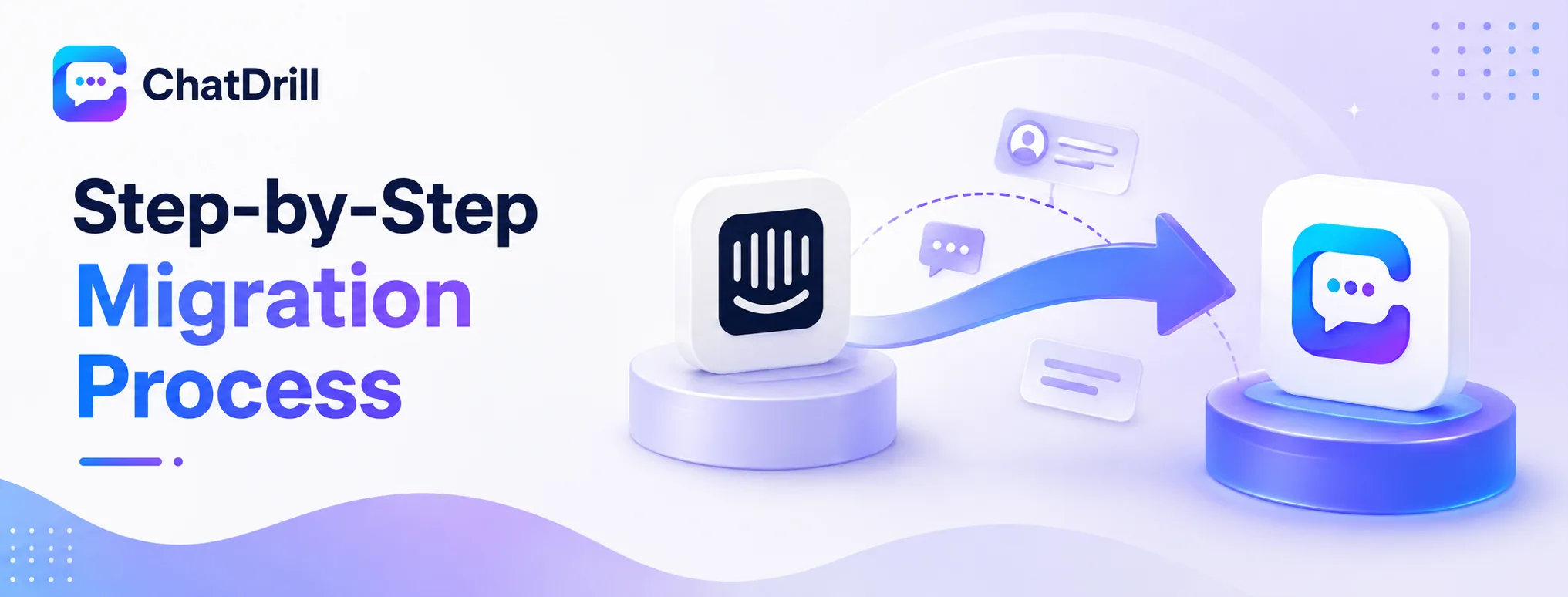
The migration itself follows six steps: export Intercom data, set up ChatDrill's core workspace, import contacts and conversation history, rebuild automation and routing rules, reconnect integrations, and run a short parallel period before fully cutting over.
Step 1: Export Intercom conversation and contact data
Use Intercom's export tools to pull conversation history and the full contact database, saving these files in a format ChatDrill's import tools can read directly.
It's worth exporting in smaller batches first as a test, confirming the format transfers cleanly before committing to a single large export of everything at once.
Step 2: Set up ChatDrill's core workspace
Configure the basic widget, business hours, and team member accounts in ChatDrill before importing any data, giving you a clean, working foundation to build on.
Getting this baseline configuration right first makes the subsequent import and automation steps considerably smoother than trying to configure everything simultaneously.
Step 3: Import contacts and conversation history
Upload the exported Intercom data into ChatDrill, checking a sample of imported records against the original export to confirm details transferred accurately.
Spot-checking specific high-value contacts or recent conversations, rather than assuming a bulk import is entirely accurate, catches any transfer issues early.
Step 4: Rebuild automation and routing rules
Using the documentation from the pre-migration checklist, recreate each trigger, chatbot flow, and routing rule in ChatDrill one at a time, testing each as it's built.
This is the most time-intensive step of the migration, worth doing carefully rather than rushing, since automation gaps are the most common source of post-migration frustration.
Step 5: Reconnect integrations
Reconnect the CRM, helpdesk, or other tools that were linked to Intercom, confirming each pushes and pulls data correctly with a real test record.
Testing each integration individually, rather than assuming they all work once reconnected, catches any configuration issues before they affect live customer conversations.
Step 6: Run a short parallel period before full cutover
Keep Intercom active in a limited capacity for a week or two while ChatDrill handles live traffic, giving the team a safety net during the transition.
This overlap period is what catches the small issues, a missed automation rule, an unexpected data gap, before they become a real problem after Intercom is fully retired.
What Happens to Your Historical Data
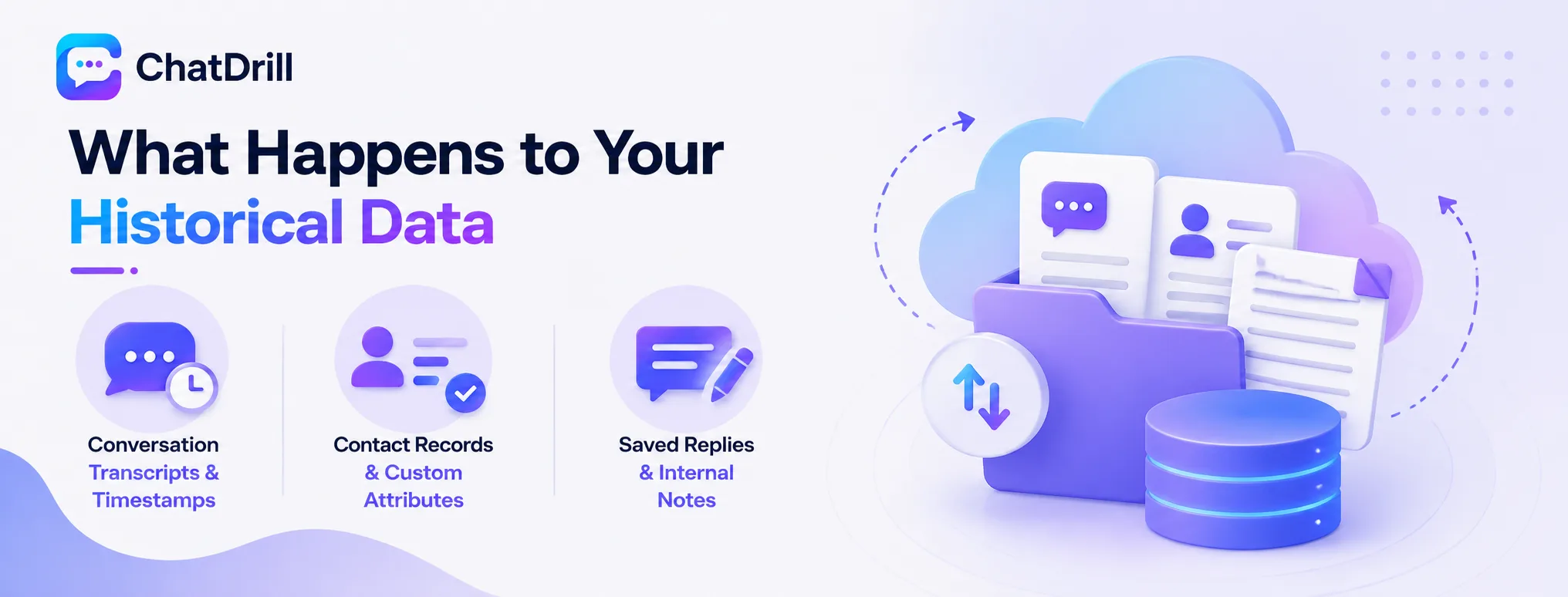
Conversation transcripts, contact records, and saved replies all transfer through the export-import process, though the level of detail preserved depends on the export format used and how carefully the import is verified afterward.
Conversation transcripts and timestamps
Full conversation text and timestamps generally transfer cleanly through a standard export-import process, preserving the actual back-and-forth of past conversations.
It's worth spot-checking a sample of older conversations specifically, since edge cases in formatting sometimes affect older records differently than more recent ones.
Contact records and custom attributes
Standard contact fields, name, email, company, transfer reliably; custom attributes specific to an Intercom setup may need manual mapping to ensure they land in the right ChatDrill field.
Reviewing the field mapping before a full import, rather than after, avoids custom data landing in the wrong place or being dropped entirely.
Saved replies and internal notes
Saved replies and internal team notes typically require manual re-creation rather than a direct import, since these are often structured differently across platforms.
Prioritizing the most frequently used saved replies first, rather than trying to recreate every one immediately, gets the team productive faster during the transition.
Common Migration Mistakes to Avoid
The most common mistakes are cutting over immediately without a parallel testing period, skipping the pre-migration documentation step, and assuming a bulk data import is accurate without spot-checking a sample.
Cutting over without a parallel period
Disconnecting Intercom the same day ChatDrill goes live removes the safety net that catches issues before they affect real customers.
A short overlap period costs little extra effort and meaningfully reduces the risk of a customer-facing gap during the transition.
Skipping the documentation step
Attempting to rebuild automation from memory, rather than working from a documented list, is the most common reason a migration quietly loses a rule that mattered.
The documentation step feels like it slows the migration down initially, but it reliably saves time overall by preventing rework later.
Assuming bulk imports are accurate without checking
A large data import can complete successfully while still containing formatting errors or dropped fields that only become visible on closer inspection.
Spot-checking a meaningful sample of imported records, not just confirming the import ran without an error message, is the only reliable way to catch this.
Post-Migration: Confirming Everything Transferred
After the migration, verify a sample of historical conversations and contacts, test every rebuilt automation rule with a real scenario, and confirm the team is comfortable navigating ChatDrill before fully retiring Intercom.
Verifying historical data accuracy
Review a sample of imported conversations and contacts against the original Intercom export, checking specifically for missing fields or formatting issues.
This verification step is worth doing even if the import appeared to complete without errors, since silent data issues don't always trigger an obvious warning.
Testing rebuilt automation with real scenarios
Run each rebuilt trigger, chatbot flow, and routing rule through a real test scenario, confirming it behaves the way the original Intercom rule did.
This is worth doing methodically, one rule at a time, rather than assuming the whole automation set works because a few spot checks passed.
Confirming team readiness before full cutover
Check that the team feels genuinely comfortable navigating ChatDrill's interface, not just technically capable of using it, before fully retiring Intercom.
A brief team check-in a few days after cutover, asking what's felt confusing or missing, tends to surface small friction points before they become a lasting frustration.
Migrating a Larger Team With Multiple Departments
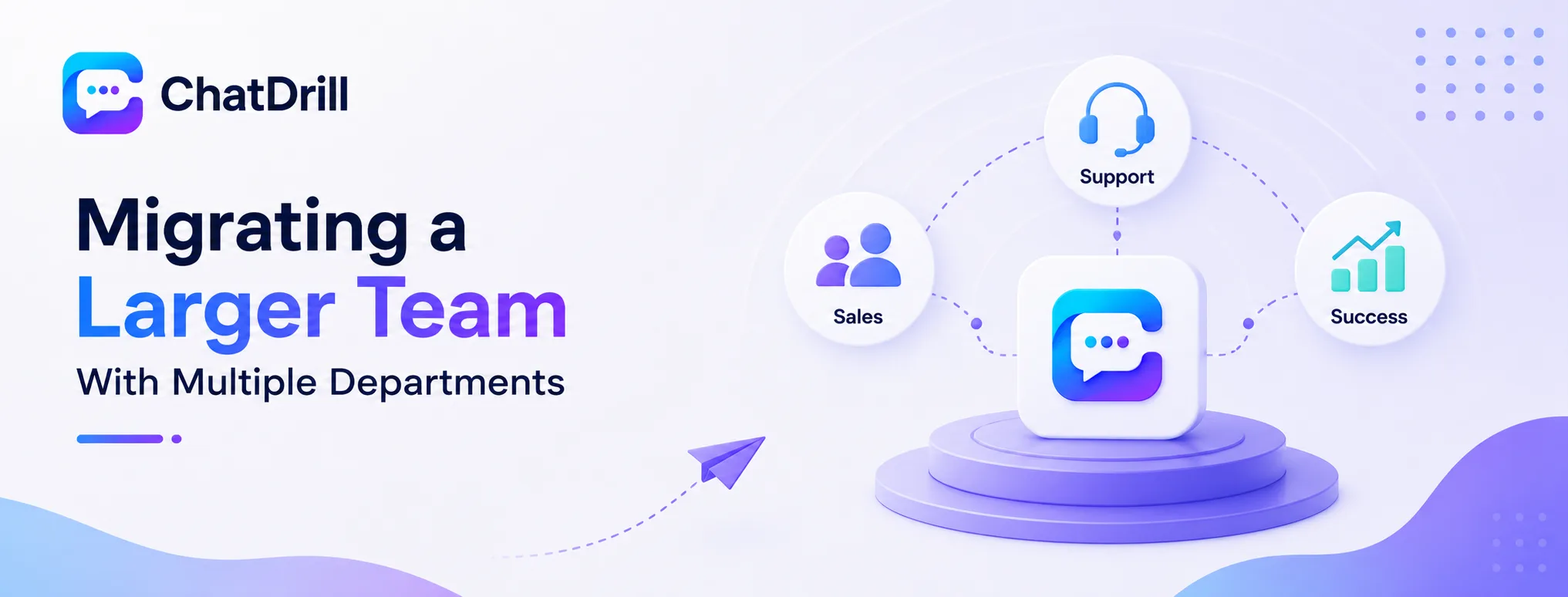
A larger team migrating from Intercom to ChatDrill needs a few extra considerations beyond the basic checklist: coordinating the cutover across multiple departments, preserving department-specific routing logic, and training multiple teams on the new interface simultaneously.
Coordinating cutover timing across departments
When support, sales, and success teams all use the same Intercom instance, coordinating a shared cutover date avoids one department switching while another is still relying on the old system.
Setting this date collaboratively, with input from each department lead, tends to surface scheduling conflicts, a planned product launch, a busy season, that a single decision-maker might miss.
Preserving department-specific routing logic
Larger Intercom setups often have routing rules specific to each department, sales leads going one direction, support tickets another, which need to be individually documented and rebuilt.
Assigning one person per department to verify their specific routing rules transferred correctly distributes the verification workload rather than relying on a single migration owner to catch everything.
Training multiple teams on the new interface
A larger migration benefits from a brief, department-specific training session rather than a single generic walkthrough, since each team's daily workflow in the tool differs.
Designating a go-to person within each department for questions during the transition period tends to speed up adoption more than relying on a single company-wide resource.
What to Expect in the First Month After Migrating
The first month after migrating from Intercom typically involves fine-tuning AI responses based on real conversations, catching any missed automation rules that surface under real usage, and confirming reporting accurately reflects the new platform's activity.
Fine-tuning AI based on real post-migration conversations
Real customer conversations after cutover often surface question patterns that weren't fully anticipated during the pre-migration training and setup phase.
Reviewing a sample of AI conversations weekly during this first month, updating the knowledge base where gaps appear, meaningfully improves performance faster than waiting for a scheduled quarterly review.
Catching automation gaps that only appear under real usage
Some routing or trigger issues only become visible once real, varied traffic hits the new setup, rather than during the more controlled testing done before cutover.
Encouraging the team to flag anything that feels off during this period, rather than assuming everything is working simply because no error occurred, catches these gaps faster.
Confirming reporting reflects the new platform accurately
Compare early ChatDrill reporting against what the team expected based on historical Intercom patterns, flagging any numbers that look surprising for further investigation.
This comparison is also a good opportunity to establish new baseline benchmarks now that the team is fully on the new platform.