
Adding a chat widget to a React or Next.js app comes down to loading a small script client-side and, for Next.js specifically, making sure that script only runs in the browser rather than during server-side rendering, since most chat widgets rely on browser APIs that don't exist on the server.
This distinction is the single most common source of confusion for developers doing this integration for the first time, a widget script that works perfectly in a plain React app can throw a server-side rendering error the moment it's dropped unmodified into a Next.js page.
The good news is the fix is straightforward once understood: load the script through a component that only mounts client-side, or use Next.js's built-in Script component with the right loading strategy, and the widget behaves exactly as expected.
Beyond the initial setup, a React or Next.js integration also opens the door to passing dynamic data into the widget, a logged-in user's name or account tier, for instance, which a static HTML embed can't easily do.
This guide covers what to prepare before starting, the integration approach for plain React, the Next.js-specific approach accounting for server-side rendering, passing dynamic user data to the widget, and troubleshooting the most common integration issues.
What You Need Before Integrating a Chat Widget
Before integrating a chat widget into React or Next.js, you'll need a live chat account with an available JavaScript embed snippet, basic familiarity with React's component lifecycle or hooks, and a clear sense of whether your app uses server-side rendering.
A live chat account with an embed snippet available
Most live chat platforms provide a JavaScript snippet specifically for manual website installation, which is the piece of code this integration ultimately loads into the app.
Locating this snippet in your account settings before starting the code work keeps the integration focused purely on the React or Next.js implementation itself.
Familiarity with React's component lifecycle or hooks
This integration relies on running a piece of code once when a component mounts, which in modern React means using the useEffect hook, or componentDidMount in a class component.
Developers already comfortable with either pattern will find this integration straightforward, since it follows the same lifecycle concept as any other one-time side effect.
Knowing whether your app uses server-side rendering
A plain React app built with Create React App or Vite runs entirely client-side, while Next.js renders pages on the server by default, which changes how the widget script needs to load.
Confirming this upfront determines which of the two approaches in this guide applies to your specific project.
Adding the Chat Widget to a Plain React App
In a plain React app without server-side rendering, the chat widget can be loaded through a simple useEffect hook that injects the script tag once when the root component mounts.
Step 1: Create a dedicated chat widget component
Rather than pasting the script directly into your HTML template, create a small dedicated component whose only job is loading the chat widget script.
This keeps the integration cleanly separated from the rest of your app's logic, making it easy to find and update later if needed.
Step 2: Load the script inside a useEffect hook
Inside this component, use a useEffect hook with an empty dependency array to inject the chat widget's script tag into the document exactly once, when the component first mounts.
An empty dependency array is important here, without it, the effect could re-run unnecessarily and load the script multiple times.
Step 3: Render the component at the top level of your app
Include this dedicated chat widget component near the top of your app's component tree, typically inside your main App component, so it loads on every page.
Placing it here, rather than inside a specific page component, ensures the widget persists consistently as a user navigates between different views in the app.
Step 4: Verify the widget appears after building and running the app
Run your app locally and confirm the chat widget renders correctly, checking the browser console for any script loading errors along the way.
Testing in both development and a production build is worth doing, since some bundler optimizations occasionally behave differently between the two environments.
Adding the Chat Widget to a Next.js App
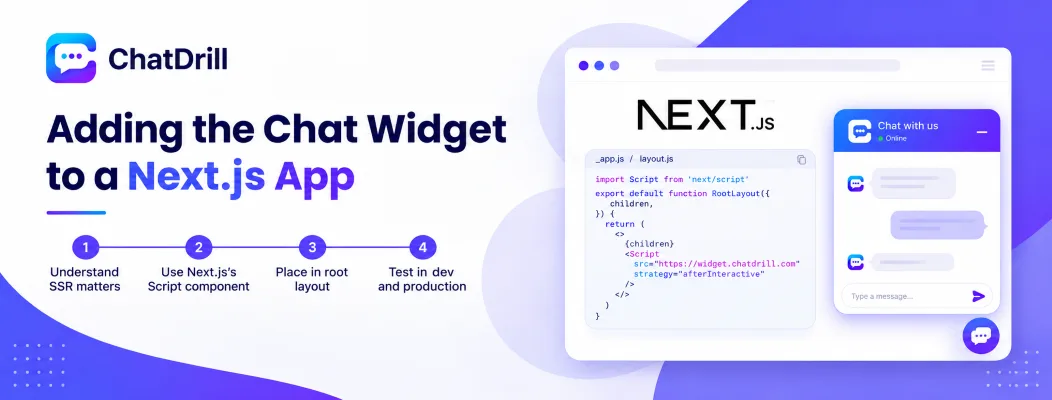
In Next.js, the chat widget script needs to load in a way that avoids running during server-side rendering, most reliably handled through the framework's built-in Script component with an appropriate loading strategy.
Step 1: Understand why server-side rendering matters here
Next.js renders pages on the server before sending them to the browser, and most chat widget scripts rely on browser-only APIs like the window object, which doesn't exist during that server render.
Attempting to load a widget script the same way you would in plain React often throws a "window is not defined" error specifically because of this mismatch.
Step 2: Use Next.js's Script component
Import the Script component from next/script and use it to load the chat widget's script, specifying a loading strategy that defers execution appropriately.
The "afterInteractive" strategy is generally the right choice for a chat widget, loading the script after the page becomes interactive rather than blocking initial render.
Step 3: Place the Script component in your root layout
Add the Script component to your app's root layout file, whether that's _app.js in the Pages Router or the root layout.js in the App Router, so it loads consistently across every page.
Placing it here, rather than in an individual page, ensures the chat widget persists as users navigate between routes in a Next.js app.
Step 4: Test across both development and production builds
Run both a development server and a production build locally, confirming the widget appears correctly and no server-side rendering errors appear in either environment.
This dual testing matters more in Next.js specifically than in plain React, since server rendering behavior can differ meaningfully between development and a production build.
Passing Dynamic User Data to the Widget

A React or Next.js integration makes it possible to pass a logged-in user's name, email, or account tier into the chat widget dynamically, letting an agent or AI see that context immediately without the visitor repeating it.
Why dynamic user data matters for a logged-in app
A static HTML embed shows the same generic widget to every visitor; a React integration can identify a logged-in user and pass that context into the chat session automatically.
This means a support conversation can start with an agent already seeing the user's name and account details, rather than needing to ask for them manually.
Calling the identify method after login
Most chat platforms provide an identify or setUser method that accepts a user object, call this after a successful login, typically inside the same effect or a dedicated auth-state listener.
This ensures the chat widget always reflects the currently logged-in user's context, updating automatically if a different user logs in during the same session.
Clearing user data on logout
Just as important as setting user data on login is clearing it on logout, calling the platform's reset or clear method to avoid the next visitor seeing a previous user's context.
Skipping this step is a common oversight that can create a confusing or even privacy-sensitive experience on a shared device.
Troubleshooting Common React and Next.js Integration Issues
The most common issues are a "window is not defined" error in Next.js from server-side rendering, the widget loading multiple times due to a missing dependency array, and the widget not appearing after route changes in a single-page app.
"Window is not defined" errors in Next.js
This error means the script is attempting to run during server-side rendering; switching to the Script component with an appropriate loading strategy resolves it in most cases.
If the error persists, double-checking that the script isn't also being loaded elsewhere, like directly in a page component, helps isolate a duplicate loading issue.
The widget loading multiple times
This typically happens when the useEffect hook is missing its empty dependency array, causing the effect, and the script injection inside it, to re-run on every render.
Adding the empty dependency array, or moving the script loading logic to a component that only mounts once, resolves this reliably.
The widget disappearing after client-side route changes
If the widget vanishes when navigating between pages in a single-page app, confirming the widget component is rendered at the root layout level, not inside an individual page, usually fixes this.
A widget loaded only inside a specific page component won't persist when React Router or Next.js's router swaps to a different page without a full reload.
Handling the Chat Widget in a TypeScript Project
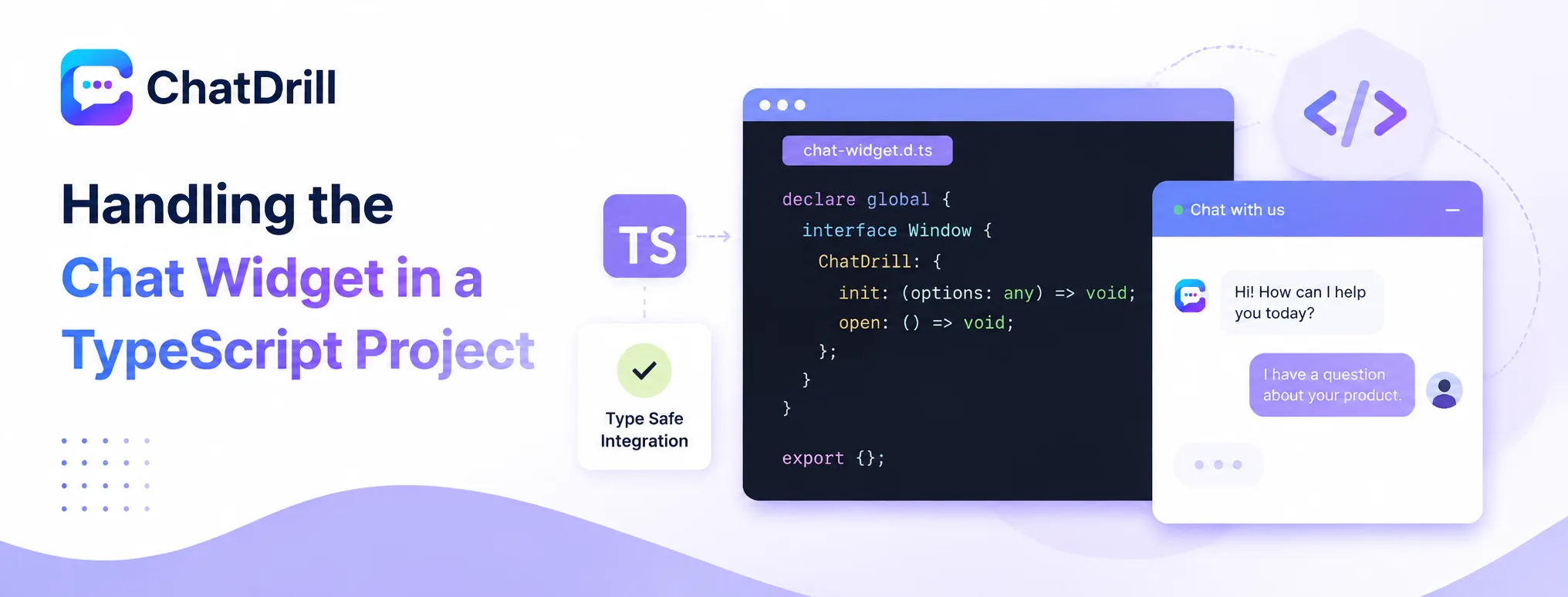
In a TypeScript project, the chat widget's global object needs a type declaration to avoid compiler errors, typically added through a small ambient type declaration file rather than disabling type checking for the whole integration.
Why TypeScript flags the widget's global object
Most chat widgets attach themselves to the browser's global window object under a custom property, which TypeScript doesn't recognize by default and will flag as a type error.
This is a completely expected TypeScript behavior for any third-party script, not a sign of a problem with the integration itself.
Adding an ambient type declaration
Creating a small .d.ts file that declares the chat widget's expected property on the Window interface resolves the type error cleanly, without needing to disable type checking anywhere.
This is a one-time setup step, once the declaration exists, referencing the widget's global object anywhere else in the codebase works without further type errors.
Optimizing Chat Widget Loading for Performance
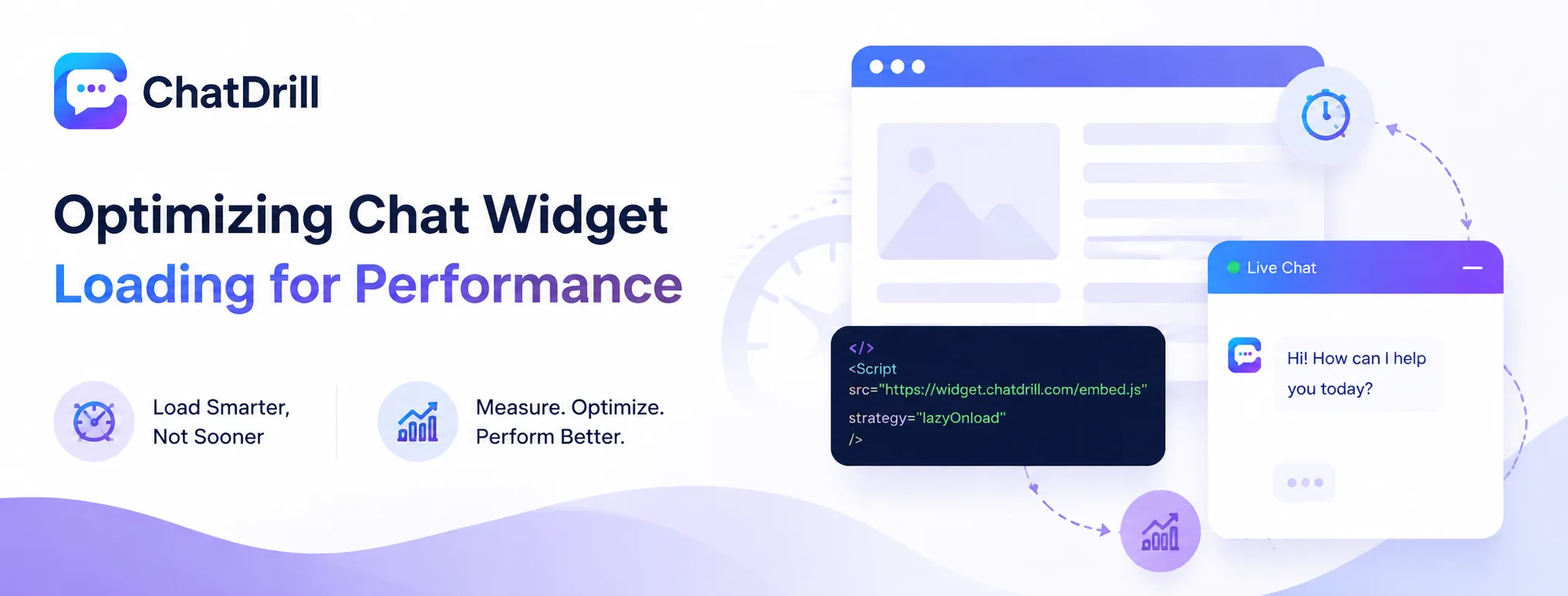
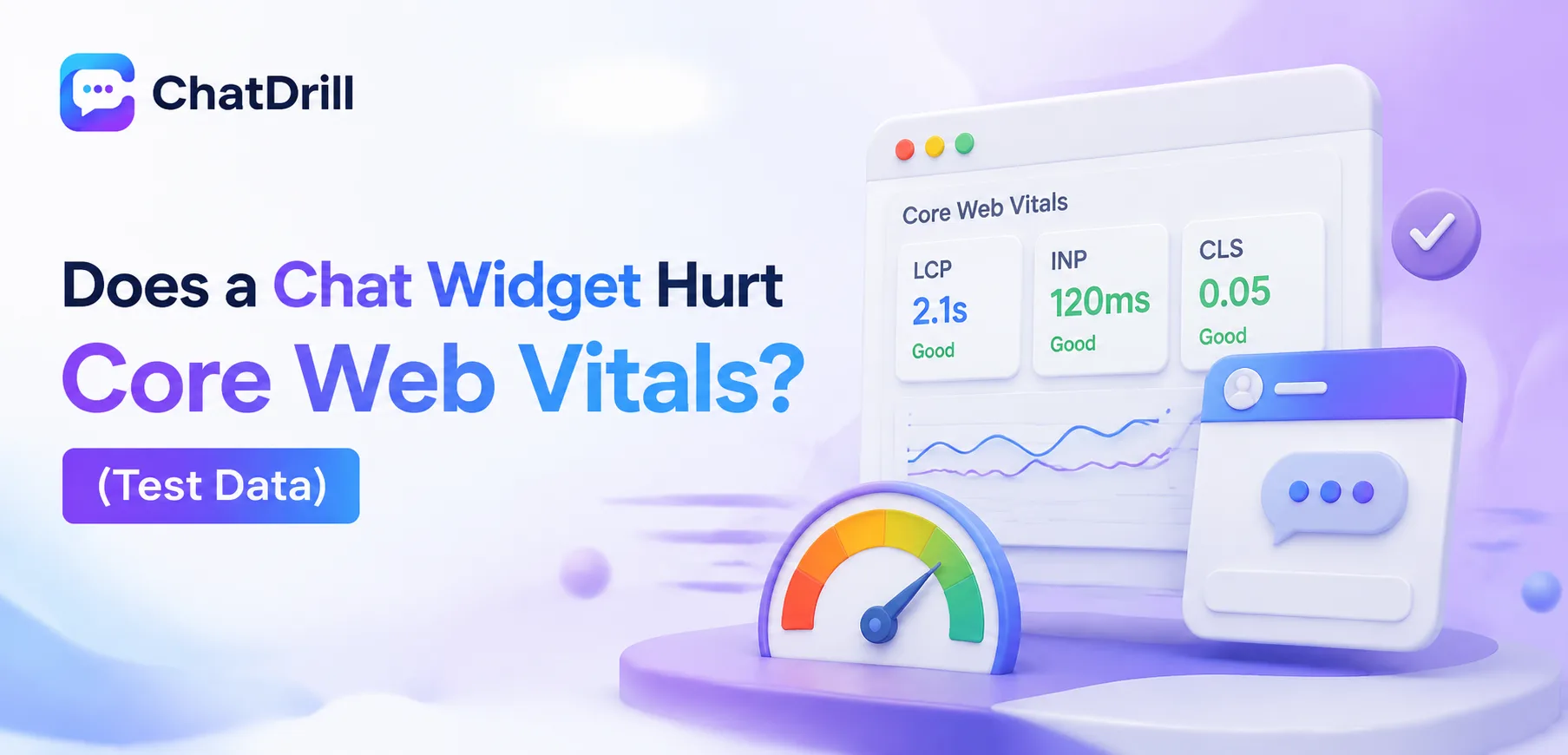
In a performance-conscious React or Next.js app, the chat widget's loading strategy can be tuned further to avoid impacting Core Web Vitals, particularly Largest Contentful Paint and Total Blocking Time.
Deferring the widget until after critical content loads
Loading the chat widget slightly after the main page content renders, rather than immediately on mount, avoids it competing with critical resources for bandwidth and processing time.
In Next.js, the lazyOnload strategy on the Script component defers loading until the browser is idle, a reasonable choice for a widget that doesn't need to appear instantly.
Measuring the actual performance impact
Running a Lighthouse audit before and after adding the widget quantifies its real impact on load performance, rather than relying on assumptions about how heavy the script is.
This measurement is worth repeating periodically, since a chat provider's script can change in size or behavior with their own platform updates over time.