
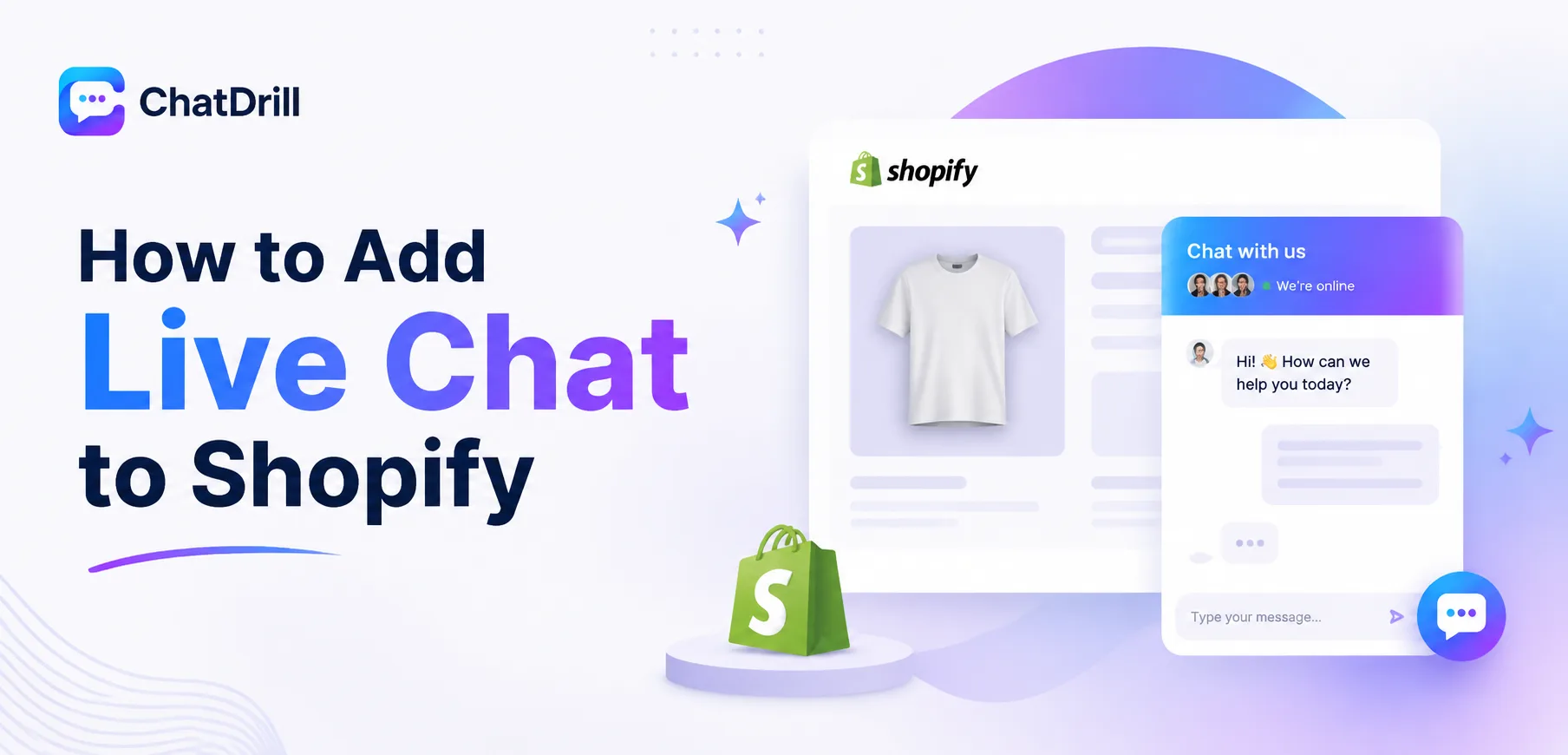
Adding live chat to a Shopify store is most commonly done through the Shopify App Store, installing a chat app that connects directly to your store's theme without requiring any manual code changes for most themes.
Shopify's app-based approach means the vast majority of stores can get a chat widget live in well under fifteen minutes, since the platform is specifically designed to support this kind of app installation without touching underlying theme code.
What matters more than the installation itself, for a Shopify store specifically, is choosing a chat app that can actually access order and product data, since a generic chat widget with no store awareness limits how useful AI automation can be for shopping-related questions.
This distinction becomes especially important as a store scales, a chatbot that can answer "where's my order" or "is this back in stock" directly saves meaningfully more agent time than one that can only relay a message to a human.
This guide covers what to prepare before installing, the app installation process step by step, how to connect order and product data for smarter AI responses, customizing the widget for your store's theme, and troubleshooting common Shopify-specific issues.
What You Need Before Adding Live Chat to Shopify
Before adding live chat to Shopify, you'll need admin access to your Shopify store, a live chat account with basic configuration already complete, and roughly ten minutes for the app installation itself.
Shopify admin access
You'll need Shopify staff account access with permission to install apps, which is typically granted to store owners and staff with app management permissions specifically.
If you're managing a store on behalf of a client or employer, confirming this permission level in advance avoids a mid-installation blocker.
A live chat account already configured
Complete your live chat account's basic setup, business name, greeting message, and business hours, before starting the Shopify installation to keep the process focused on connecting the app.
Having this groundwork done in advance means the Shopify side of setup is purely about installation and store-specific connection, not also making configuration decisions.
About ten minutes for installation
Most Shopify stores can complete the app installation and see the widget live on their storefront within ten minutes, given Shopify's streamlined app installation flow.
Stores with heavily customized themes may need a few extra minutes to confirm the widget displays correctly alongside custom theme elements.
Installing Live Chat From the Shopify App Store
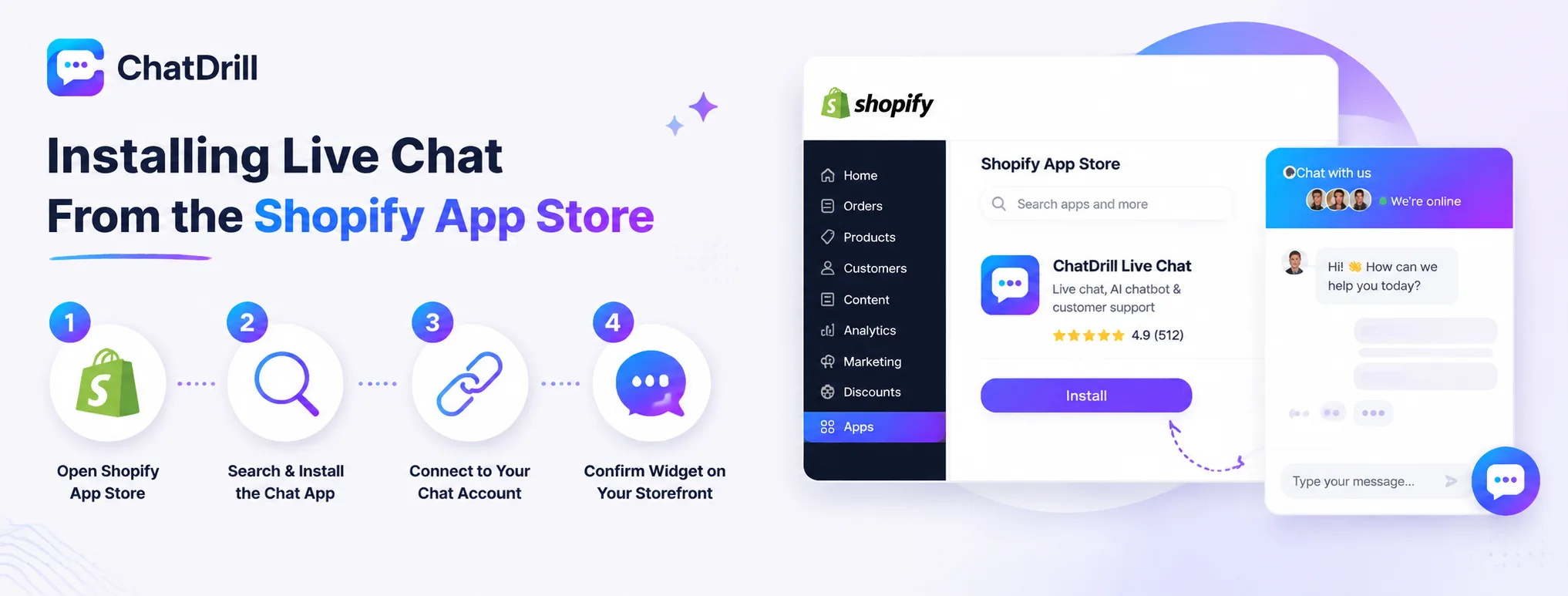
Installing live chat from the Shopify App Store involves searching for your chat provider's app, installing and authorizing it, and confirming the widget appears correctly on your live storefront.
Step 1: Open the Shopify App Store from your admin
From your Shopify admin dashboard, navigate to Apps, then Shopify App Store, which opens the searchable directory of available apps.
This is the standard starting point for installing any Shopify app, including your live chat provider's official listing.
Step 2: Search for and install the chat app
Search for your live chat provider by name, confirming you're installing the official app listing rather than a similarly named alternative.
Click Install, then follow the on-screen prompts to authorize the app's access to your store, which is a standard part of any Shopify app installation.
Step 3: Connect the app to your chat account
Once installed, the app typically prompts you to log in or enter connection details to link it to your existing live chat account.
This connection step is usually guided clearly on-screen, requiring little more than confirming the account you want linked to this specific store.
Step 4: Confirm the widget appears on your storefront
Open your live storefront in a new browser tab and confirm the chat widget renders in the expected position, checking both desktop and mobile views.
Testing on an actual product page, not just the homepage, confirms the widget displays correctly across your store's different page templates.
Connecting Order and Product Data for Smarter AI Responses
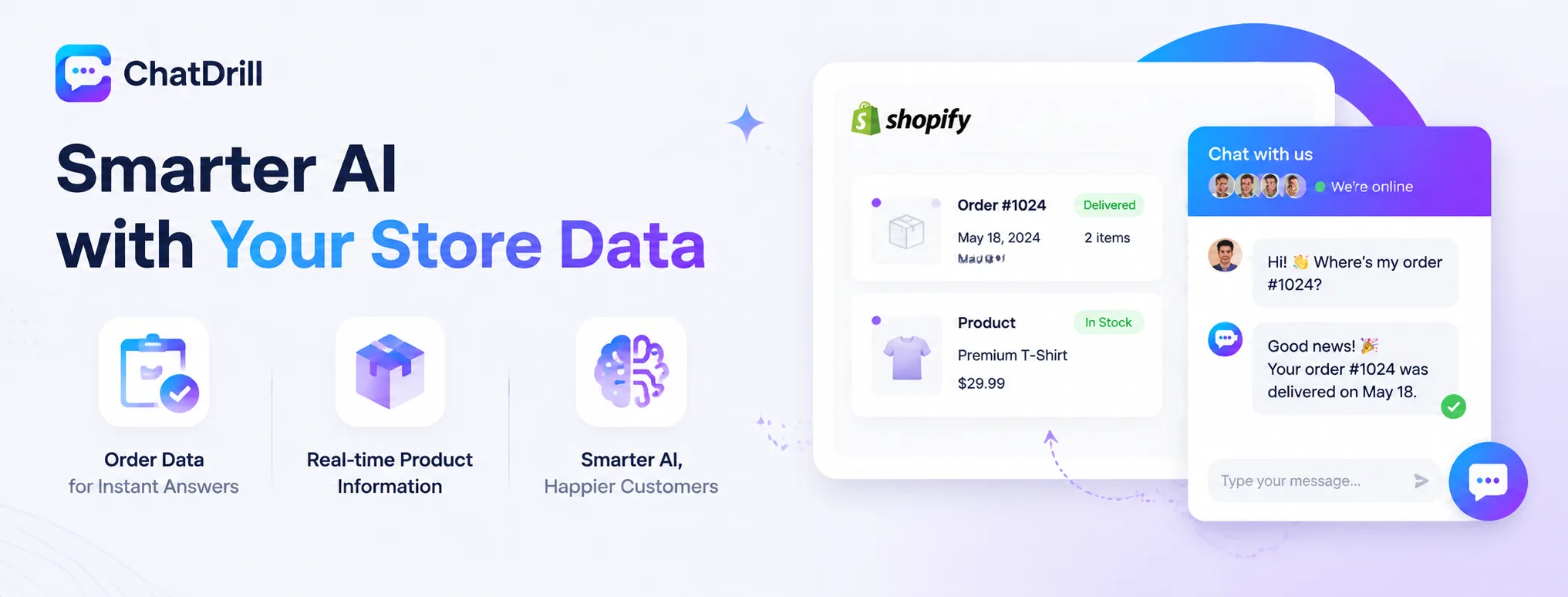
For a Shopify store specifically, connecting the chat app to order and product data lets the AI answer shipping and product questions directly, which matters far more for conversion than a generic, store-unaware chatbot.
Why order and product data matters for Shopify chat
A chatbot with access to real order and product data can answer "where's my order" or "is this in stock" directly, rather than deferring every question to a human agent.
This distinction is what separates a genuinely useful ecommerce chatbot from a generic messaging widget with no awareness of your actual store.
Enabling the order data connection
Most Shopify-integrated chat apps request permission to access order data during installation, which should be granted if AI-driven order lookup is a priority.
Reviewing exactly what data permissions the app requests before granting them ensures you understand what the AI will and won't be able to access.
Training the AI on your product catalog
Some platforms automatically sync product catalog data for AI training, while others require an initial sync step to pull in product descriptions and variants.
Reviewing how the AI handles a handful of real product questions after this sync confirms it's genuinely drawing on your catalog rather than giving generic answers.
Customizing the Widget for Your Shopify Theme
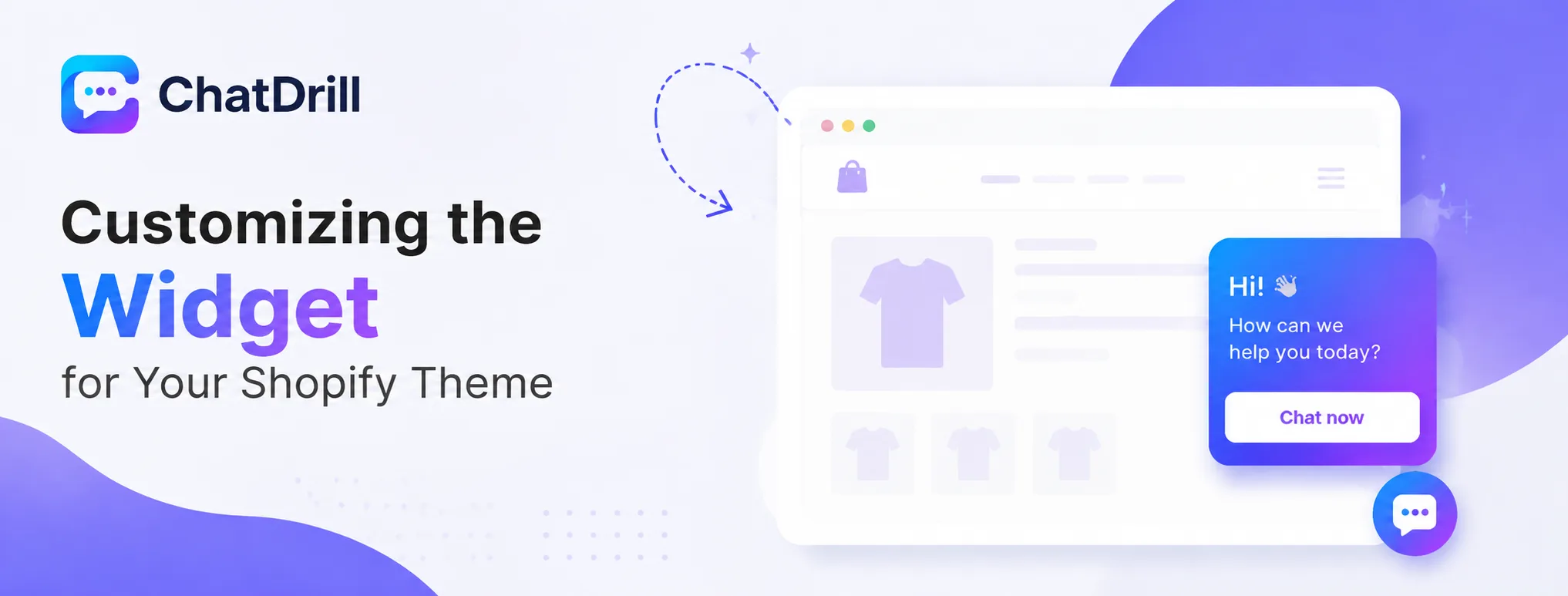
Once installed, most Shopify chat apps let you customize widget color, position, and triggers directly from the app's settings, without needing to edit your store's theme code.
Matching widget style to your store's branding
Most chat apps let you set the widget's color and position to match your Shopify theme's branding, a small detail that makes the chat experience feel native to the store.
This is typically configured entirely within the chat app's own settings panel, without touching Shopify's theme editor directly.
Setting up cart-abandonment triggers
Configure a proactive trigger to engage a visitor who has items in their cart but hasn't completed checkout, a pattern that tends to recover sales that would otherwise be lost.
This is one of the highest-value triggers specifically for a Shopify store, given how directly it ties to recovering an in-progress purchase.
Hiding the widget on checkout if needed
Some stores prefer hiding the chat widget specifically on the checkout page to avoid distracting a customer mid-purchase, a setting most apps support directly.
This is a judgment call rather than a universal best practice, some stores find chat support during checkout actually reduces cart abandonment instead of increasing it.
Troubleshooting Common Shopify Chat Widget Issues
The most common Shopify chat widget issues are the widget not appearing due to a theme conflict, order data not syncing correctly, and the widget displaying inconsistently across different theme templates.
Widget not appearing on the storefront
Confirming the app is fully installed and enabled, not just added to the store, resolves this issue in most cases.
If the app shows as active but the widget still doesn't appear, checking for a theme conflict by temporarily switching to a default Shopify theme helps isolate the cause.
Order data not syncing correctly
If the AI can't answer order-status questions accurately, revisiting the app's data permission settings confirms order access was actually granted during installation.
A re-sync from the app's settings panel often resolves a stale data issue without requiring a full reinstall.
Widget displaying inconsistently across theme templates
A heavily customized theme can sometimes cause the widget to render differently across page types, worth testing on the homepage, a product page, and the cart page specifically.
Reaching out to the chat app's support team with specific examples of the inconsistency tends to resolve theme-specific rendering issues faster than troubleshooting alone.
Adding Live Chat to a Multi-Currency or Multi-Region Shopify Store

A Shopify store using Markets or a multi-currency setup should confirm the chat widget behaves consistently across regional storefronts, and consider whether AI responses need to reflect region-specific shipping or return policies.
Confirming the widget loads across regional storefronts
If your store uses Shopify Markets to serve different regions or currencies, test the chat widget on each regional version specifically, since some app installations only apply to the primary market by default.
Checking a non-primary region's storefront directly, rather than assuming the primary market's setup covers everything, catches this gap before a regional customer encounters it.
Reflecting region-specific policies in AI responses
If shipping times or return policies differ by region, review whether your chat AI is trained to reflect that variation rather than giving one-size-fits-all answers to every visitor.
This often requires explicitly structuring your knowledge base content by region, rather than assuming a single policy answer applies globally across every market.
Using Live Chat to Recover Abandoned Checkouts on Shopify
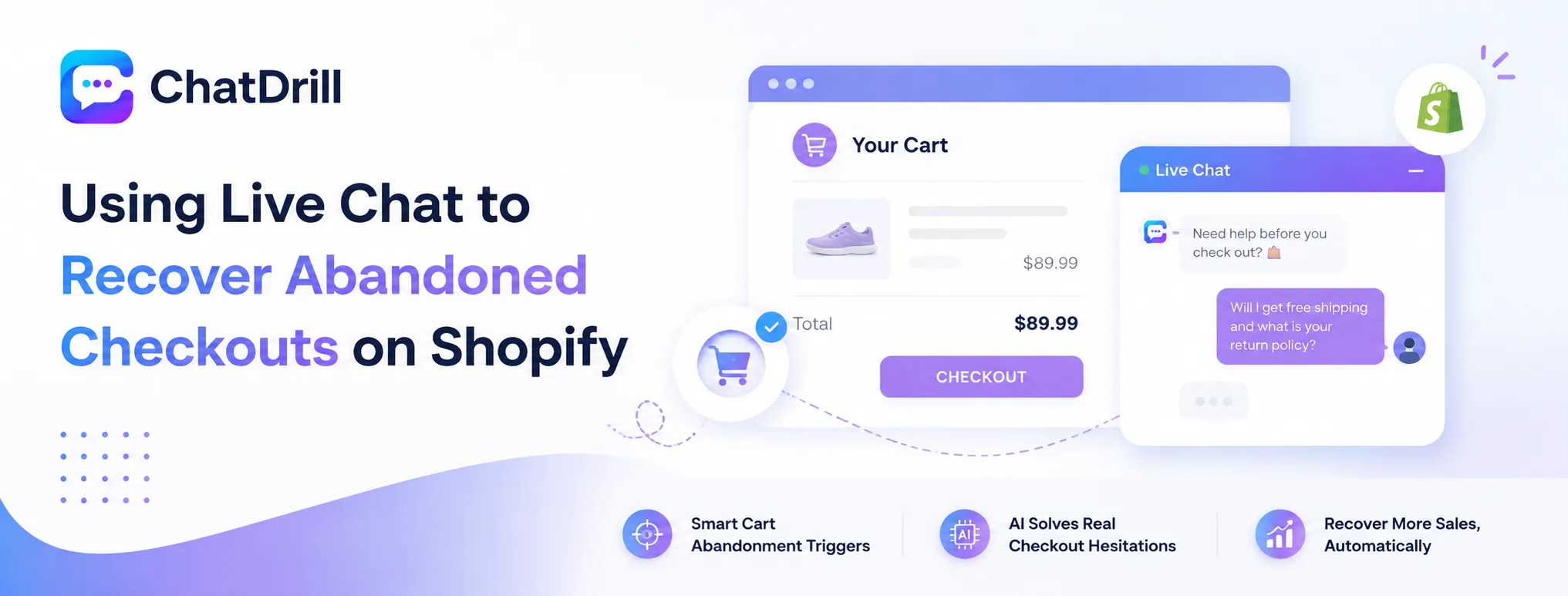
A dedicated cart-abandonment trigger, paired with AI that can answer the specific hesitation a visitor is showing, tends to recover meaningfully more sales than a generic chat prompt on every page.
Setting up a cart-specific trigger
Configure the widget to open automatically when a visitor has items in their cart and shows signs of hesitation, extended time on the cart page without proceeding to checkout.
This trigger performs best with a message referencing the actual cart contents rather than a generic greeting, since specificity tends to feel more helpful and less like an interruption.
Training AI on common checkout hesitations
Feed the AI your store's most common checkout-stage questions, shipping cost concerns, return policy, payment security, so it can address hesitation directly rather than deflecting to a human.
Reviewing which hesitations come up most often in actual cart-stage conversations helps refine this training over time as customer behavior patterns become clearer.