
Routing live chat notifications into Slack closes the biggest gap in most support setups: the moment between a visitor sending a message and a human actually seeing it, which otherwise depends entirely on someone having the chat dashboard open in a browser tab.
Teams that already live in Slack for internal communication tend to see the clearest benefit here, since a chat alert arriving in the same place as every other work notification gets seen and acted on far faster than one buried in a separate tool nobody's actively watching.
The setup itself is a standard app-to-app connection, most live chat platforms including ChatDrill offer a native Slack integration that takes only a few minutes to configure, with no code required for the basic version.
Where this gets genuinely valuable is in the configuration details: which events actually trigger a notification, which channel or person receives it, and how quickly the whole team can go from an alert to a response.
This guide covers why teams route chat to Slack, what to prepare before connecting the two, the step-by-step connection process, customizing which events notify and who gets notified, advanced patterns for faster response times, and how to troubleshoot the most common setup issues.
Why Route Chat Notifications to Slack
Routing chat notifications to Slack matters because it puts a new conversation in front of the team the moment it happens, in the same place they already work, rather than requiring someone to actively monitor a separate chat dashboard.
The problem with dashboard-only notifications
A live chat dashboard's built-in notification only works if someone has that tab open and is paying attention, which realistically isn't true for most of a typical workday.
This gap is exactly where visitors get lost, a message sent while everyone's dashboard tab is minimized or closed can sit unanswered for far longer than anyone on the team would consider acceptable.
Slack notifications solve this by meeting the team where they're already paying attention, rather than asking them to add one more tab to actively monitor.
Why Slack specifically works well for this
Slack's channel and direct-message structure maps naturally onto how support and sales teams already organize their work, making it straightforward to route different chat events to the right existing channel.
Its mobile app also means notifications reach someone even when they're away from their desk, extending coverage beyond what a browser-only dashboard alert could ever achieve.
For a distributed or remote team specifically, this mobile reach tends to matter even more, since there's no guarantee everyone is near a desktop during business hours.
What this integration typically looks like in practice
Most teams route new conversations to a shared channel everyone can see, while sending more targeted alerts, an assigned conversation, an escalation, as a direct message to the specific person involved.
This combination balances team-wide visibility with individual accountability, avoiding both the chaos of every alert going to one shared feed and the isolation of alerts only reaching one person at a time.
Getting this balance right usually takes a small amount of iteration after the initial setup, adjusting based on what the team actually finds useful versus noisy.
What You Need Before Connecting Chat to Slack
Before connecting live chat to Slack, you'll need admin access to both your chat platform and your Slack workspace, a clear sense of which channels should receive which notifications, and about five to ten minutes for the actual connection.
Admin access to both platforms
Connecting an integration typically requires workspace admin permissions in Slack and account admin or integration-management permissions in your chat platform.
If you don't personally hold both of these permission levels, looping in whoever does before starting avoids a mid-setup blocker.
A plan for channel structure
Decide in advance whether notifications should go to one shared channel, several department-specific channels, or a mix of channels and direct messages, since this shapes the configuration choices ahead.
Sketching this out before starting the actual setup, rather than deciding on the fly, tends to produce a cleaner structure that doesn't need much rework later.
A few minutes for the connection itself
The core connection between most live chat platforms and Slack takes under ten minutes, with additional time needed afterward for fine-tuning which specific events trigger a notification.
Budgeting a little extra time for that fine-tuning step, rather than assuming default settings are perfect, tends to produce a much more useful notification setup.
Step-by-Step: Connecting Live Chat to Slack
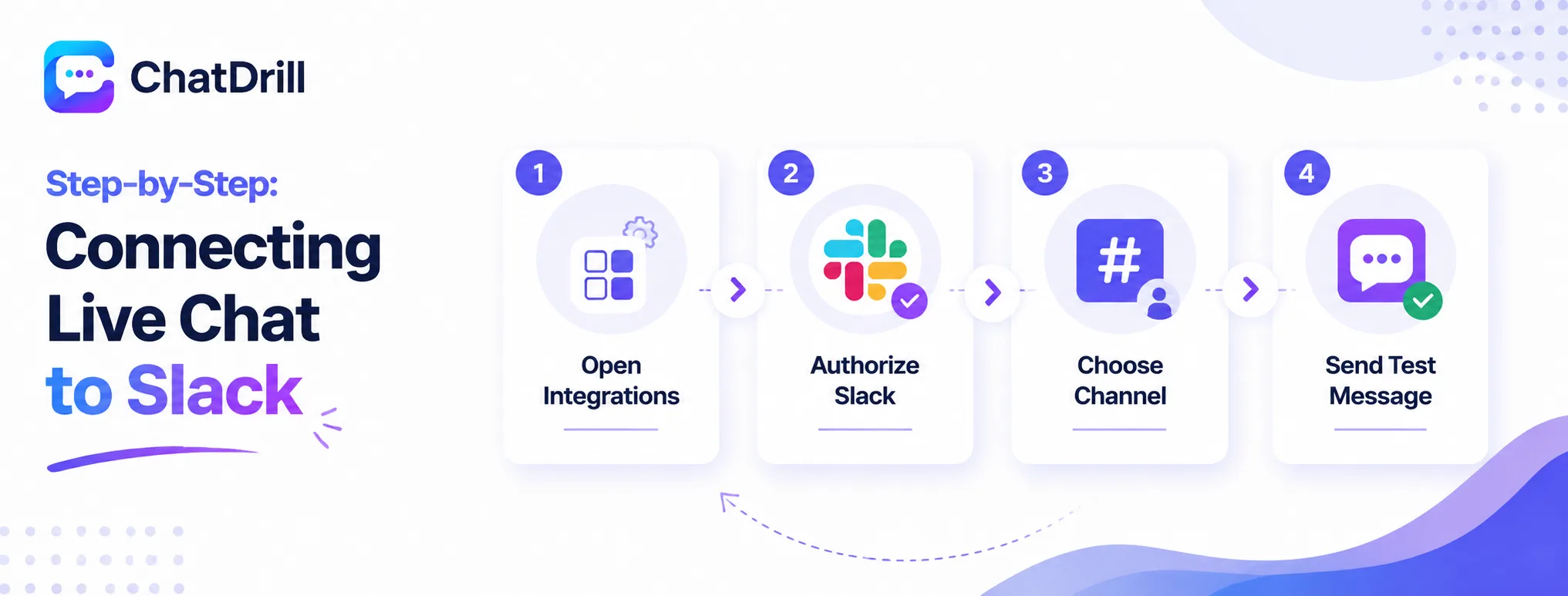
Connecting live chat to Slack follows four steps: open the integrations section of your chat platform, authorize the Slack connection, choose which channel receives notifications, and send a test message to confirm everything works.
Step 1: Open the integrations section of your chat platform
From your chat platform's settings, navigate to the Integrations or Apps section, where Slack typically appears as a pre-built, one-click connection option.
This is the standard starting point across most live chat platforms, including ChatDrill, since Slack is one of the most commonly requested integrations in the category.
Step 2: Authorize the Slack connection
Clicking Connect on the Slack integration opens a standard OAuth authorization screen, where you'll select which Slack workspace to connect and approve the requested permissions.
Reviewing the requested permissions before approving is worth a moment, confirming they align with what you'd expect for a notification integration rather than broader access than necessary.
Step 3: Choose which channel receives notifications
Select the specific Slack channel where new chat notifications should appear, which can be an existing team channel or a new one created specifically for this purpose.
Creating a dedicated channel specifically for chat alerts, separate from general team chatter, tends to keep notifications easier to track and less likely to get lost in unrelated conversation.
Step 4: Send a test message to confirm the connection
Trigger a test chat conversation from your live website or a staging environment and confirm the notification appears correctly in the selected Slack channel within a few seconds.
Checking that the notification includes enough context, visitor name, message preview, a link back to the conversation, confirms the integration is genuinely useful, not just technically connected.
Customizing Which Events Trigger a Slack Notification
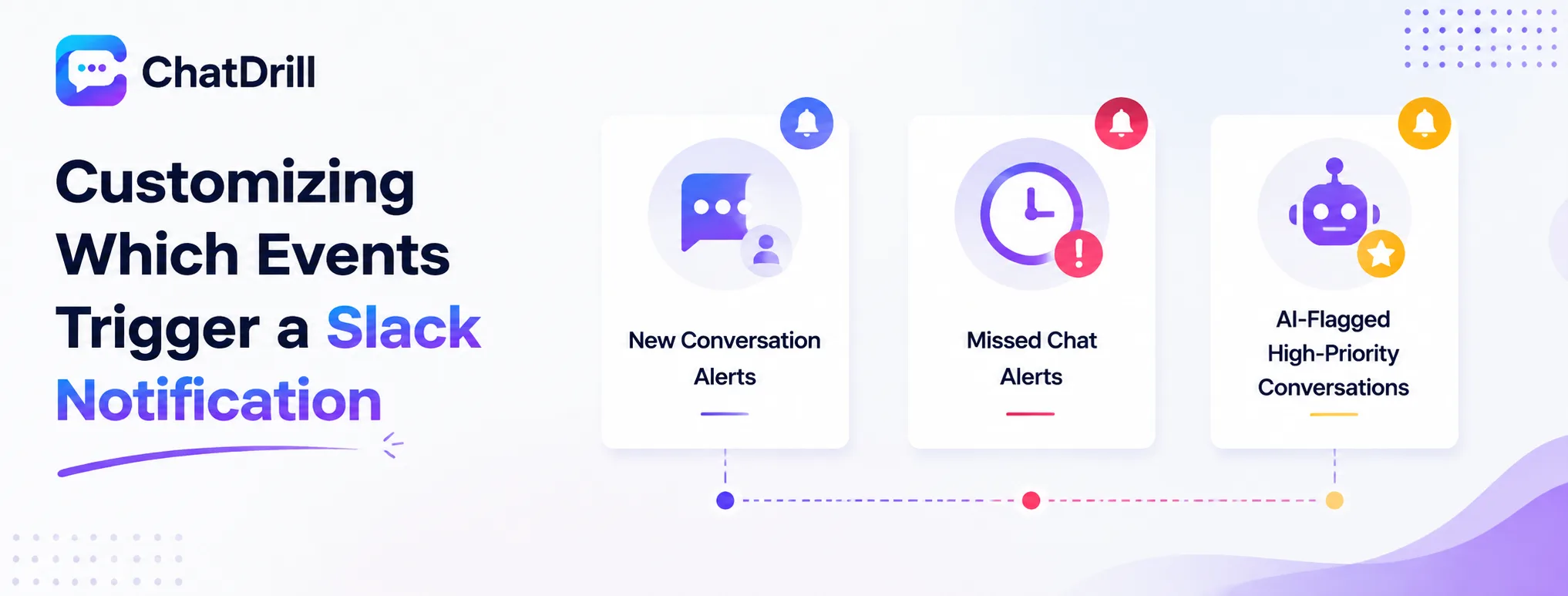
Most platforms let you choose specifically which chat events send a Slack notification, new conversations, missed chats, conversations assigned to a specific agent, and conversations flagged by AI as high priority.
New conversation alerts
The most basic and commonly enabled notification fires whenever a new chat conversation starts, giving the team immediate visibility into incoming volume.
For a high-volume team, this alone can become noisy quickly, worth pairing with channel-specific routing rather than sending every single new conversation to one shared feed.
Missed chat alerts
A missed chat notification, firing when a conversation goes unanswered past a set time threshold, tends to be one of the most operationally valuable alerts a team can enable.
This alert specifically surfaces the conversations most at risk of a frustrated visitor, making it a strong candidate for a higher-visibility channel or even a direct message to a team lead.
AI-flagged high-priority conversations
Platforms with AI qualification, including ChatDrill, can flag a conversation as high-priority based on lead score or sentiment, triggering a distinct Slack alert separate from routine notifications.
Routing these specifically to a sales or senior support channel ensures the conversations most likely to matter don't get lost in a stream of routine, lower-priority alerts.
Routing Notifications to the Right Channels and People
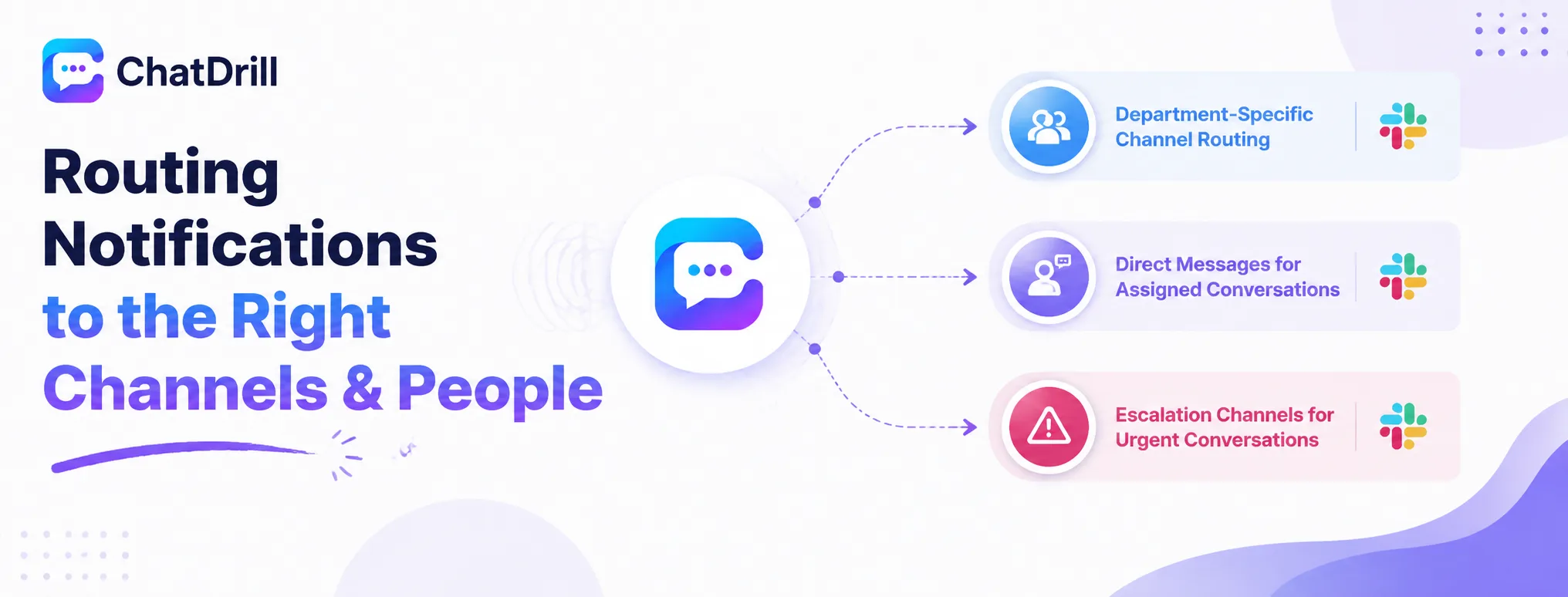
Getting notification routing right means matching each type of alert to the audience that should actually act on it, rather than sending every event to one shared channel regardless of urgency or relevance.
Department-specific channel routing
If sales and support handle different conversation types, routing each to its own dedicated Slack channel keeps each team focused on alerts relevant to their actual work.
This separation also makes it easier to gauge each department's real-time volume at a glance, without needing to filter through a combined, undifferentiated feed.
Direct messages for assigned conversations
When a specific agent is assigned a conversation, sending them a direct Slack message rather than relying on a shared channel alert reduces the chance it gets missed among other activity.
This personal-level notification tends to produce faster individual response times than a shared channel alone, since it doesn't rely on someone happening to scroll past it.
Escalation channels for urgent conversations
A separate, higher-visibility channel specifically for escalations, angry customers, high-value leads, urgent technical issues, ensures these don't get diluted among routine notification volume.
Keeping this channel's notification volume genuinely low, reserved only for conversations that meet a clear escalation bar, preserves its usefulness as a signal the team can trust.
Advanced: Using Slack Notifications to Improve Response Time
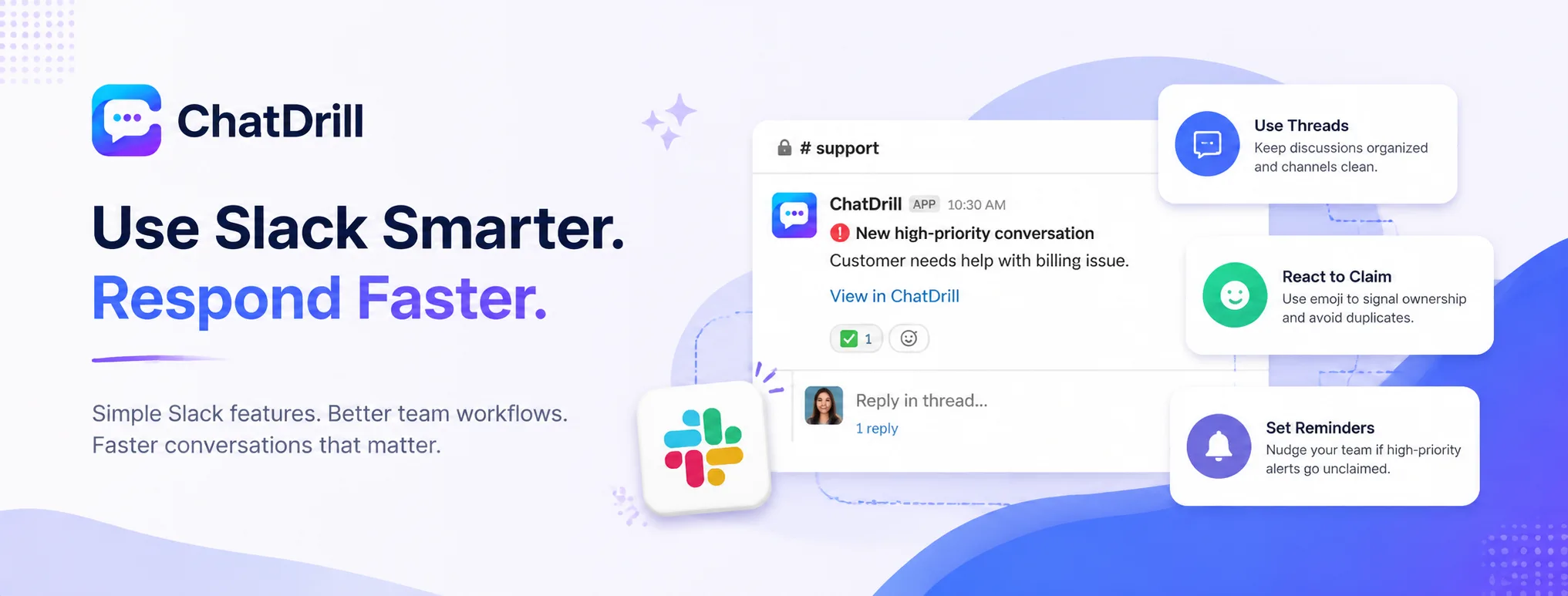
Beyond basic alerts, teams can use Slack's own features, threads, reactions, and reminders, to turn chat notifications into a lightweight workflow that actively improves how fast conversations get handled.
Using threads to avoid channel clutter
Encouraging the team to reply in a notification's thread, rather than starting a new message in the main channel, keeps related discussion about a specific conversation organized and easy to follow later.
This habit becomes especially valuable in a busier channel, where an unthreaded discussion about one conversation can quickly bury other notifications that need attention.
Using emoji reactions to signal ownership
A simple team convention, reacting with a specific emoji to claim a notification, prevents the common problem of two agents both responding to the same conversation, or worse, neither responding because each assumed the other would.
This lightweight signal costs nothing to implement and tends to meaningfully reduce both duplicate responses and accidentally unanswered conversations.
Setting up reminders for unclaimed high-priority alerts
Slack's built-in reminder feature, or a simple workflow automation, can nudge the team again if a high-priority notification goes unclaimed past a set time window.
This acts as a safety net specifically for the conversations that matter most, catching the rare case where an important alert slips through initial attention.
Troubleshooting Common Slack Notification Issues
The most common Slack notification issues are the connection silently disconnecting after a Slack workspace change, notifications going to the wrong channel, and alert volume becoming too noisy for the team to act on effectively.
The integration silently disconnecting
A Slack workspace change, like a workspace migration or an admin permission update, can sometimes break an existing integration without an obvious error message.
Periodically sending a test notification, rather than assuming a working integration stays working indefinitely, catches this kind of silent failure before it causes a real missed conversation.
Notifications going to the wrong channel
If notifications start appearing in an unexpected channel, revisiting the integration's channel routing settings usually reveals a configuration that was changed, intentionally or not, since initial setup.
Documenting the intended routing configuration when it's first set up gives you something concrete to compare against if this happens later.
Alert volume becoming too noisy to act on
If the team starts tuning out chat notifications due to sheer volume, narrowing which events trigger an alert, rather than sending every possible event, restores the notifications' usefulness.
Revisiting this configuration periodically as chat volume grows keeps the notification setup calibrated to what the team can genuinely act on, rather than becoming background noise.