
Because WooCommerce runs on WordPress, adding live chat benefits from a genuinely mature plugin ecosystem, most established chat platforms offer a dedicated WordPress plugin that handles installation with minimal manual code work.
The advantage of a WooCommerce-specific plugin, rather than a generic embed, is deeper access to store data, order status, cart contents, and customer purchase history, letting AI answer questions with real specificity rather than generic responses.
For a WooCommerce store specifically, cart abandonment recovery and order-status automation tend to deliver the clearest, most measurable value, making these worth prioritizing in initial setup and configuration.
This guide covers plugin installation, an alternative direct embed approach, what to configure for cart and order data, and mistakes worth avoiding.
Quick answer: You can add live chat to WooCommerce by installing a WordPress plugin from your chat platform (most major platforms offer one) or by pasting an embed script directly into your theme, with the plugin route typically offering deeper WooCommerce-specific integration like order and cart data access.
Why a WooCommerce-Specific Plugin Usually Wins
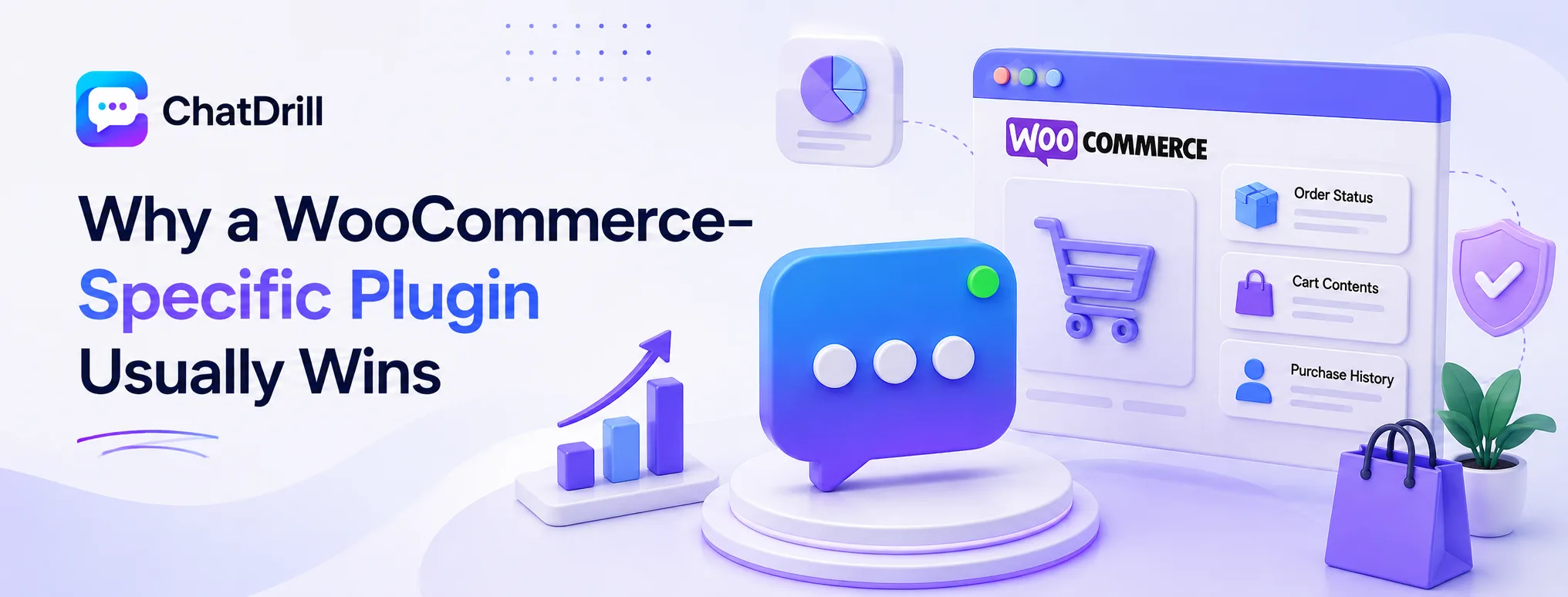
A dedicated WooCommerce plugin typically gives chat deeper access to order, cart, and customer data than a generic embed, which directly determines how specific and useful AI responses can actually be.
The data access advantage
A WooCommerce-specific plugin can often pull order status, cart contents, and customer purchase history directly, letting AI answer with real specificity rather than generic, unconnected responses.
This deeper access is what separates a chatbot that can say "your order shipped yesterday and arrives Thursday" from one that can only say "orders typically take 3-5 days."
This distinction matters most for exactly the highest-volume question categories, order status and cart-related questions, that dominate typical ecommerce chat volume.
When a generic embed still makes sense
If your chosen chat platform doesn't offer a dedicated WooCommerce plugin, or you need very specific custom placement control, a generic JavaScript embed remains a perfectly viable path.
This route sacrifices some of the deeper data integration convenience but still delivers a functional, well-placed chat widget.
Most established platforms, including ChatDrill, support both installation methods, letting you choose based on your specific integration needs.
Step-by-Step: Installing a WooCommerce Chat Plugin
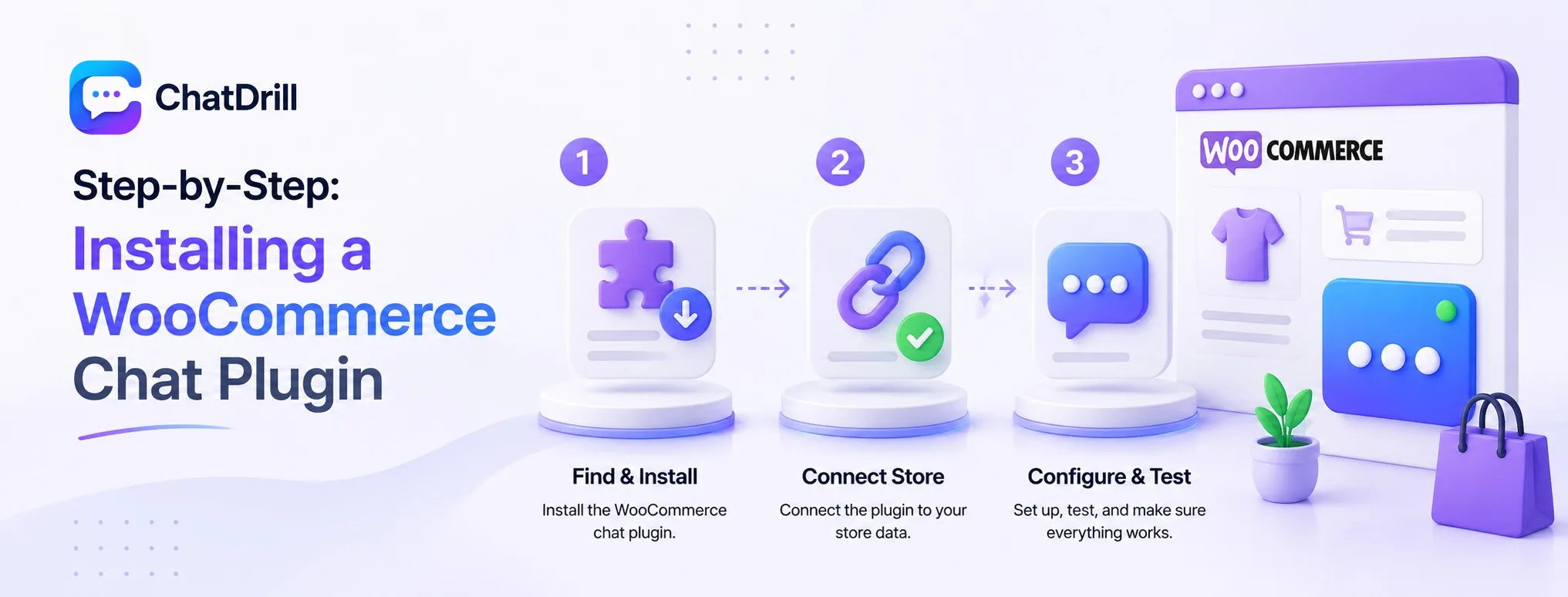
Installing a WooCommerce chat plugin involves finding your platform's dedicated plugin, activating it through WordPress, and connecting it to your store's order and customer data.
Step 1: Find and install the plugin
Searching the WordPress Plugin Directory for your chosen chat platform, or downloading directly from the platform's own site, gets the plugin file ready for installation.
Installing and activating it through your WordPress admin's Plugins section, the standard process for any WordPress plugin, brings it live on your site.
Confirming the plugin explicitly supports WooCommerce, rather than being a generic WordPress chat plugin, ensures you get the deeper store-data integration this use case benefits from.
Step 2: Connect to your store data
Following the plugin's specific setup instructions to authorize access to your WooCommerce order and customer data enables the deeper, more accurate responses this integration is meant to provide.
This connection step varies by platform but typically involves an API key or account authorization process within the plugin's settings page.
Testing this connection directly, checking a real order's status through chat, confirms the data is genuinely syncing before relying on it with real customers.
Step 3: Configure and test
Setting your business hours, initial greeting, and any cart-abandonment trigger rules happens through the plugin's settings panel within WordPress.
Testing the full chat experience on your live site, including an order-status question and a cart-page trigger, confirms everything works correctly before real customers rely on it.
This testing should cover both desktop and mobile experiences, given how differently a chat widget can render across device sizes.
Setting Up Cart Abandonment Recovery
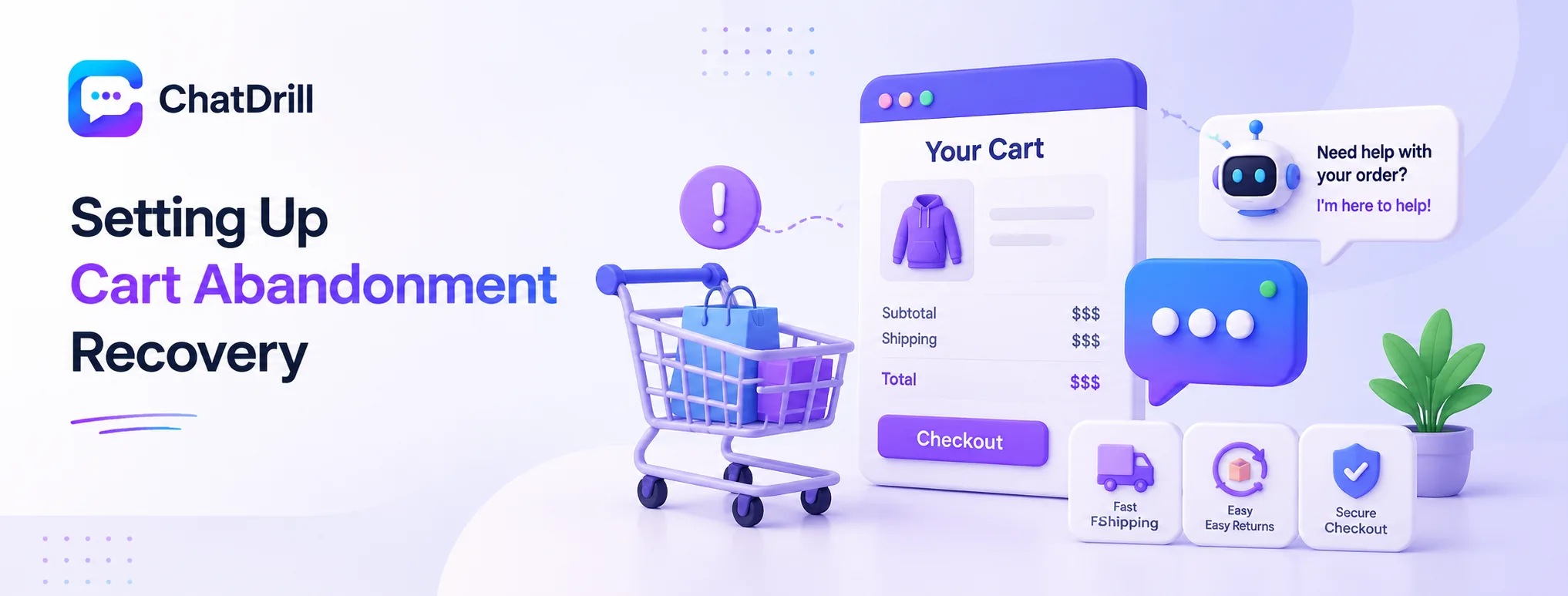
Cart abandonment recovery through chat means configuring a proactive trigger specifically for cart and checkout pages, timed to address hesitation at exactly the moment it matters most for a WooCommerce store.
Configuring the trigger timing
Setting a proactive message to fire after a customer lingers on the cart page without proceeding to checkout catches exactly the moment where a quick answer can recover a hesitating sale.
This timing should be tuned based on your own typical customer behavior, tested and adjusted rather than assumed from a generic default.
A trigger that fires too quickly can feel intrusive, while one that fires too late may miss the window where the customer is still actively considering the purchase.
Training AI on common cart-stage objections
Feeding AI your actual shipping cost structure, return policy, and any relevant guarantees addresses the specific hesitations that commonly cause cart abandonment.
This targeted training tends to matter more for cart-recovery conversations specifically than for general product-browsing questions.
Reviewing real cart-recovery conversations periodically reveals which specific objections come up most, informing where to deepen training content further.
Common Mistakes When Adding Chat to WooCommerce
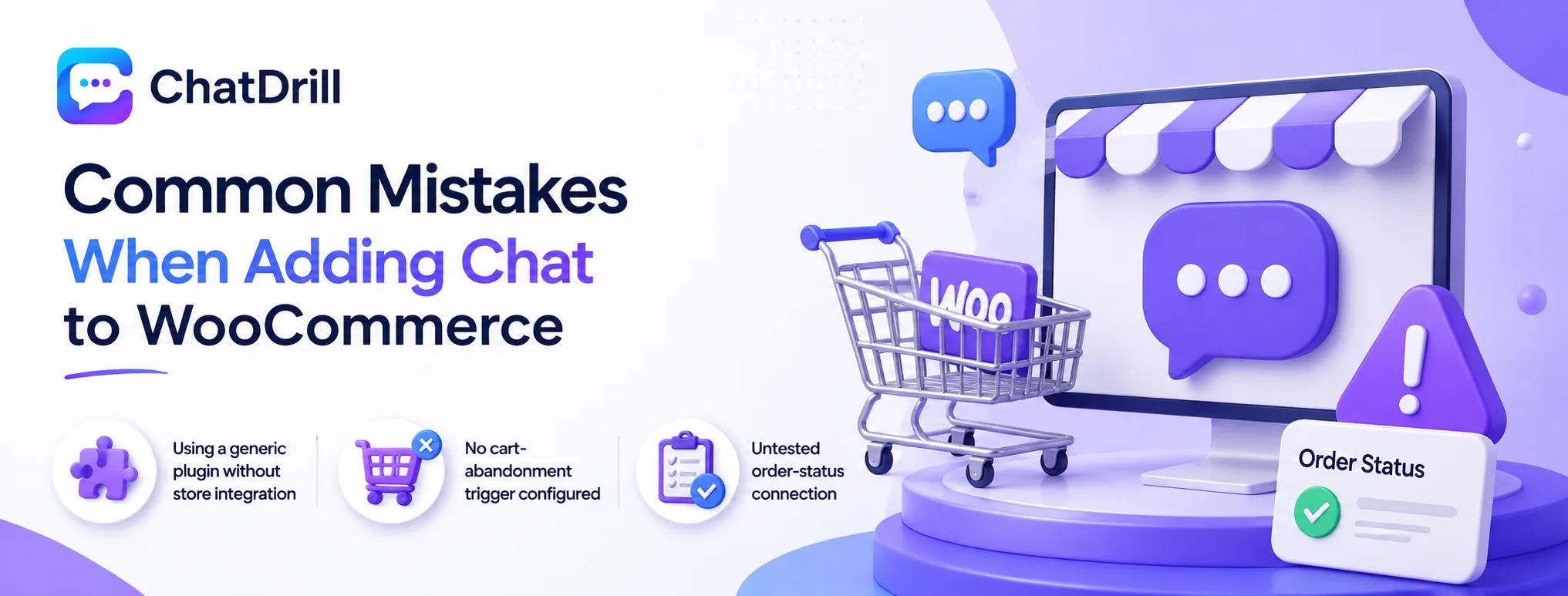
The most common mistakes are installing a generic chat plugin without WooCommerce-specific integration, forgetting to configure cart-abandonment triggers, and not testing the order-status connection with real orders.
Using a generic plugin without store integration
Installing a chat plugin with no actual connection to WooCommerce order and cart data limits the chatbot to generic responses, missing much of this use case's potential value.
Confirming explicit WooCommerce support before installing, rather than assuming any WordPress chat plugin provides this integration, avoids this common gap.
This distinction is worth checking directly in the plugin's own documentation rather than assuming from its general description.
No cart-abandonment trigger configured
Leaving proactive triggers unconfigured means missing one of the clearest, most measurable value opportunities specifically available to an ecommerce store like a WooCommerce site.
This is a relatively straightforward configuration step worth prioritizing given its potential direct impact on recovered sales.
Testing this trigger directly by simulating cart abandonment behavior confirms it fires correctly before relying on it with real shoppers.
Untested order-status connection
Assuming the order data connection works without testing it against a real, current order risks discovering an inaccuracy only after a customer receives a wrong answer.
Testing this directly with a genuine recent order before wider reliance on the system catches connection issues while they're still low-stakes to fix.
This verification is worth repeating after any major plugin or WooCommerce update, given how updates can occasionally affect existing integrations.
Measuring Chat Performance on Your WooCommerce Store
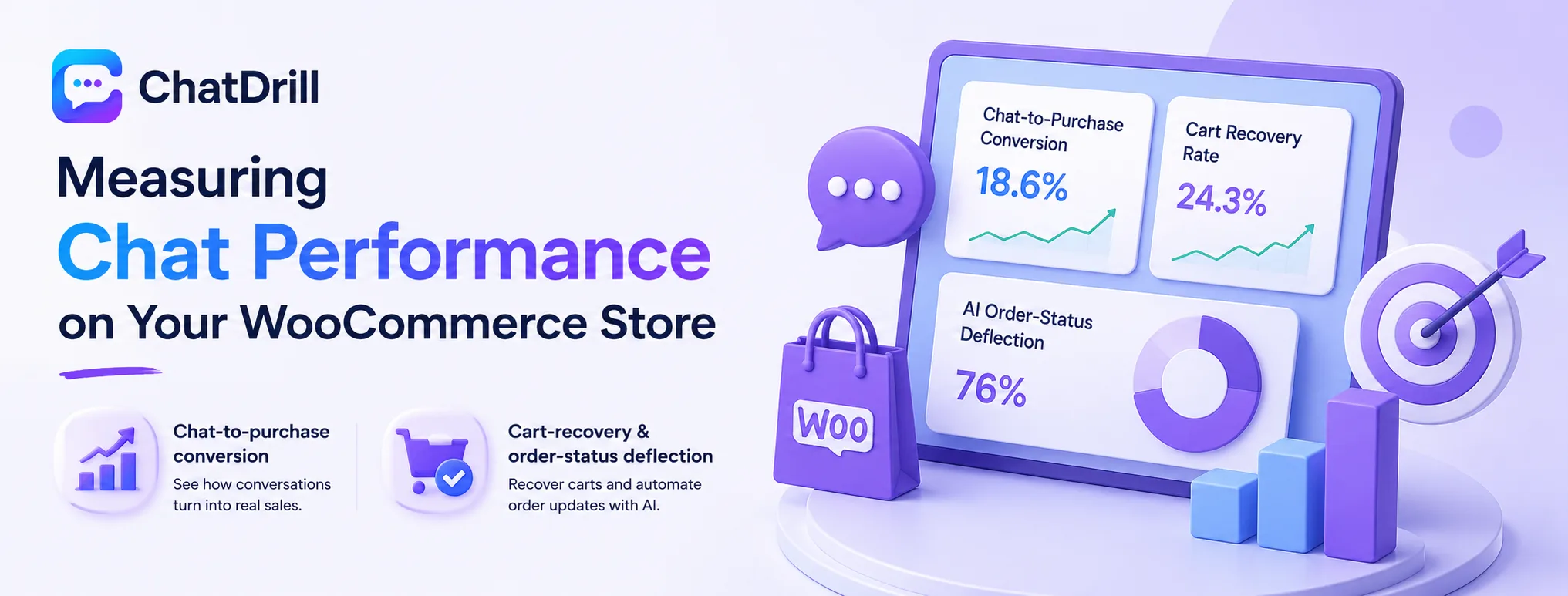
Tracking chat-to-purchase conversion, cart-recovery rate specifically from triggered conversations, and AI deflection on order-status questions reveals whether your WooCommerce chat setup is delivering real value.
Chat-to-purchase conversion
Comparing conversion rates between chat-engaged shoppers and your overall site average reveals chat's genuine contribution to actual sales, not just engagement activity.
This comparison is worth reviewing periodically as your product catalog or typical customer questions evolve over time.
Cart-recovery and order-status deflection
Tracking how many triggered cart conversations convert to completed purchases, alongside how much order-status volume AI resolves without staff involvement, quantifies the direct efficiency and revenue impact of your setup.
A ChatDrill setup connected to real WooCommerce order data, for a store using it, makes both of these metrics straightforward to track directly.