
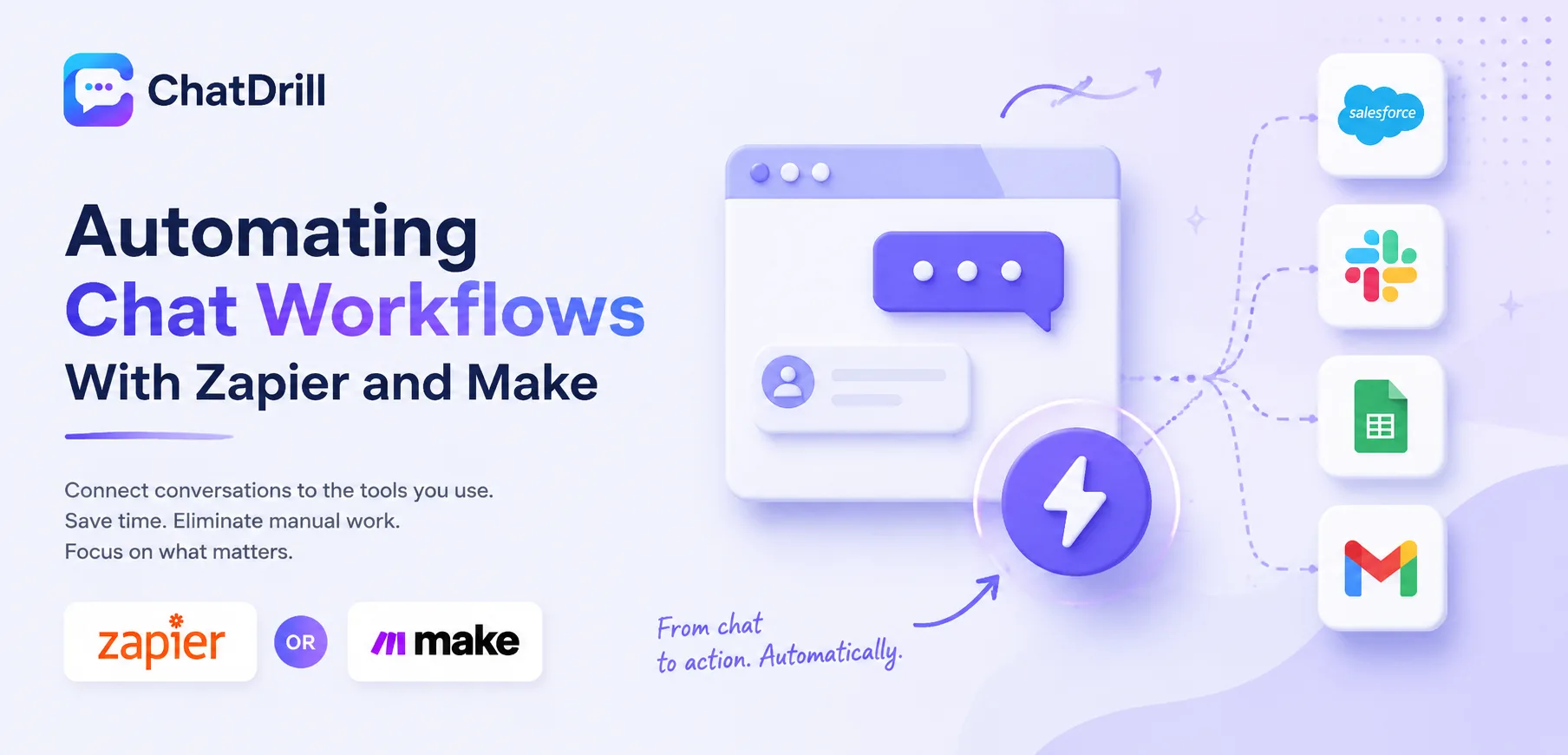
Zapier and Make both let a live chat platform talk to the hundreds of other tools a business runs, without a developer writing custom integration code, turning a chat conversation into a CRM record, a Slack alert, a spreadsheet row, or a follow-up email automatically.
The value isn't really the automation platform itself, it's what becomes possible once chat data can flow anywhere: a qualified lead from chat can land directly in a sales pipeline, a support conversation can automatically create a ticket, and a new contact can be added to an email list, all without anyone manually copying information between systems.
Most teams start with one or two simple automations and expand from there, since the value compounds, each automation removes a small piece of manual work that would otherwise happen dozens of times a week.
Choosing between Zapier and Make specifically comes down to how complex your workflows need to be, Zapier's simplicity suits straightforward, linear automations, while Make's visual workflow builder handles more complex, conditional logic more naturally.
This guide covers why automating chat workflows matters, how to choose between Zapier and Make, what to prepare before building an automation, a step-by-step first automation, common automation recipes worth building, advanced multi-step workflows, and how to troubleshoot common issues.
Why Automate Chat Workflows
Automating chat workflows removes the manual, repetitive work of moving information between chat and the other tools a business relies on, freeing the team to focus on the conversations themselves rather than administrative follow-up.
The hidden cost of manual follow-up
Without automation, every qualified chat lead requires someone to manually copy contact details into a CRM, every support conversation requires manually creating a ticket, work that adds up to real time across dozens of conversations a week.
This manual work is also where things get missed, a lead that should have gone into the CRM but didn't because someone was busy or the process wasn't followed consistently.
Automation removes both the time cost and the consistency risk, ensuring every conversation that should trigger a downstream action actually does, every time.
What becomes possible with reliable automation
Once chat is connected to a CRM, email platform, and team communication tool through automation, a single conversation can trigger a coordinated set of actions without anyone touching a keyboard beyond the original chat.
This compounding effect is what makes automation worth the initial setup time, each additional connected tool multiplies the value of the ones already in place.
Why this matters more as a team grows
A very small team can sometimes get away with manual follow-up, but the gap between chat volume and available manual-processing time widens quickly as a business grows.
Building automation early, even simple versions, tends to be easier than retrofitting it onto an already-busy, manually-managed process later.
Zapier vs Make: Which One to Choose
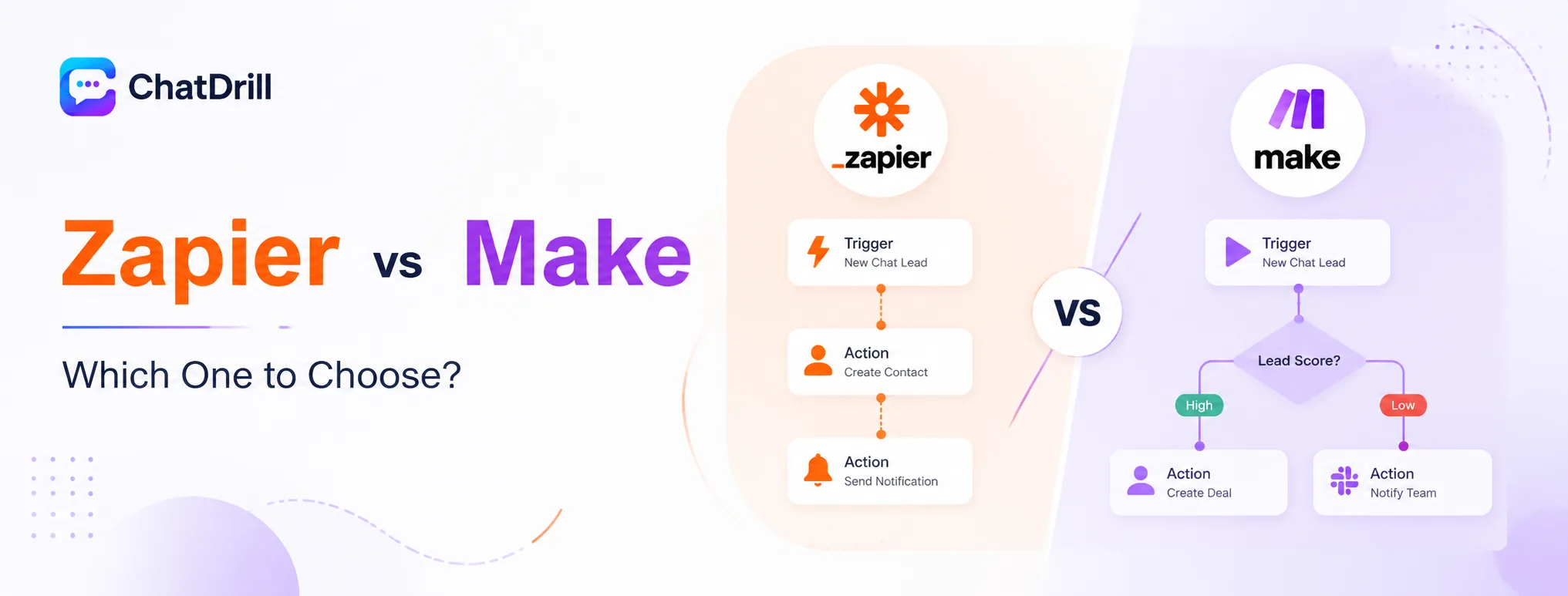
Zapier suits straightforward, linear automations with its simpler trigger-and-action model, while Make's visual, flowchart-style builder handles complex, conditional, multi-branch workflows more naturally, making the right choice depend on how complex your chat automations need to be.
Zapier's strengths
Zapier's simple, linear "when this happens, do that" model is genuinely easy to learn, making it a strong choice for a team without a dedicated technical person building automations.
Its extensive library of pre-built app connections also tends to cover more niche or less common tools than Make's library, worth checking directly if your specific stack includes a less mainstream tool.
Make's strengths
Make's visual workflow builder shows the entire automation as a flowchart, making it considerably easier to build and understand complex, multi-branch logic than Zapier's more linear interface.
It also tends to offer more granular control over data transformation between steps, valuable for a workflow that needs to reshape chat data before it reaches its destination.
Making the actual decision
For a team building simple, one-to-one automations, chat lead to CRM contact, missed chat to Slack alert, Zapier's simplicity is usually the faster, easier path.
For a team building more complex, conditional workflows, routing differently based on lead score or handling multi-step approval logic, Make's visual builder tends to be worth the slightly steeper learning curve.
What You Need Before Building an Automation
Before building a chat automation, you'll need active accounts on both your chat platform and the automation tool, admin access to whatever destination app you're connecting to, and a clear, specific plan for the exact trigger and action involved.
Accounts and access on both platforms
Confirm you have an active Zapier or Make account, along with the necessary permissions on your chat platform to create an API connection or webhook for automation purposes.
You'll also need admin or integration-level access to whatever destination app the automation sends data to, a CRM, email platform, or spreadsheet tool.
A specific, well-defined automation plan
Rather than starting broad, define one specific trigger, like a new chat lead, and one specific action, like creating a CRM contact, before opening the automation builder.
This specificity makes the actual building process considerably faster and reduces the chance of building an overly complicated first automation that's hard to troubleshoot.
Step-by-Step: Building Your First Chat Automation
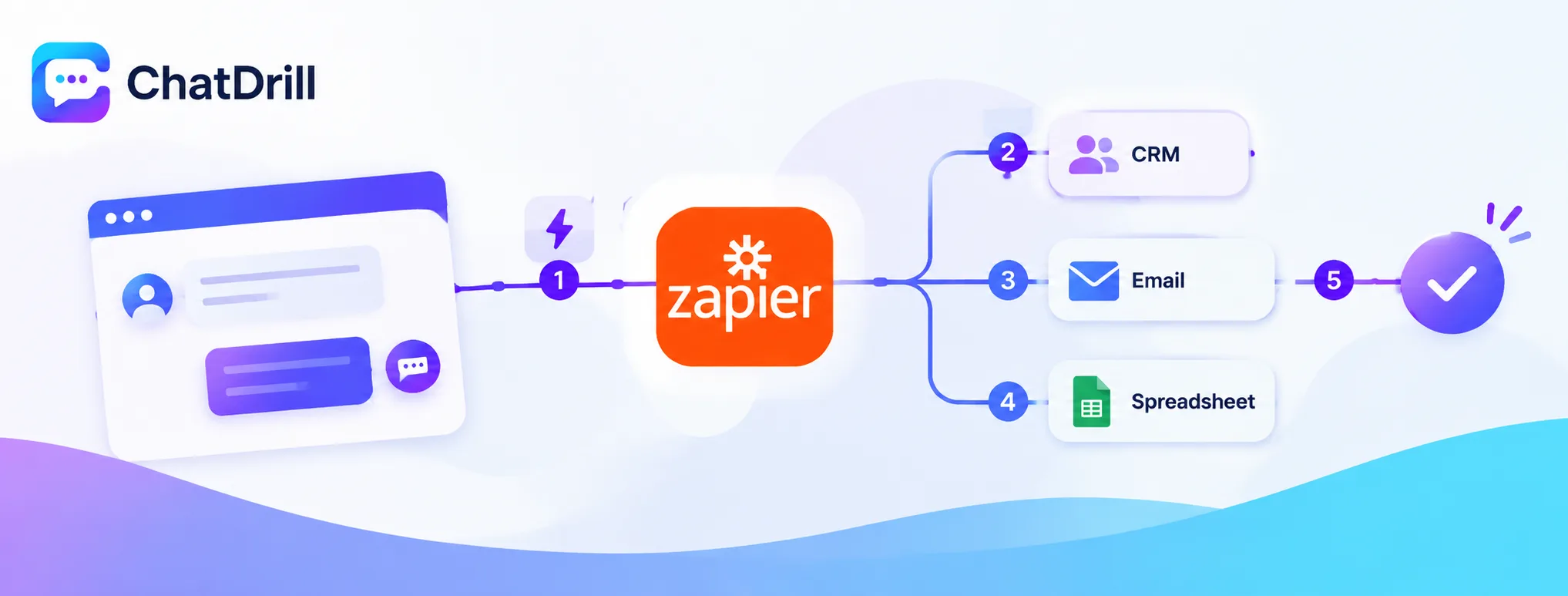
Building a first chat automation in Zapier follows five steps: create a new Zap, select your chat platform as the trigger app, choose the specific trigger event, connect and configure the destination action, and test the automation with real data before turning it on.
Step 1: Create a new Zap
From your Zapier dashboard, click Create Zap, which opens the automation builder starting with the trigger selection step.
This is the standard entry point for any new Zapier automation, regardless of which apps you're ultimately connecting.
Step 2: Select your chat platform as the trigger app
Search for and select your live chat platform, ChatDrill or otherwise, as the trigger app, which determines what kind of chat event can start this automation.
Most modern chat platforms have a dedicated Zapier app listing, making this connection a matter of searching and selecting rather than manual configuration.
Step 3: Choose the specific trigger event
Select the exact event that should start the automation, a new lead captured, a conversation resolved, a missed chat, from the list of events your chat platform exposes to Zapier.
Being precise here matters, choosing too broad a trigger, like every new message, can flood the automation with far more activity than intended.
Step 4: Connect and configure the destination action
Select the destination app, a CRM, email tool, or spreadsheet, and configure exactly what action it should take and which chat data fields map to which fields in that app.
Reviewing this field mapping carefully avoids a common issue where data lands in the wrong field or gets dropped entirely due to a mismatch between the two systems.
Step 5: Test with real data before turning the automation on
Use Zapier's built-in test feature, or trigger a real test chat conversation, to confirm the full automation runs correctly end to end before publishing it live.
Skipping this test step is the most common reason an automation quietly fails or produces incorrect data once it's actually running on live chat volume.
Common Chat Automation Recipes Worth Building
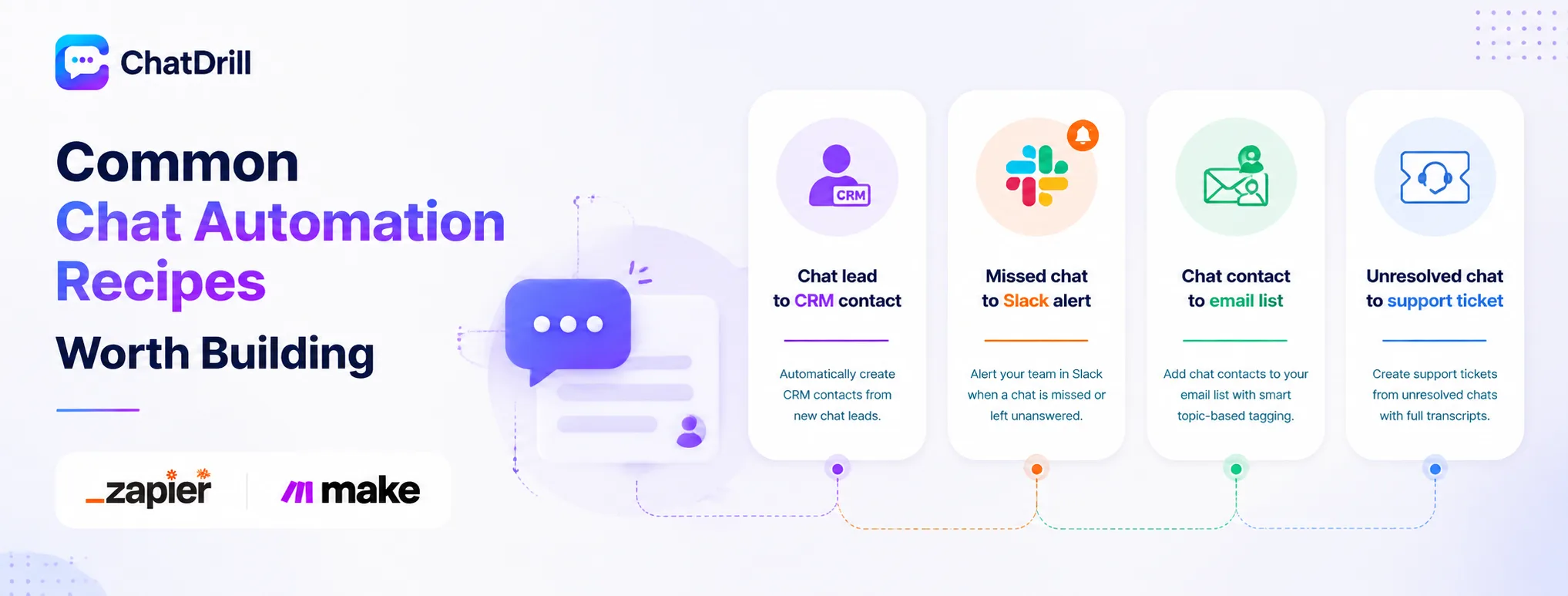
The most commonly valuable chat automations are sending a new lead to your CRM, alerting the team in Slack for a missed chat, adding a captured contact to an email list, and creating a support ticket from an unresolved conversation.
Chat lead to CRM contact
This automation creates a new contact record in your CRM the moment a chat conversation captures a lead's contact information, eliminating manual data entry entirely.
Mapping lead score or qualification notes into custom CRM fields, not just basic contact info, gives sales reps immediately useful context on the new lead.
Missed chat to Slack alert
While many platforms offer native Slack integration for this specific case, building it through Zapier or Make offers more granular control over exactly what triggers the alert and how it's formatted.
This is a reasonable choice specifically when the native integration doesn't support the exact conditional logic a team needs for its escalation process.
Chat contact to email list
Automatically adding a chat visitor's email to a marketing list, tagged appropriately based on what they discussed, keeps your email marketing informed by real chat engagement without manual list management.
Tagging by conversation topic specifically, rather than adding every contact to one generic list, enables far more targeted follow-up email campaigns later.
Unresolved conversation to support ticket
For a team running a separate ticketing system alongside chat, this automation creates a formal ticket for any conversation that wasn't fully resolved in real time, ensuring nothing falls through the cracks.
Including the full chat transcript in the created ticket gives whoever picks it up later complete context without needing to ask the customer to repeat themselves.
Advanced: Multi-Step Workflows and Conditional Logic
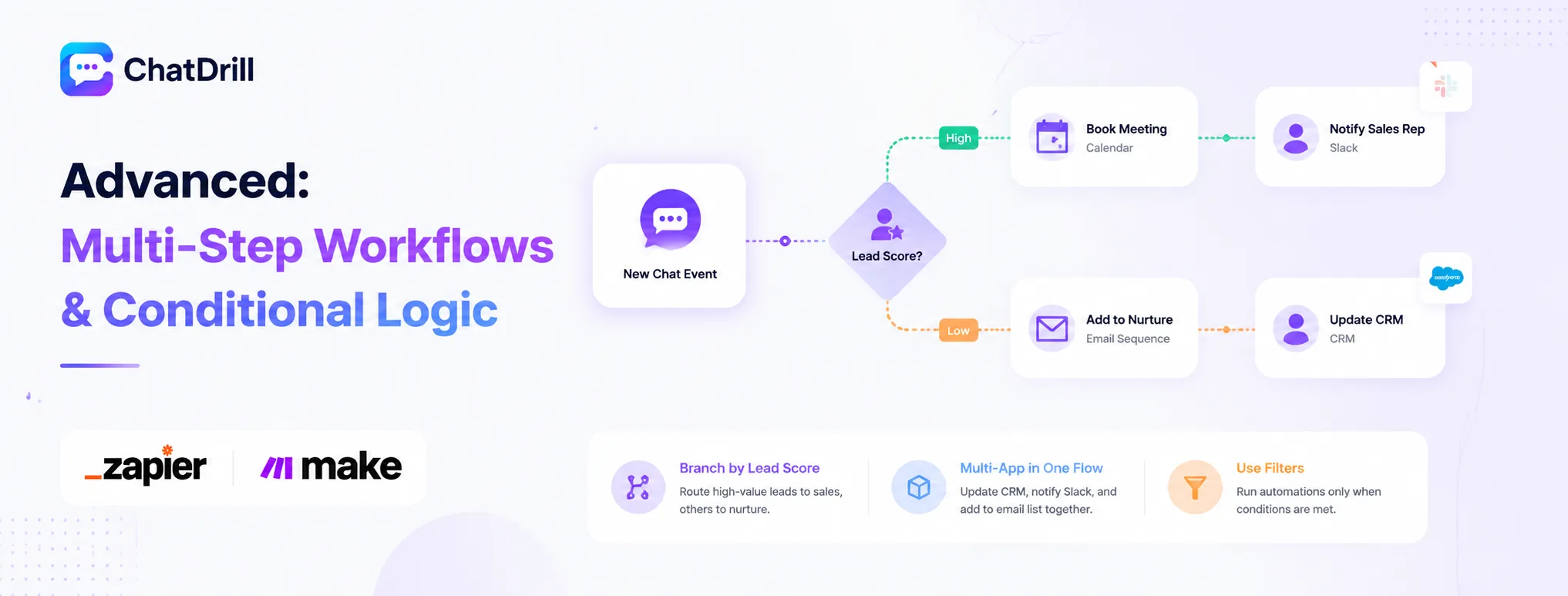
Beyond simple one-to-one automations, both Zapier and Make support multi-step workflows with conditional branching, letting a single chat event trigger different actions depending on lead score, topic, or other conditions.
Branching based on lead score
A conditional path can route a high-scoring lead directly to a sales rep's calendar for immediate booking, while a lower-scoring lead goes into a longer-term nurture email sequence instead.
This kind of branching logic is where Make's visual builder tends to shine, making the different paths easy to see and adjust compared to stacking multiple linear Zaps together.
Multi-app workflows in a single automation
A single automation can update a CRM, notify Slack, and add a contact to an email list all from one triggering chat event, rather than requiring three separate automations.
Consolidating related actions into one workflow, rather than several separate ones, makes the overall automation easier to understand and maintain over time.
Using filters to prevent unwanted automation runs
Adding a filter step that only continues the automation if certain conditions are met, a minimum lead score, a specific conversation tag, prevents low-value events from triggering unnecessary downstream actions.
This filtering step is a small addition that meaningfully improves data quality in whatever destination app the automation feeds into.
Troubleshooting Common Automation Issues
The most common automation issues are a trigger not firing due to a chat platform API change, data landing in the wrong field due to a mapping error, and an automation running multiple times for the same event.
The trigger not firing at all
If an automation stops triggering, checking the connection status between the chat platform and Zapier or Make first catches the most common cause, an expired or revoked API connection.
Reconnecting the app and re-testing the trigger with a real conversation confirms whether the issue was simply a broken connection rather than something more complex.
Data landing in the wrong field
This typically traces back to a field mapping that was configured incorrectly during initial setup, worth reviewing carefully against the actual data structure both apps use.
Testing with a variety of real chat conversations, not just one simple example, helps catch mapping issues that only show up with certain kinds of data.
The automation running multiple times for one event
This usually indicates the trigger is firing on an event that happens more than once per conversation, worth reviewing which specific chat event the automation is actually listening for.
Adding a filter or adjusting the trigger event to something that genuinely happens only once per conversation resolves this reliably.