
Magento's flexibility as an ecommerce platform cuts both ways for live chat, there's no single required installation path the way some simpler builders enforce, which means getting chat onto a Magento store correctly requires understanding a couple of genuinely different routes.
The Marketplace extension route is the more guided path, typically involving less manual code editing, while directly embedding a chat platform's script into your theme gives you more precise control, especially useful for targeting specific pages like checkout or a particular product category.
Given how central checkout and cart pages are to a Magento store's revenue, getting live chat correctly placed and triggered on exactly these pages tends to matter more here than for a simpler, lower-transaction-volume site.
This guide covers both installation paths, what to configure for cart and checkout targeting specifically, common mistakes, and how to verify everything works correctly.
Quick answer: You can add live chat to Magento by installing a chat extension from the Magento Marketplace or by pasting a chat platform's JavaScript snippet directly into your theme's layout XML or footer template, with the direct-embed route giving you more control over AI training and checkout-page targeting.
Why Magento Chat Setup Has Two Genuine Paths
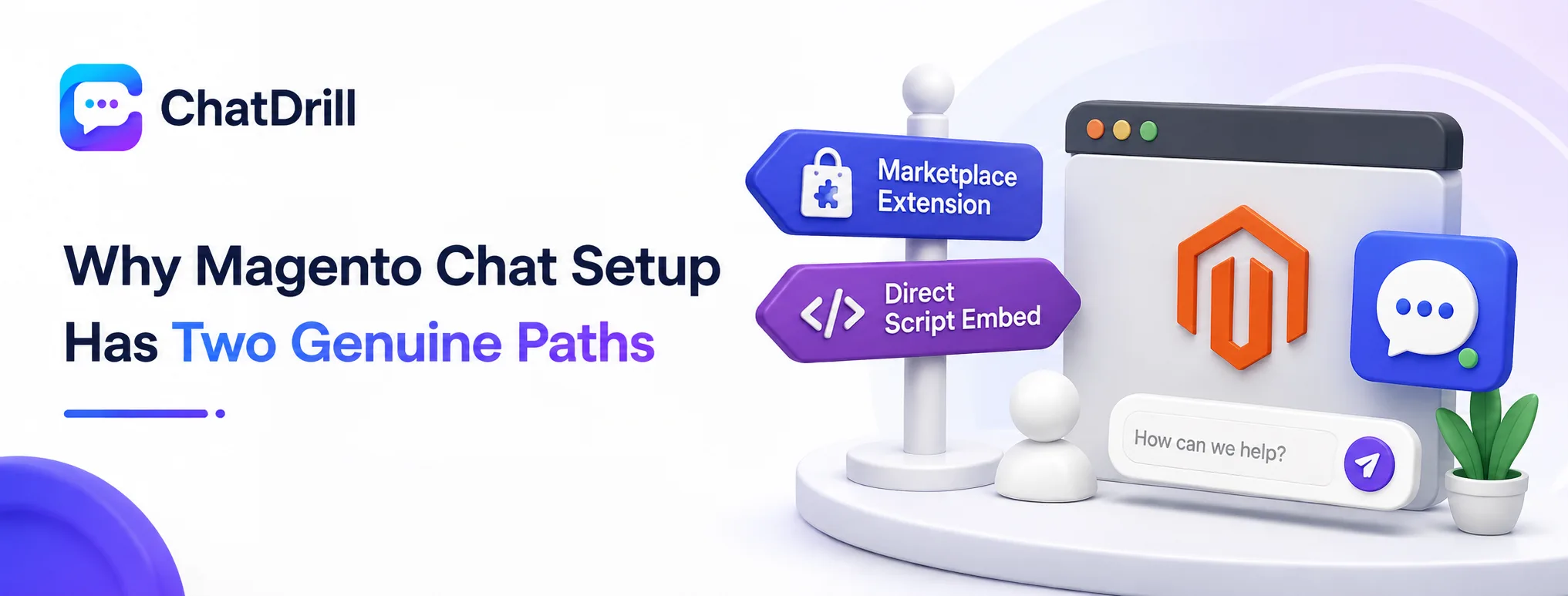
Magento supports adding live chat either through a Marketplace extension or by directly embedding a platform's script into your theme, and the right choice depends on how much control over placement and triggering you actually need.
The Marketplace extension route
Installing a chat extension through the Magento Marketplace typically involves less manual code work, since the extension handles placement and basic configuration through Magento's admin panel.
This route suits a store wanting a reasonably quick setup without deep customization needs around exactly which pages trigger chat differently.
The tradeoff is usually less granular control over advanced targeting, like showing a different chat behavior specifically on checkout versus a general product page.
The direct theme embed route
Pasting a chat platform's script directly into your theme's layout XML or footer template gives you precise control over exactly where and how the widget appears across different page types.
This route takes more initial setup effort but is worth it for a store wanting to trigger different chat behavior specifically on cart, checkout, or high-value product pages.
Most dedicated chat platforms, including ChatDrill, provide this kind of embeddable script specifically designed for platforms like Magento that support direct theme editing.
Step-by-Step: Installing via the Magento Marketplace
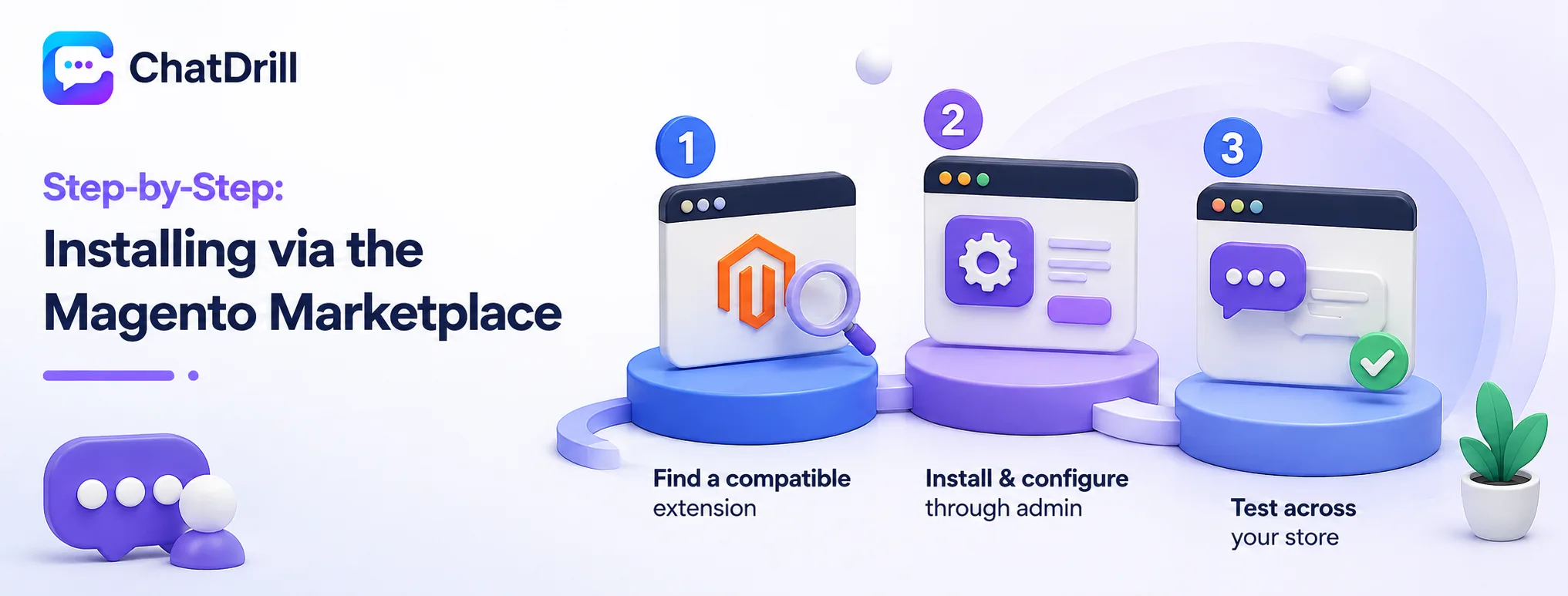
Installing a chat extension from the Marketplace involves finding a compatible extension, installing it through Magento's admin, and configuring basic display settings.
Step 1: Find a compatible extension
Searching the Magento Marketplace for "live chat" surfaces available extensions, though it's worth checking compatibility with your specific Magento version before proceeding.
Reviewing an extension's actual AI capability and customization limits before installing avoids discovering constraints only after you've already integrated it into your store.
Checking recent reviews and update history also helps confirm the extension is actively maintained and compatible with your Magento version specifically.
Step 2: Install and configure through admin
Following the extension's installation instructions, typically through Magento's Component Manager or a direct file upload, gets the extension active on your store.
Configuring basic settings, business hours, initial greeting, and which pages display the widget, happens through the extension's admin panel section afterward.
This is also the point to configure any available page-specific display rules, if the extension supports differentiating checkout pages from general browsing pages.
Step 3: Test across your store
Viewing your live store and testing the chat widget directly on the homepage, a product page, and checkout confirms it's displaying and functioning correctly everywhere it should.
This testing should include both desktop and mobile views, given how differently a chat widget can render across device sizes on an ecommerce site.
Testing the actual chat conversation flow too, not just widget visibility, confirms the underlying AI or routing is working as expected.
Step-by-Step: Direct Theme Embed for Advanced Targeting
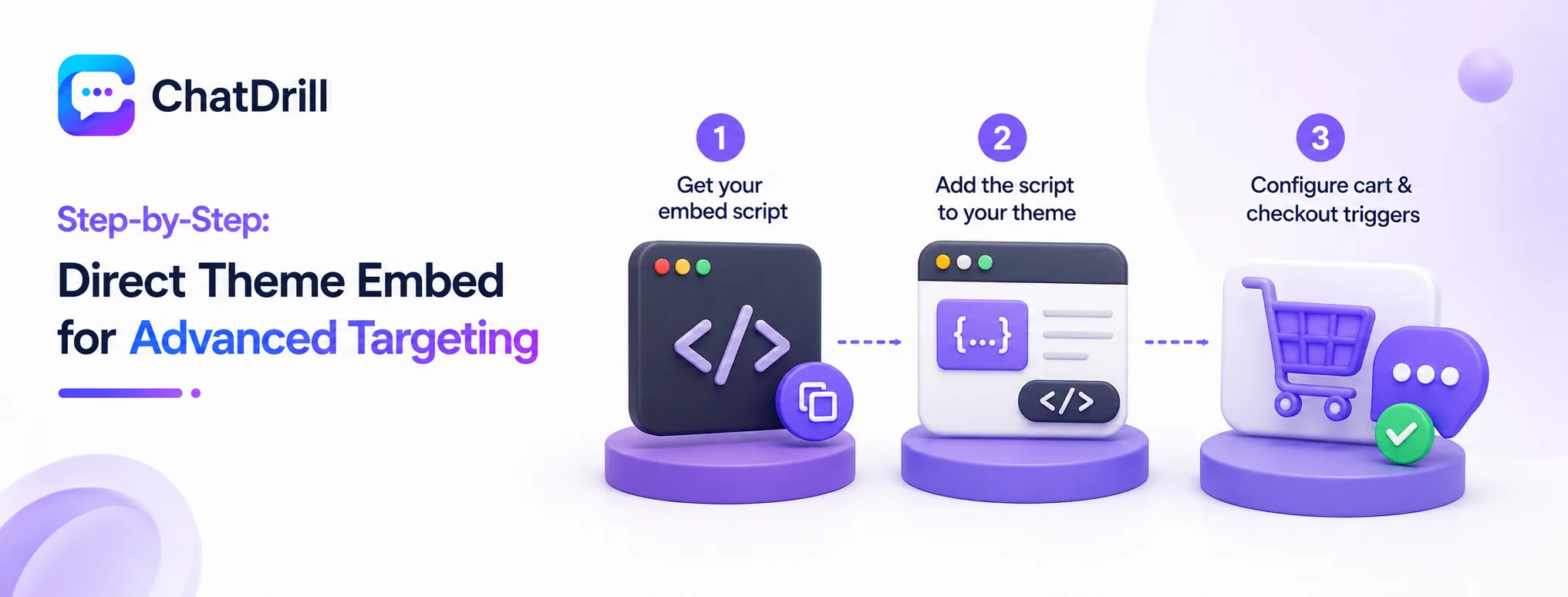
Embedding chat directly into your Magento theme involves getting your embed script, adding it to your theme's layout or footer template, and configuring page-specific triggers for cart and checkout.
Step 1: Get your embed script
Your chat platform provides a JavaScript snippet specifically meant for direct website embedding, usually available from the platform's installation or settings section.
This script is what connects your Magento store to the platform's full chat and AI capability, distinct from a Marketplace extension's more limited integration.
Confirming you have the correct script version for your specific Magento setup, particularly if running Magento 2 versus an older version, avoids compatibility issues.
Step 2: Add the script to your theme
Adding the script to your theme's default layout XML file, or directly into the footer template, ensures it loads consistently across your entire store rather than a single page.
This typically requires access to your theme files through the Magento admin's design configuration or direct file system access, depending on your specific setup.
Working with a developer for this step is common if you're not comfortable editing theme files directly, given how central this file is to your store's overall function.
Step 3: Configure cart and checkout-specific triggers
Setting up a proactive trigger specifically for cart and checkout pages, timed to fire when a shopper shows hesitation, captures exactly the moments where a quick answer can recover a sale.
This targeted approach, reserving proactive triggers for high-intent pages rather than the entire site, tends to perform meaningfully better than a blanket approach.
Testing this trigger directly by simulating cart abandonment behavior confirms it fires correctly before relying on it with real shoppers.
Common Mistakes When Adding Chat to Magento
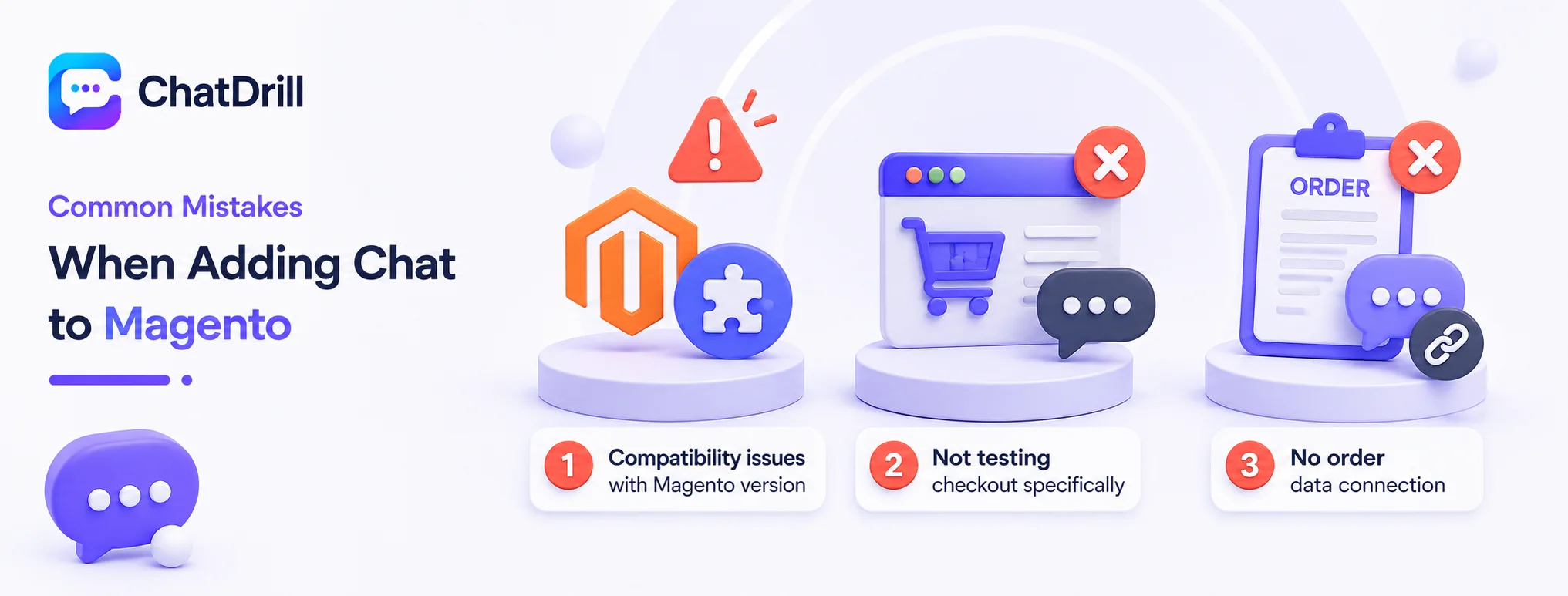
The most common mistakes are choosing a Marketplace extension without checking its Magento version compatibility, forgetting to test on checkout specifically, and not connecting chat to order data for accurate order-status answers.
Compatibility issues with Magento version
Installing an extension built for a different Magento version than your store runs can cause display issues or outright failures that aren't immediately obvious.
Checking compatibility explicitly before installation, rather than assuming universal compatibility, avoids this frustrating troubleshooting scenario.
This is particularly relevant for stores still running Magento 1, given how much of the extension ecosystem has shifted focus to Magento 2.
Not testing checkout specifically
Testing only the homepage after installation can miss an issue where the chat widget doesn't display correctly on checkout, exactly the page where it matters most for a Magento store.
Checkout pages sometimes use different templates or layouts than general pages, making this a genuinely distinct test case worth checking explicitly.
This gap is easy to miss if testing stops at the first successful page load rather than continuing through checkout.
No order data connection
A chatbot with no connection to real order data ends up giving generic responses to exactly the order-status questions that make up much of a Magento store's typical chat volume.
Connecting chat to your order management system, where your chat platform supports this integration, meaningfully expands what the AI can accurately resolve.
This gap is worth addressing early, given how much of typical ecommerce chat volume concentrates in order-status questions specifically.
Configuring AI Training for Your Magento Catalog
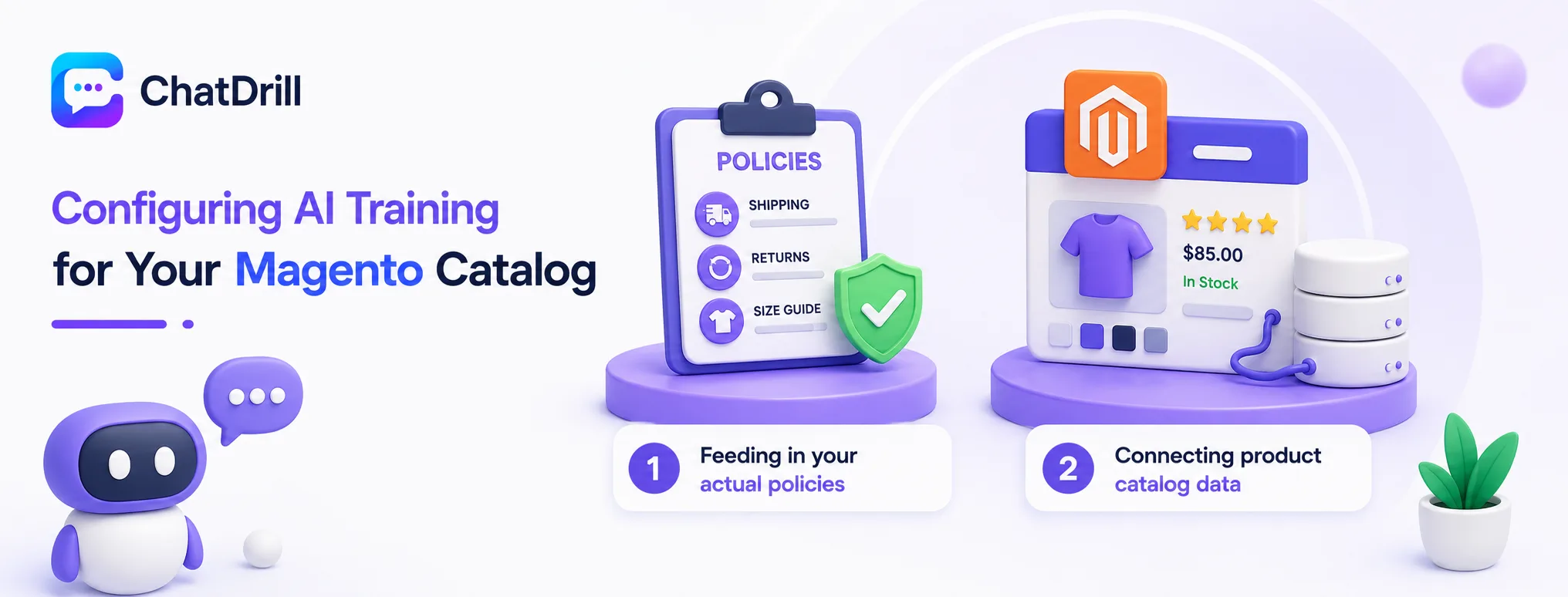
Getting real value from chat on Magento means training the AI on your actual product catalog, shipping policy, and return policy, not just installing the widget and leaving it with generic responses.
Feeding in your actual policies
Providing your chat platform with your real, current shipping timelines, return window, and any size or fit guidance produces meaningfully more useful responses than generic, unconnected answers.
This training investment directly affects whether shoppers get an answer that actually resolves their hesitation or a vague response that doesn't move them closer to purchase.
Reviewing this content periodically, especially around policy changes or seasonal shipping adjustments, keeps the AI's answers accurate over time.
Connecting product catalog data
Where your chat platform supports it, connecting product catalog data lets AI answer specific questions about a given product's availability, pricing, or variant options directly.
This connection is particularly valuable for a Magento store with a large or frequently changing catalog, where generic answers would quickly become outdated.
Testing this connection with a handful of real, current products confirms the data is genuinely syncing correctly before relying on it broadly.