
Wix offers two genuinely different paths for adding live chat, installing a pre-built app from its App Market, or embedding a custom chat widget's code directly through Wix's Embed feature, and the right choice depends on how much control and AI capability you actually need.
The App Market path is faster to set up but often more limited in AI training depth and customization, while the embed path takes a few more minutes to configure but gives you the full capability of whatever chat platform you're using.
Getting this right matters beyond initial setup too, since a chat widget that loads slowly or doesn't match your site's design can undermine the professional impression a Wix site is often built specifically to create.
This guide covers both installation paths, what to configure after installation, common mistakes, and mistakes worth avoiding.
Quick answer: You can add live chat to a Wix site by installing a chat app from the Wix App Market or embedding a custom HTML widget through Wix's Embed Code element, with the App Market route being faster to set up and the embed route offering more control over configuration and AI training.
Two Ways to Add Live Chat to Wix
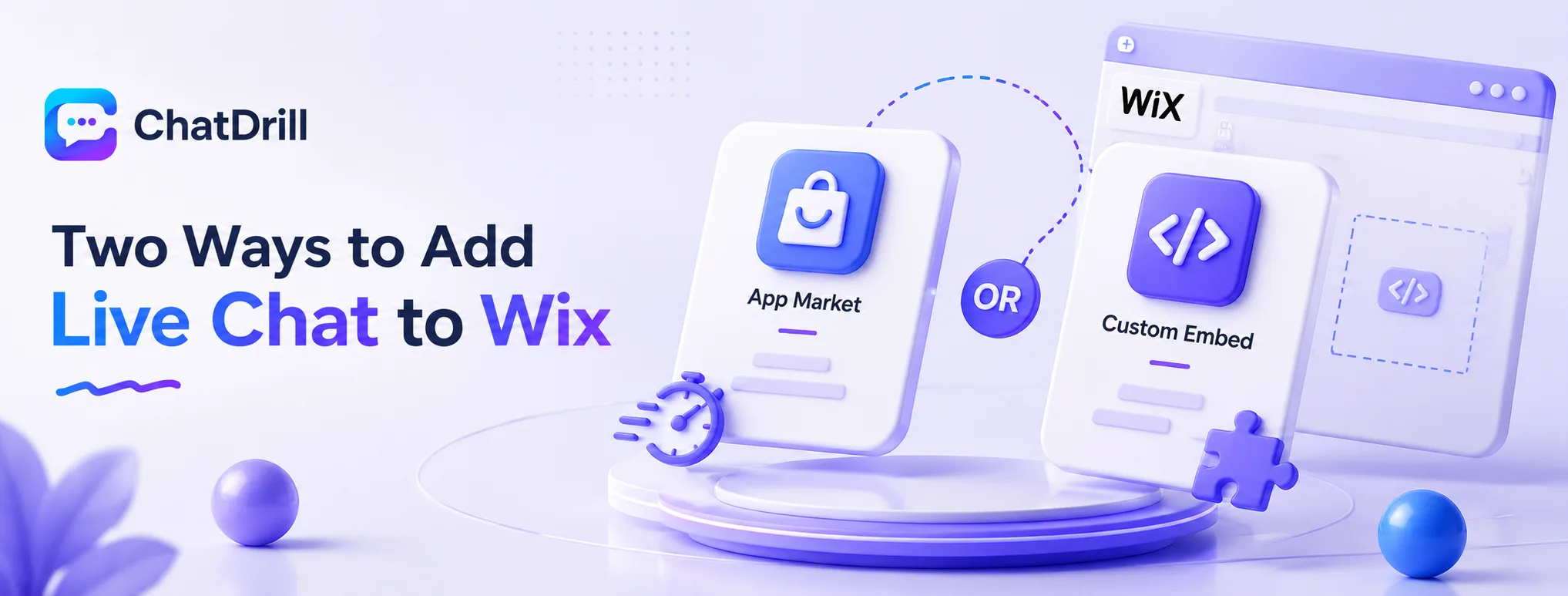
Wix supports adding live chat either through a pre-built App Market installation or by embedding a custom widget's code directly, with the right choice depending on how much AI capability and customization you need.
The App Market route
Installing a chat app directly from Wix's App Market is the fastest path, typically live within minutes, though often with more limited AI training and customization options than a dedicated chat platform.
This route suits a simpler use case where basic chat functionality matters more than deep AI qualification or brand-specific customization.
The custom embed route
Embedding a chat platform's widget code directly through Wix's Embed Code element gives you the full capability of that platform, deeper AI training, custom branding, and advanced routing logic.
This route takes slightly longer to set up but is worth it for a business wanting genuine AI qualification depth rather than basic message relay.
Step-by-Step: Installing via the App Market
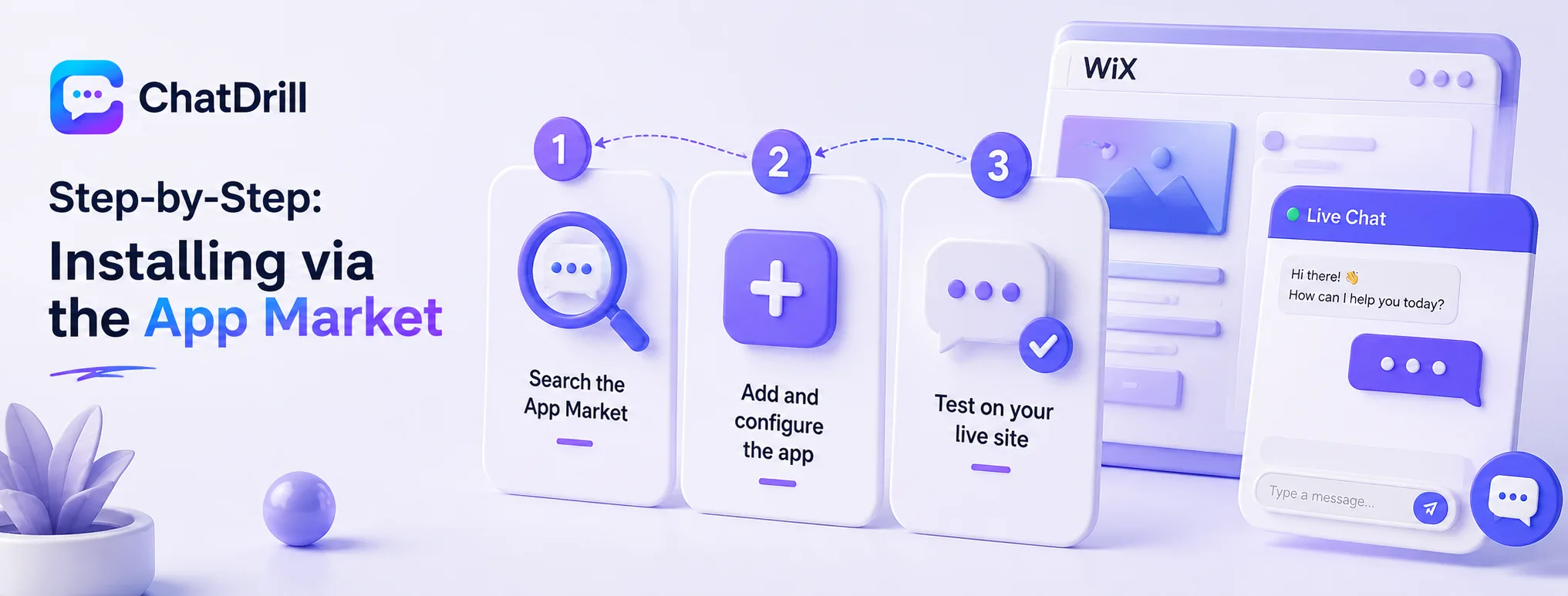
Installing a chat app from the Wix App Market involves searching for a chat solution, adding it to your site, and configuring basic settings like business hours and initial greeting.
Step 1: Search the App Market
From your Wix dashboard, navigating to the App Market and searching for "live chat" surfaces the available pre-built options compatible with your site.
Reviewing each option's actual AI capability and customization limits before installing avoids discovering these constraints only after you've already integrated one.
Step 2: Add and configure the app
Clicking to add your chosen app installs it directly onto your site, after which you'll typically configure basic settings like business hours, initial greeting message, and widget appearance.
This configuration step is worth doing thoughtfully, since these basic settings shape a visitor's very first impression of the chat experience.
Step 3: Test on your live site
Viewing your published site and testing the chat widget directly, sending a real test message, confirms everything is working correctly before real visitors encounter it.
This test should be done on both desktop and mobile views, given how differently a chat widget can render across device sizes.
Step-by-Step: Embedding a Custom Chat Widget
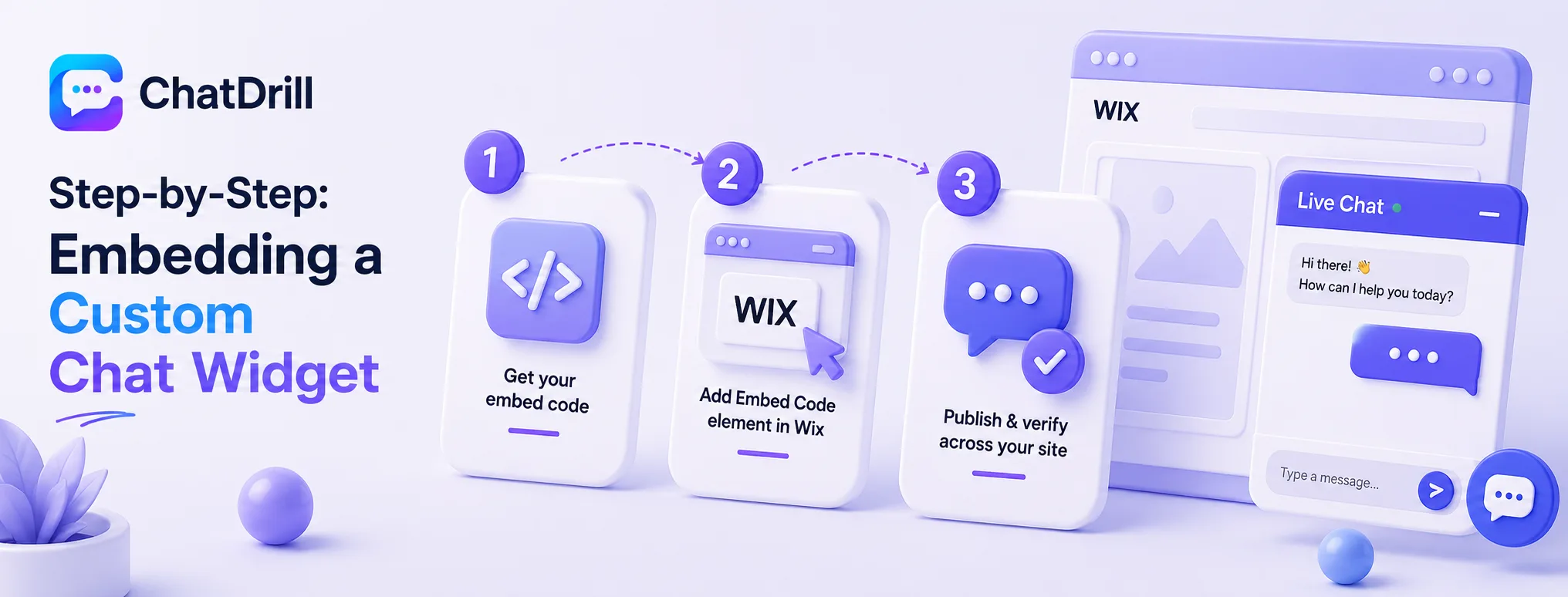
Embedding a custom chat widget involves getting your embed code from the chat platform, adding it through Wix's Embed Code element, and confirming it loads correctly across your site.
Step 1: Get your embed code
Your chat platform provider will supply a snippet of HTML or JavaScript code specifically meant to be pasted into your website, usually found in the platform's installation or settings section.
This code is what connects your Wix site to the platform's full chat and AI capability, distinct from a generic App Market app's more limited integration.
Step 2: Add the Embed Code element in Wix
From the Wix Editor, adding an Embed Code element, then pasting your platform's code into it, places the widget onto your site.
Positioning this element correctly, and setting it to appear on all pages rather than just one, ensures the chat widget is consistently available site-wide.
Step 3: Publish and verify across your site
Publishing your site and checking that the chat widget appears and functions correctly across different pages confirms the embed was placed and configured correctly.
This verification should include checking page load speed too, since a poorly implemented embed can occasionally slow down page performance if not configured efficiently.
Common Mistakes When Adding Chat to Wix

Not checking AI capability before choosing an App Market option
actual AI capability limits, forgetting to set the widget to appear site-wide, and not testing on mobile before launch.
Not checking AI capability before choosing an App Market option Installing the first available chat app without reviewing its actual AI training depth and customization limits can mean discovering meaningful constraints only after you're already invested in that setup.
Reviewing this upfront, or opting for the embed route if genuine AI capability matters, avoids this specific frustration.
Forgetting site-wide placement
Configuring the chat widget to appear on only one page, rather than site-wide, means visitors on other pages miss the chat option entirely.
Confirming site-wide placement during setup, rather than assuming it's automatic, ensures consistent chat availability across your entire site.