
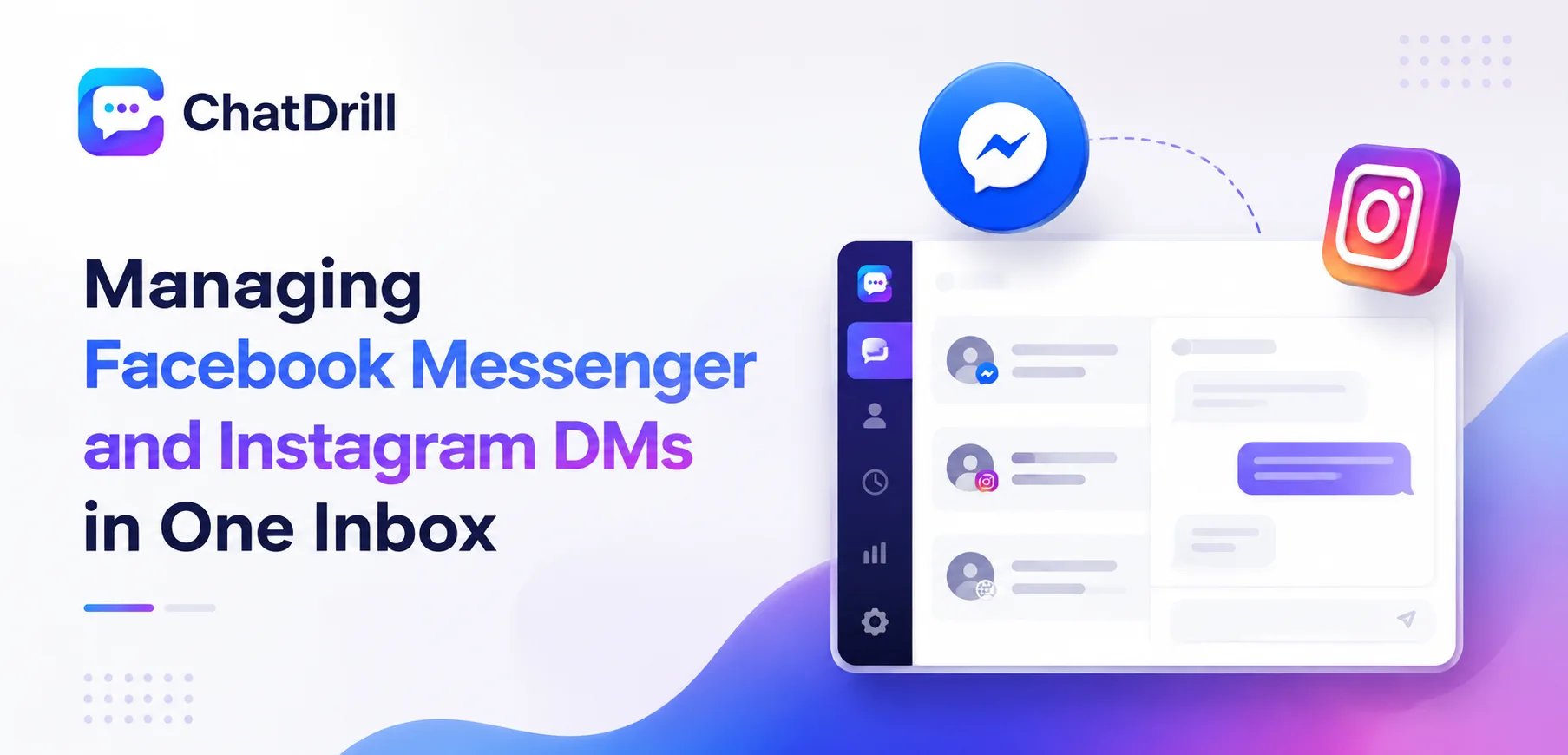
Bringing Facebook Messenger and Instagram DMs into the same inbox as website chat means a team stops toggling between three separate apps to cover the channels customers actually use, replacing that fragmented workflow with one unified view.
This matters more every year as social messaging becomes a primary contact method for a growing share of customers, particularly younger demographics and businesses with a strong social media presence, who default to DMing a brand rather than visiting its website first.
Both Messenger and Instagram connect through Meta's business platform, meaning the setup process is similar for each and, once complete, both channels behave consistently within the same shared inbox as website chat and any other connected channel.
What tends to matter most in practice isn't the technical connection itself, which is relatively quick, but the channel-specific conventions, response expectations, and automation rules a team needs to actually manage all three channels well.
This guide covers why unifying these channels matters, what to prepare before connecting them, the step-by-step process for Messenger and Instagram separately, managing all three channels from one inbox, channel-specific automation, and troubleshooting common issues.
Why Unify Messenger and Instagram DMs With Website Chat
Unifying Messenger, Instagram DMs, and website chat into one inbox means a team can respond consistently across every channel customers actually use, without needing separate staff or workflows for each individual app.
The fragmentation problem with separate channel apps
Managing Messenger, Instagram, and website chat as three separate tools means someone needs to actively monitor each one independently, creating exactly the kind of gap where a message sits unanswered.
This fragmentation also makes reporting nearly impossible to consolidate, since each app tracks its own metrics separately with no unified view of overall response time or volume.
A unified inbox solves both problems at once, giving the team one place to work and one consistent set of metrics to track across every channel.
Why social messaging volume keeps growing
More customers now discover a business through social media directly, making an in-platform DM the natural first point of contact rather than a website visit.
This trend is especially pronounced for consumer brands with an active social presence, where Instagram and Messenger volume can rival or exceed website chat volume entirely.
What a unified view actually enables
With every channel in one inbox, routing, tagging, and reporting rules built for website chat extend naturally to social channels, rather than requiring separate configuration for each.
This also means AI automation, once trained, can cover all three channels consistently, rather than a business needing to build and maintain three separate automated response systems.
What You Need Before Connecting Both Channels
Before connecting Messenger and Instagram to a shared inbox, you'll need admin access to your Facebook Page and Instagram Business account, both connected through Meta Business Manager, and about fifteen to twenty minutes for the combined setup.
Admin access to Facebook Page and Instagram Business account
You'll need admin-level access to both the Facebook Page and the Instagram Business account, since both connections require authorizing permissions at that access level.
If these accounts are managed by a marketing team separate from whoever handles chat platform setup, coordinating access in advance avoids a mid-setup blocker.
Both accounts connected through Meta Business Manager
Meta requires the Instagram Business account to be linked to the same Facebook Page within Business Manager before a chat platform can connect to both consistently.
Confirming this linkage is already in place, or setting it up first if it isn't, saves time during the actual chat platform connection process.
About fifteen to twenty minutes for setup
Connecting both channels through most modern chat platforms, including ChatDrill, typically takes fifteen to twenty minutes combined, assuming the Meta Business Manager linkage is already correctly configured.
Budgeting a bit more time if the accounts aren't yet linked in Business Manager avoids rushing through that prerequisite step.
Step-by-Step: Connecting Facebook Messenger
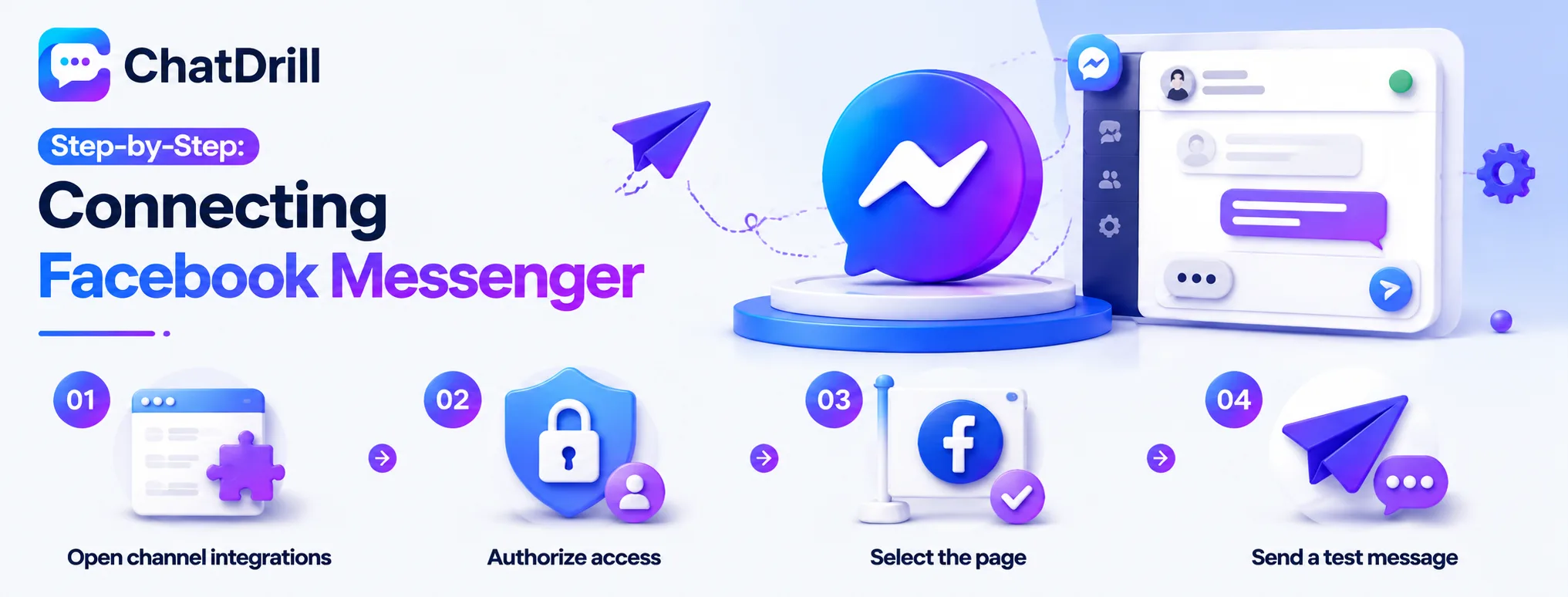
Connecting Facebook Messenger involves opening your chat platform's channel integrations, authorizing access to your Facebook Page, selecting the specific page to connect, and sending a test message to confirm it appears in the inbox.
Step 1: Open your chat platform's channel integrations
From your chat platform's settings, navigate to the Channels or Integrations section, where Facebook Messenger typically appears as a pre-built connection option alongside other social channels.
This is the standard starting point across most modern chat platforms for connecting any Meta-based messaging channel.
Step 2: Authorize access to your Facebook Page
Click Connect on the Messenger integration, which opens a standard Facebook authorization flow requesting permission to manage messages on your behalf.
Reviewing the specific permissions requested confirms they align with what's needed for message management, rather than broader access than the integration actually requires.
Step 3: Select the specific page to connect
If you manage multiple Facebook Pages, select the specific one whose Messenger conversations should flow into your chat inbox, since a business account can be linked to several pages.
Double-checking you've selected the correct page here avoids a confusing setup where messages from the wrong page end up connected instead.
Step 4: Send a test message to confirm the connection
Message your Facebook Page from a personal account and confirm the message appears correctly in your chat platform's inbox within a few seconds.
Testing a reply from the inbox back to Messenger as well confirms the full two-way conversation flow works before relying on it for real customers.
Step-by-Step: Connecting Instagram DMs
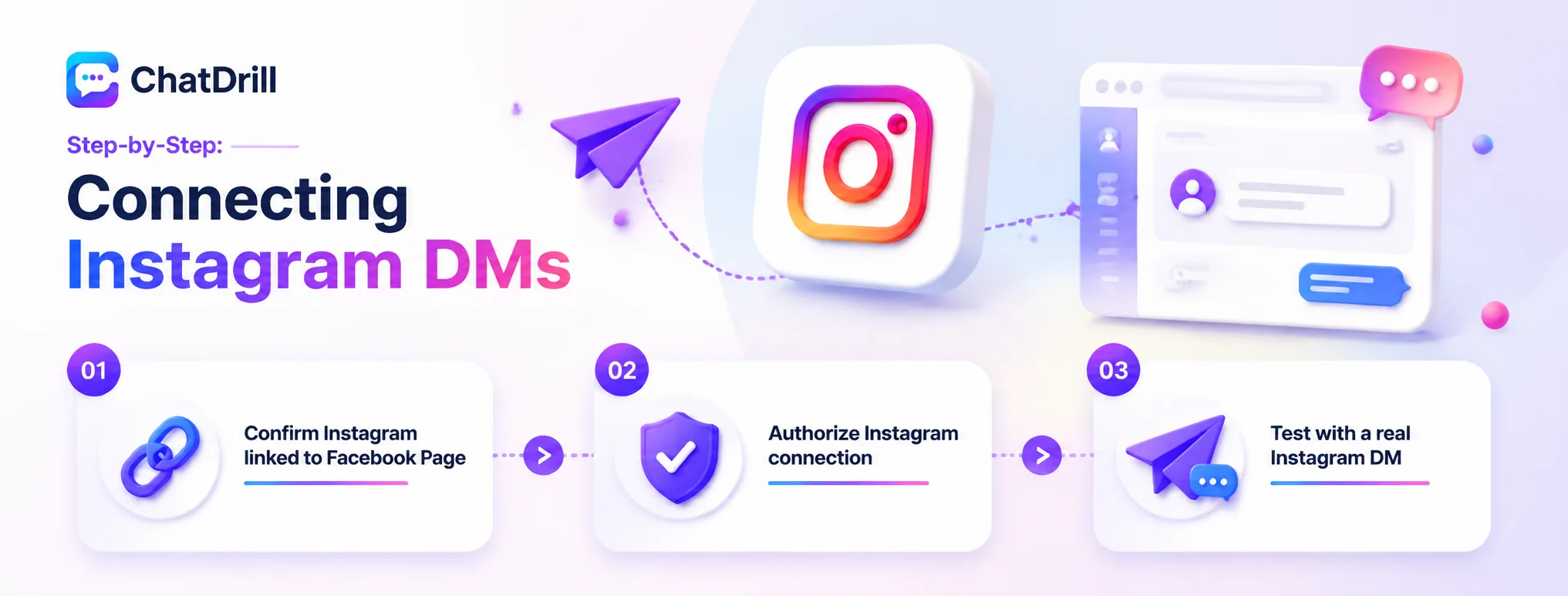
Connecting Instagram DMs follows a similar process to Messenger: confirming your Instagram account is linked to your Facebook Page, authorizing the connection in your chat platform, and testing with a real message.
Step 1: Confirm your Instagram account is linked to your Facebook Page
Instagram DM integration requires your Instagram Business account to already be connected to the same Facebook Page within Meta Business Manager, a prerequisite worth verifying before starting.
If this linkage isn't already in place, setting it up through Business Manager first is a necessary step before the chat platform connection will work.
Step 2: Authorize the Instagram connection in your chat platform
From the same Channels or Integrations section used for Messenger, select Instagram and follow the authorization flow, which requests permission to manage Instagram messages on your behalf.
This process closely mirrors the Messenger connection, since both run through the same underlying Meta authorization system.
Step 3: Test with a real Instagram DM
Send a direct message to your Instagram Business account from a personal account and confirm it appears correctly in your chat platform's inbox.
As with Messenger, testing a reply from the inbox back to Instagram confirms full two-way functionality before the channel goes live for real customer conversations.
Managing All Three Channels From One Inbox
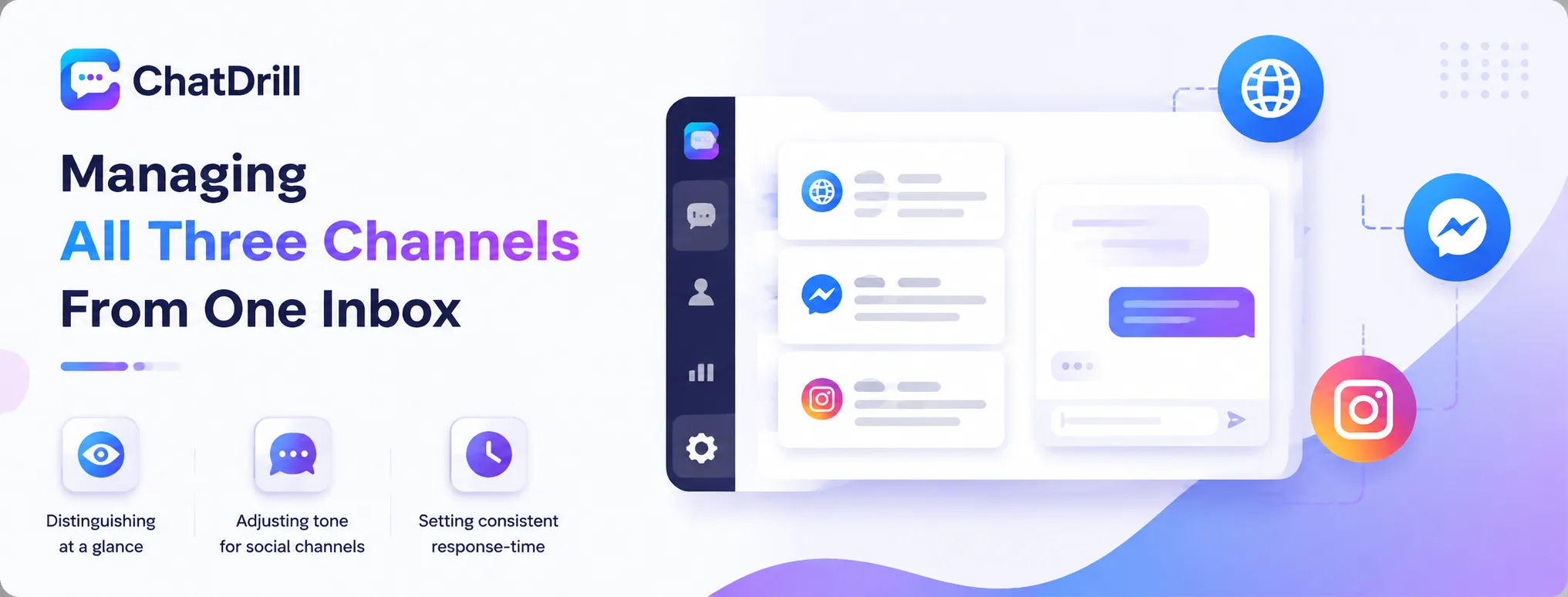
Once connected, effectively managing website chat, Messenger, and Instagram together means distinguishing conversations by channel at a glance, understanding each channel's slightly different tone and formatting conventions, and setting consistent response-time expectations across all three.
Distinguishing channels at a glance
Most platforms visually tag each conversation by its originating channel, letting an agent immediately see whether they're responding to website chat, Messenger, or Instagram without ambiguity.
This distinction matters practically, since a customer's expectations and typical message style differ somewhat between a formal website widget and a casual Instagram DM.
Adjusting tone for social channels
Instagram and Messenger conversations tend to skew more casual and shorter than website chat, worth reflecting in how the team, and any AI automation, responds on these specific channels.
A response that feels appropriately formal on a website widget can feel oddly stiff in an Instagram DM, worth training the team to recognize and adjust for this difference.
Setting consistent response-time expectations
Customers generally expect similarly fast responses across all three channels, making it worth setting the same internal response-time targets rather than deprioritizing social channels relative to website chat.
Reviewing response-time reporting by channel specifically helps confirm this consistency is actually being maintained in practice, not just intended.
Advanced: Channel-Specific Automation Rules
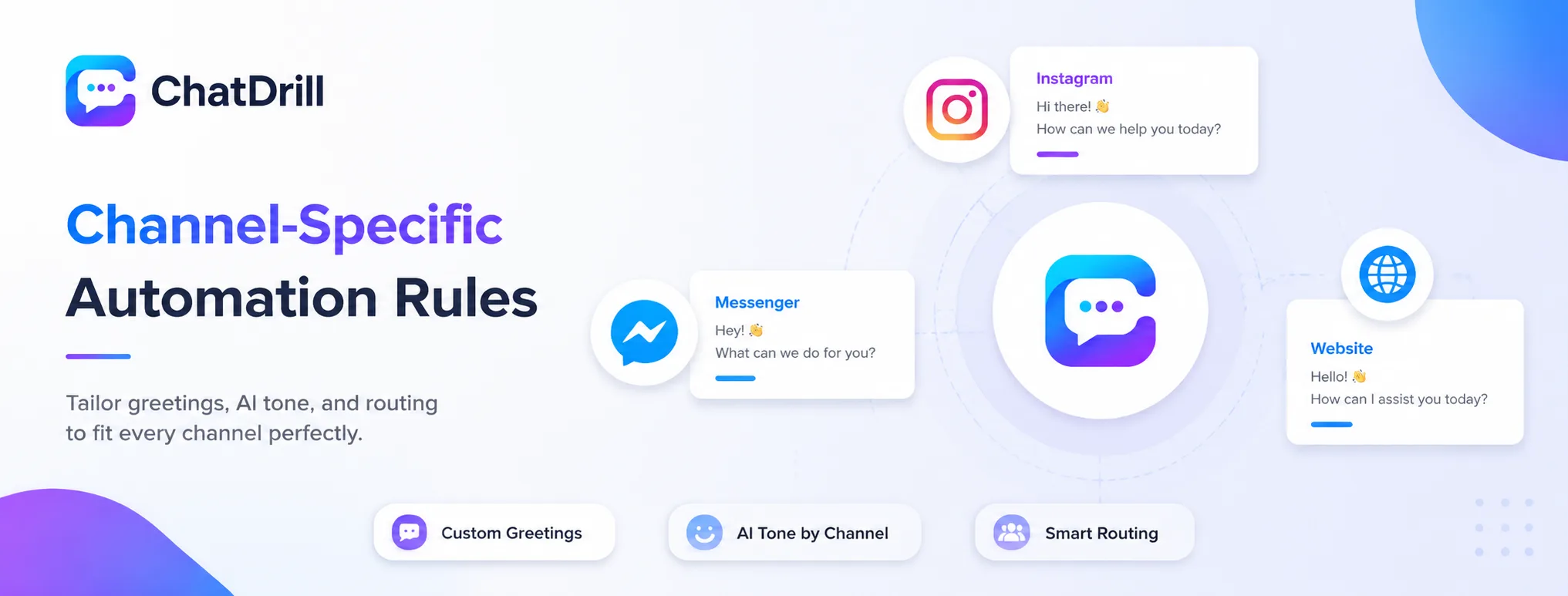
Beyond basic connection, setting channel-specific automation rules, different greeting messages, different AI tone, different routing logic, lets a business tailor the experience to each channel's distinct audience and conventions.
Channel-specific greeting messages
Configuring a slightly different, more casual greeting for Instagram and Messenger compared to a website widget's more formal default tends to feel more natural to visitors on each specific channel.
This is a relatively small configuration change that meaningfully improves how native the chat experience feels on each platform.
Routing social DMs to a specific team
Some businesses route Instagram and Messenger conversations specifically to a social media or marketing team, rather than the general support queue, given the different skill set social conversations sometimes require.
This routing decision depends heavily on team structure, worth revisiting periodically as social channel volume grows relative to other channels.
AI tone adjustments by channel
If your chat platform supports it, configuring a slightly more casual, brand-personality-forward AI tone for social channels versus a more neutral tone for website chat maintains channel-appropriate consistency.
This nuance matters more for a brand with a strong, distinctive social media voice than for one with a more uniform tone across every channel already.
Troubleshooting Common Messenger and Instagram Issues
The most common issues connecting Messenger and Instagram are the connection breaking after a Meta permission review, Instagram messages not appearing due to a missing Page linkage, and messages arriving with a noticeable delay.
The connection breaking after a Meta review
Meta periodically reviews app permissions, which can occasionally require re-authorizing a connection that was previously working fine, without much advance warning.
Periodically checking connection status in your chat platform's settings, rather than assuming a working integration stays working indefinitely, catches this before it causes a missed conversation.
Instagram messages not appearing
This most commonly traces back to the Instagram account not being properly linked to the Facebook Page in Meta Business Manager, worth double-checking that prerequisite specifically.
Re-verifying this linkage and then reconnecting the integration in your chat platform typically resolves the issue without needing to rebuild the entire connection.
Messages arriving with a noticeable delay
A delay in messages reaching the inbox is sometimes a temporary Meta platform issue rather than a problem with your specific integration, worth checking Meta's status page if this happens broadly.
If the delay is isolated to your specific setup and persists, reaching out to your chat platform's support team with specific timestamps helps them diagnose whether it's a connection-specific issue.