
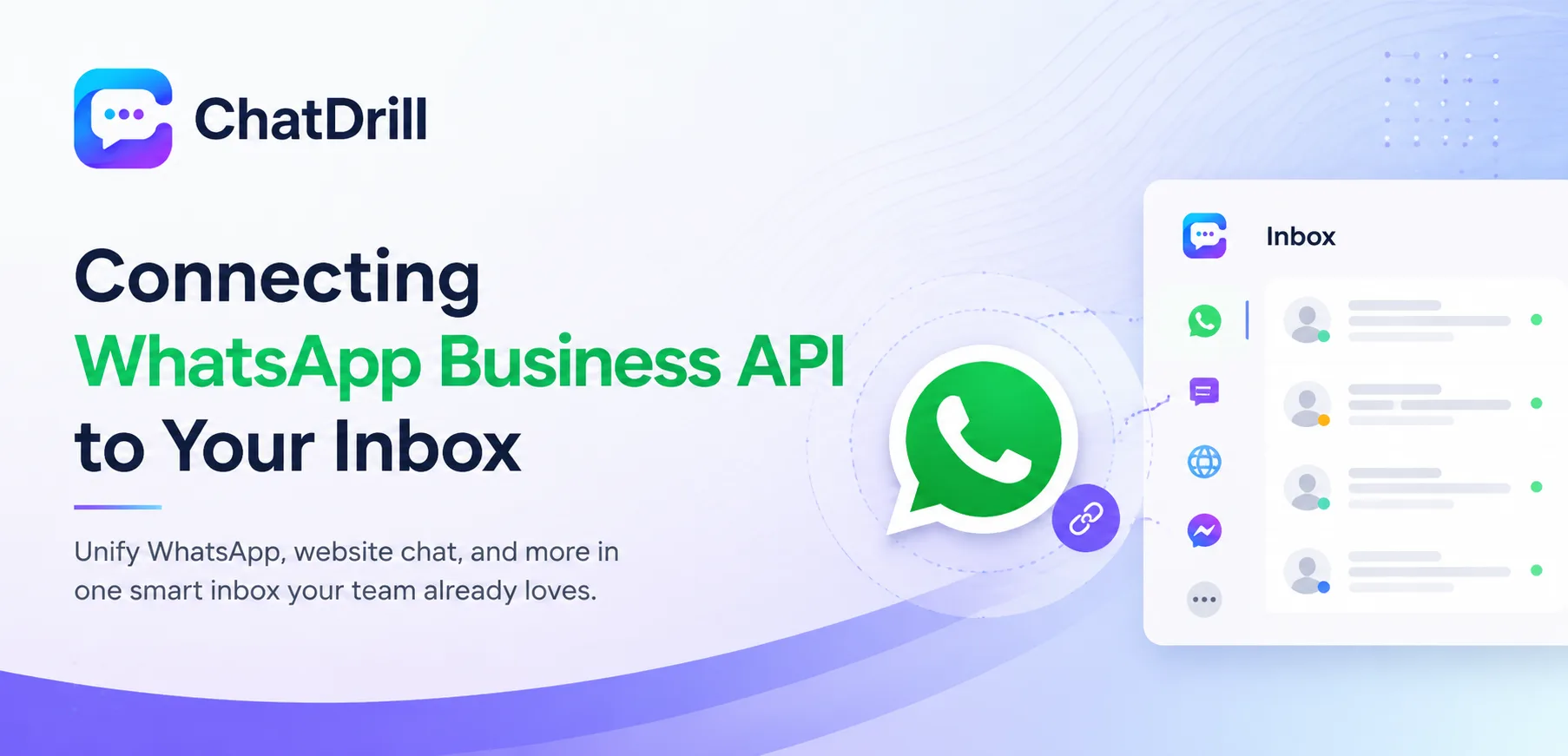
Connecting the WhatsApp Business API to a shared chat inbox means every WhatsApp conversation, alongside website chat and other channels, lands in one place a team already works from, rather than requiring a separate WhatsApp Business app monitored independently.
This matters increasingly as more customers, particularly outside North America, default to WhatsApp as their first choice for contacting a business, expecting the same responsiveness they'd get from any other messaging channel.
The setup is more involved than a simple website widget install, since it requires Meta's business verification process and API access, but once connected, WhatsApp conversations behave just like any other channel inside the unified inbox.
Getting this right also opens the door to AI qualification and automation on WhatsApp specifically, extending the same intelligence a business already applies to website chat into what's often its highest-engagement channel.
This guide covers why connecting WhatsApp to a shared inbox matters, what to prepare before starting, the step-by-step connection process, managing WhatsApp alongside website chat, WhatsApp-specific rules and template messages, using AI for WhatsApp lead qualification, and troubleshooting common connection issues.
Why Connect WhatsApp Business API to Your Chat Inbox
Connecting WhatsApp to a shared chat inbox means a growing, high-engagement channel gets the same team visibility, automation, and reporting as website chat, rather than existing as a separate, harder-to-manage silo.
The problem with managing WhatsApp separately
A standalone WhatsApp Business app requires someone to actively monitor it independently of the team's main chat dashboard, creating exactly the kind of visibility gap that leads to slow or missed responses.
This separation also means WhatsApp conversations don't benefit from the same AI qualification, reporting, and routing logic already built for website chat, duplicating effort rather than extending it.
Why WhatsApp engagement tends to be especially high
WhatsApp messages typically see meaningfully higher open and response rates than email, since it's a channel customers already check constantly for personal messaging.
This high engagement makes WhatsApp a genuinely valuable channel to get right, the responsiveness advantage it offers is wasted if messages sit unanswered due to poor internal visibility.
What a unified inbox unlocks for WhatsApp specifically
Once connected, WhatsApp conversations can be routed, tagged, and reported on using the same rules already built for website chat, rather than requiring an entirely separate workflow.
This also means AI automation, if already trained for website chat, can extend to WhatsApp with relatively modest additional setup rather than building a parallel system from scratch.
What You Need Before Connecting WhatsApp
Before connecting the WhatsApp Business API, you'll need a verified Meta Business account, a dedicated phone number not already registered to a personal WhatsApp account, and roughly a few days to a week for Meta's verification process to complete.
A verified Meta Business account
Meta requires business verification, confirming your company's legal name, address, and website, before granting API access, a process that can take anywhere from a day to about a week.
Starting this verification process well before you plan to actually launch WhatsApp support avoids the API connection becoming a bottleneck later.
A dedicated phone number
The WhatsApp Business API requires a phone number not already actively used on a personal or regular WhatsApp Business app account, since the number transitions fully to API-based messaging.
Most businesses use a number specifically acquired or repurposed for this integration, rather than an existing customer-facing number already tied to personal WhatsApp use.
Realistic timeline expectations
Between Meta's business verification and the technical connection to your chat inbox, budgeting a full week for the complete setup process is more realistic than expecting same-day activation.
Starting the Meta verification step first, in parallel with other setup preparation, keeps the overall timeline as short as possible.
Step-by-Step: Connecting the WhatsApp Business API
Connecting the WhatsApp Business API involves completing Meta business verification, registering your dedicated phone number, connecting the API to your chat inbox platform, and sending a test message to confirm two-way communication works.
Step 1: Complete Meta business verification
Submit your business details through Meta's Business Manager, providing documentation that confirms your company's legal identity, which Meta reviews before granting API access.
This step often takes the longest of the whole process, worth starting as early as possible relative to your target launch date.
Step 2: Register your dedicated phone number
Once verified, register the phone number that will serve as your WhatsApp Business API number, confirming it through the verification code Meta sends.
This number becomes permanently tied to API-based messaging going forward, so choosing the right number for your business upfront avoids needing to migrate again later.
Step 3: Connect the API to your chat inbox platform
In your chat platform's settings, locate the WhatsApp integration and follow the connection flow, which typically involves authorizing your Meta Business account and confirming the registered phone number.
Most modern chat platforms, including ChatDrill, streamline this connection considerably compared to a fully manual API integration, since they handle much of the underlying technical complexity.
Step 4: Send a test message to confirm two-way communication
Send a message to your new WhatsApp Business number from a personal phone, confirming it appears correctly in your chat inbox, then reply from the inbox and confirm it arrives on WhatsApp.
Testing both directions specifically, not just incoming messages, confirms the integration genuinely supports the full conversation flow before relying on it for real customers.
Managing WhatsApp Conversations Alongside Website Chat
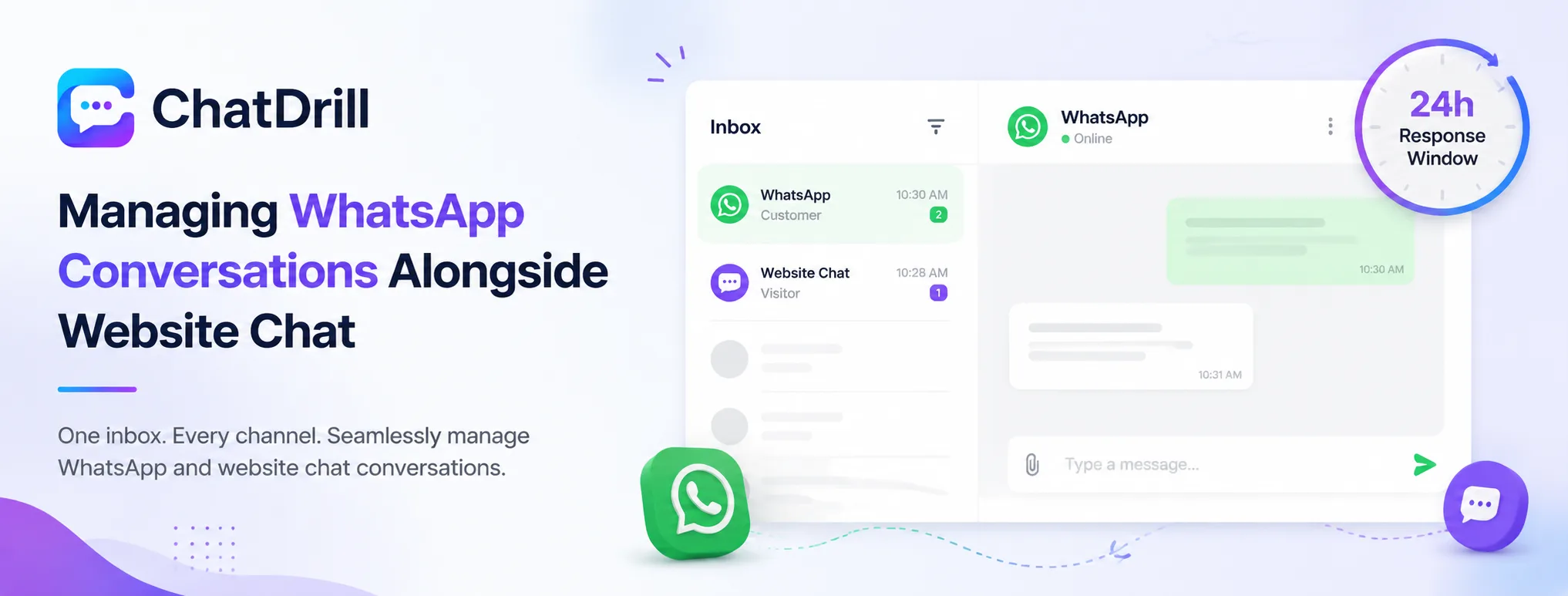
Once connected, WhatsApp conversations appear in the same shared inbox as website chat, though a few WhatsApp-specific considerations, response time windows and message formatting, are worth understanding to manage the channel effectively.
Understanding WhatsApp's 24-hour response window
WhatsApp's policy restricts free-form business replies to within 24 hours of a customer's last message, after which only pre-approved template messages can be sent.
Being aware of this window matters for team training specifically, since it changes how urgently a WhatsApp conversation needs a response compared to website chat, which has no equivalent restriction.
Distinguishing WhatsApp conversations in a shared inbox
Most platforms visually tag or label conversations by channel, letting agents immediately see whether they're responding to WhatsApp, website chat, or another connected channel.
This distinction matters practically since message formatting and length conventions differ somewhat between WhatsApp and a website widget, worth keeping in mind when replying.
Routing WhatsApp conversations appropriately
Some teams route WhatsApp specifically to agents trained on its particular conventions and response-window rules, rather than treating it identically to every other channel by default.
This specialization tends to matter more as WhatsApp volume grows, though a smaller team can often manage it well within the same general routing rules as other channels.
WhatsApp-Specific Rules and Template Messages
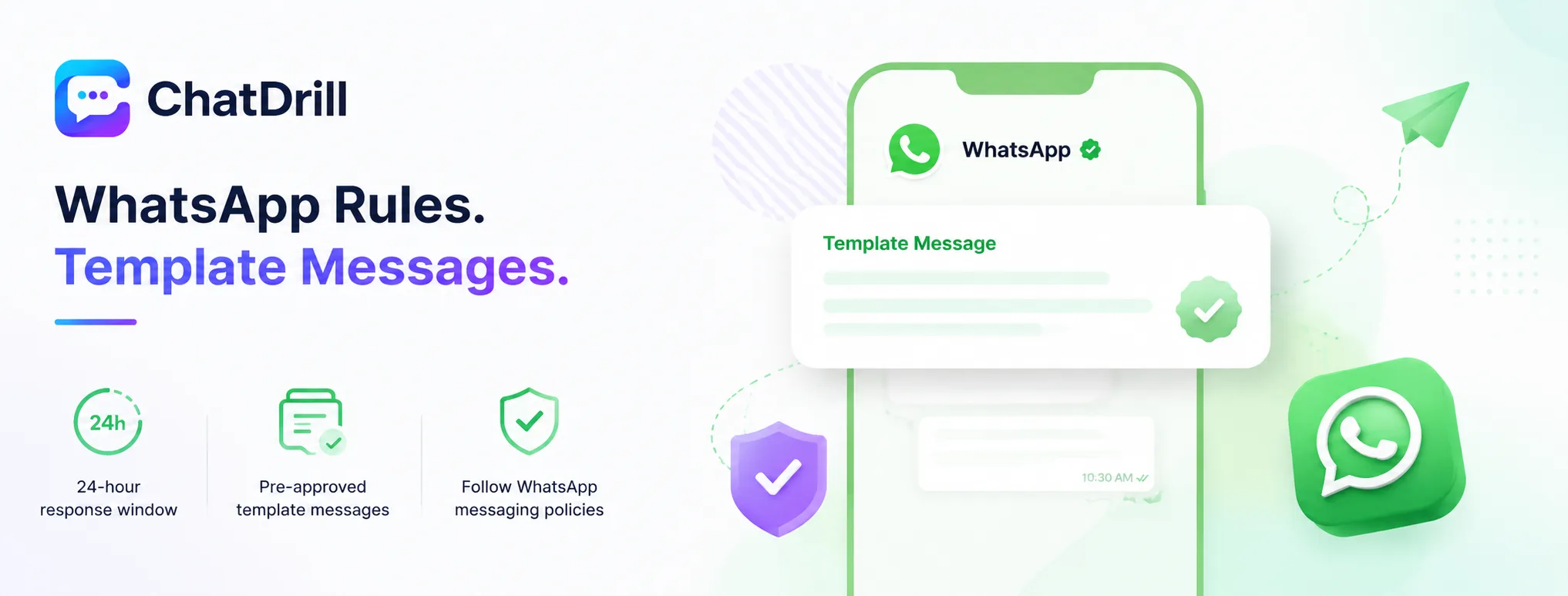
WhatsApp's business messaging policies require pre-approved template messages for any communication outside the 24-hour response window, along with restrictions on promotional content that differ meaningfully from website chat's more flexible messaging rules.
What template messages are and when they're required
A template message is a pre-approved message format, submitted to Meta for review, used to reach a customer outside the 24-hour window, like a shipping update or appointment reminder.
Getting templates approved in advance for common scenarios, order updates, appointment confirmations, avoids being unable to reach a customer when the need arises outside that response window.
Restrictions on promotional messaging
WhatsApp maintains stricter rules against unsolicited promotional content than a website chat widget would, worth reviewing Meta's current policy before planning any marketing-oriented WhatsApp messaging.
Violating these policies risks the business number being restricted or banned, making it worth erring toward conservative, clearly permission-based messaging rather than testing the boundaries.
Getting templates approved efficiently
Submitting template messages with clear, specific use cases and avoiding promotional language tends to move through Meta's review process faster than vague or marketing-heavy submissions.
Building a small library of pre-approved templates for your most common WhatsApp scenarios upfront avoids scrambling to get one approved reactively when a specific need arises.
Advanced: Using AI to Qualify WhatsApp Leads
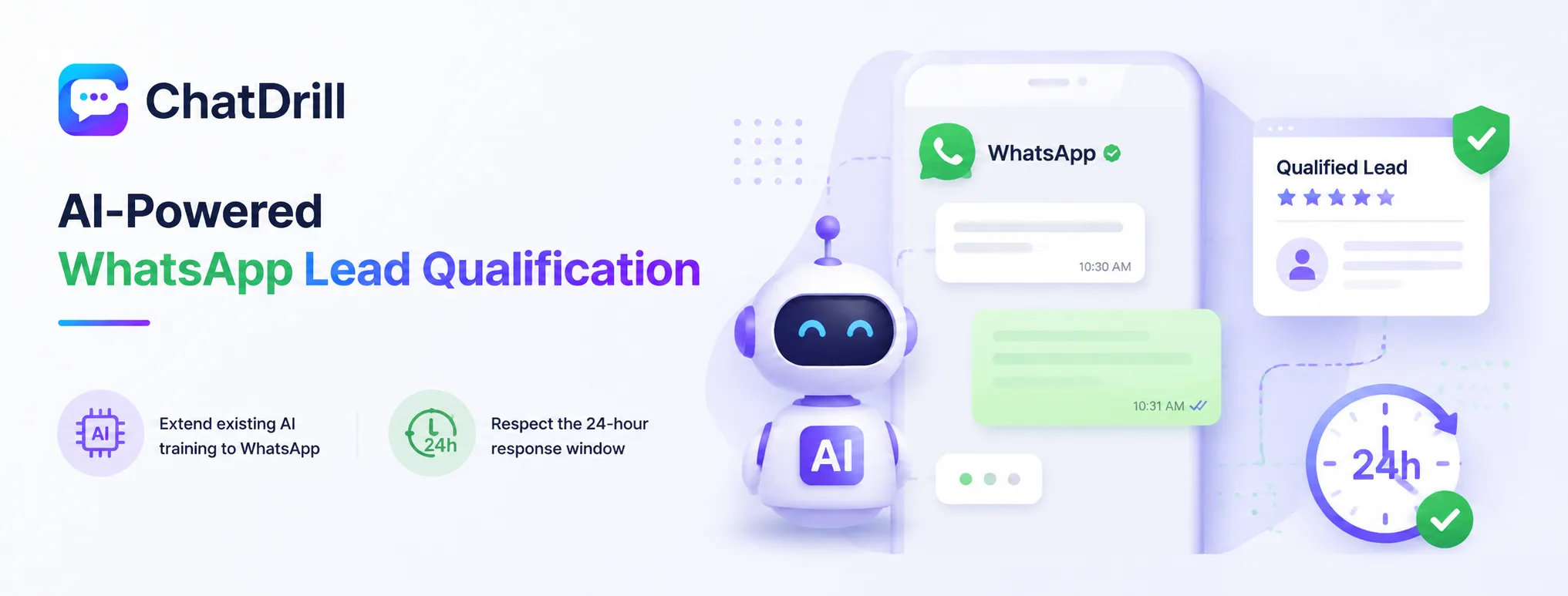
AI chatbot automation, if already trained for website chat, can extend to WhatsApp with modest additional configuration, letting the same qualification logic that works on the website also engage and score leads arriving through WhatsApp.
Extending existing AI training to WhatsApp
Most of the knowledge base and qualification logic already built for website chat AI applies directly to WhatsApp, since the underlying AI reasoning doesn't fundamentally change based on channel.
Some adjustment for WhatsApp's more conversational, message-based format, versus a chat widget's more structured interface, tends to improve how natural the AI's WhatsApp responses feel.
Respecting the 24-hour window in AI-driven conversations
AI automation needs to be aware of WhatsApp's response-window rules just as a human agent would, falling back to an approved template message rather than attempting a free-form reply outside that window.
Most modern chat platforms handle this constraint automatically once WhatsApp is connected, though it's worth confirming directly during setup rather than assuming it's handled.
Troubleshooting Common WhatsApp Connection Issues
The most common WhatsApp integration issues are Meta verification getting stuck or rejected, messages not appearing in the shared inbox, and template messages being rejected during Meta's review.
Verification stuck or rejected
A rejected or delayed verification often traces back to a mismatch between the business details submitted and what's publicly listed for the company, worth double-checking consistency across all submitted documentation.
Reaching out to Meta's business support directly, rather than resubmitting blindly, tends to resolve a specific rejection reason faster than repeated unguided attempts.
Messages not appearing in the inbox
If WhatsApp messages aren't showing up in your chat platform's inbox, confirming the API connection is still active and the phone number registration hasn't expired resolves most instances of this issue.
Testing directly with a fresh message, rather than assuming a previous successful test guarantees ongoing functionality, catches a connection that may have quietly lapsed.
Template messages getting rejected
A rejected template usually violates a specific Meta policy, often around promotional language or unclear use case, worth reviewing Meta's template guidelines directly before resubmitting.
Simplifying the template's language and clearly stating its transactional, non-promotional purpose tends to improve approval odds on resubmission.